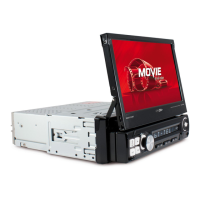
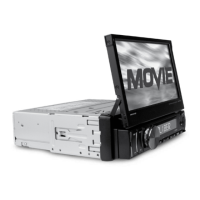
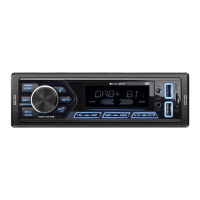
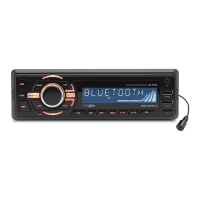
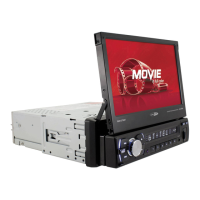
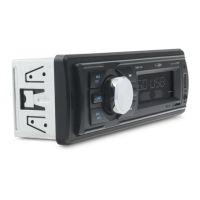
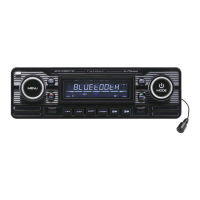
This document describes the Caliber RMD 575BT / RMN 575BT, a car multimedia system designed for in-dash installation. It functions as a car radio with multimedia playback capabilities, Bluetooth connectivity, and a touchscreen interface.
Function Description:
The Caliber RMD 575BT / RMN 575BT is a versatile car multimedia system that provides entertainment and connectivity features for your vehicle. It includes a radio tuner for FM and AM bands, allowing you to listen to your favorite stations. The device supports multimedia playback via USB, enabling you to enjoy music and videos from a USB drive. The touchscreen interface facilitates easy navigation and control of various functions.
Bluetooth connectivity is a key feature, allowing for hands-free calling and audio streaming from your smartphone. You can pair your phone, dial numbers, view call history, and play music wirelessly. The system also supports an auxiliary input (AUX IN) for connecting external audio/video devices, and it has RCA outputs for connecting to an amplifier or other audio components, including a subwoofer.
For enhanced safety, the unit includes a backup camera input, which automatically displays the camera feed when the car is in reverse. It also supports steering wheel control (optional), allowing you to manage the unit's functions without taking your hands off the wheel. The system offers various settings for customization, including general settings (power, video warning, GPS monitor, BT phone book, brightness, factory reset), time settings, sound settings (EQ, touch sound, back car vol, user def vol, GPS mix, report point remove mute, BT default vol button, BT call vol, def vol), GPS path settings, and wallpaper selection.
Important Technical Specifications:
- General:
- Operating Power: 12 Volts DC, Negative Ground
- Output Wiring: Designed for using four speakers only
- RCA line out: Low-level outputs - 1000MV
- Output Impedance: Compatible 4 to 8 Ohm Speakers
- Fuses: 10 amp
- Dimensions: 178mm(W) x 170mm(D) x 58mm (H)
- Weight: 2.0 Kg
- TFT/SYSTEM:
- Resolution: 800RGB(H) X 480(V)
- Brightness/Contrast: 300cd/m²/600
- Viewing angle: 70
- Response Time: Tr-2s/Tf-6s
- Dimension: 7.0"
- Aspect Ratio: 16:9
- FM/TUNER:
- Tuning Range (USA): 87.5 - 107.9MHz
- Tuning Range (Europe): 87.5 - 108 MHz
- FM Sensitivity: 12dBu
- Stereo Separation @ 1 Khz: 35dB
- AM/TUNER:
- Tuning Range (USA): 530 - 1710 KHz
- Tuning Range (Europe): 522 - 1620 KHz
- Am Sensitivity: 30dBu
Usage Features:
- Basic Operation:
- Turning the unit On / Off: Press the Power Button to turn the unit on. The opening screen of the unit will be showing on the TFT monitor. Press and hold the POWER button again to turn the unit off.
- Turning the TFT On / Off: During any play mode, press the Power Button once to turn the TFT screen off for screen saving and avoid distraction while driving. The sound will continue to play. Press the Power Button again to turn the TFT screen back on.
- HOME Button: In Radio and Aux modes, press the HOME button to go back to the directory page. In USB and SD modes, during music or video playback, press the HOME button once to go back to the directory page, in which you can choose the desired file by pressing and turning the volume knob. Press again the HOME button to go back to the home screen.
- Wall Paper Selection: Tap the Wall button on the right bottom corner of the OSD. You will enter the wall paper selection screen. Select the image by tapping on the image. The selected image will become the new wall paper on the OSD. You can put more images (BMP files: 720x480) in the map SD card (path: \data\wallpaper) for more selection.
- Day Light Saving: Tap the Day button on the OSD to increase brightness. Tap again to reduce brightness during night time. Tap again for black out the screen.
- Radio Operation:
- Choose Radio Band: Touch the AM button on screen to choose among the five radio bands - three FM Bands (FM1, FM2, and FM3) and two AM Bands (AM1, and AM2). Each of the five bands can store up to six preset stations, for a total of 30 preset memory stations.
- Radio Seek Function: In Radio Mode, touch and hold the seek button or the tune button to adjust the radio frequency automatically. Press the button once to adjust the radio frequency manually.
- Save Your Preset Stations: Press the preset button and then press the save button from P1 to P6 to save a preset station.
- Automatic Store/Preset Scan: While listening to the FM Radio, touch and hold the AMS Button. The receiver will automatically scan and save stations for all the 3 FM Bands, whichever band (FM1, 2 or 3) you are listening to. Touch the AMS button again to scan and listen to the stations you have saved. Repeat the same steps for AM Bands.
- Mute: Touch the mute button to mute the unit. Touch again to disable the mute.
- Mono/Stereo Reception Control: In FM radio mode, touch the ST button to select stereo or mono reception.
- Local/Distance Reception Control: In radio mode, touch the LOC button to select local or distance reception.
- RDS Control: AF, TA, PTY are the RDS functions. They are applicable to certain countries only. For countries when RDS is not available. The touch sensitivity of the button will be disabled.
- Returning to Main User Interface: Touch the back button or the home button to return to the main user interface.
- Bluetooth Operation:
- Pairing: At BT mode, search Bluetooth device by the phone and "RMN575BT Caliber" will appear in your phone. Input "0000" as password to establish connection.
- Dial Pad: Touch the dial pad to dial the number you would like to call. Touch the CALL (green) button to send the number.
- Contact: Press the CONTACT button to enter phone book function. Press the download button to download the phone list. Press the delete button to search the contact person. Press the delete button to delete the phone list.
- Call Record: Press the HISTORY button to enter the phone book page to view received, missed and dialed calls. More details in the next page.
- A2DP: Press the MUSIC button to enter the A2DP page to control playing music of your cellphone. More details in the next page.
- Reject Call: Press the REJECT (red) button to end the call or to reject an incoming call.
- Return to User Manual: Touch the back button or the home button to return to the main user interface.
- View Received Calls: Touch the RECEIVED CALLS button, the received calls will be displayed.
- View Missed Calls: Touch the MISSED CALLS button, the missed calls will be displayed.
- View Dialed Calls: Touch the DIALED CALLS button, the dialed calls will be displayed.
- Playing Music on your cellphone: After activating music player in the cellphone and it will play automatically, touch the play/pause button to play or pause the music. Touch the next/previous track buttons to select up or down one song in your song list.
- USB Operation:
- Advance / Go Back: Advance to the next track or go back to the previous track by pressing the forward or rewind buttons on the front panel or touch screen.
- Play/Pause: Press the play/pause button to pause the playback or resume.
- Fast Forward/Fast Rewind: Press and drag the proceeding bar during media playback. The unit will fast forward/rewind the song/video until you release.
- Directory page: Press the folder button during playback in order to see the full list of files along with file types. All the file names are displayed for your easy reference. Select the desired file types and file names by tapping on the screen.
- Aspect Ratio: During video playback, tap the screen in order to switch the aspect ratio of the video. On the menu you can select full screen, 16:9, and 4:3 accordingly. The viewing effect will depend on the video file so it may vary.
- Track Search: Press the GOTO button to search the desired track to play the Vedio. Press the ENTER button to confirm your selection.
- Repeat Function: Press the Repeat button to toggle between repeat chapter, repeat single, repeat all and repeat off.
- Subtitle Selection: Press the Sub-T button to choose the sub-title you want. The sub-title languages available differ from Disc to Disc. You can also use the setup menu to confirm. Refer to the packing of the Disc for details.
- Electronic Skip Protection: This unit is programmed with Electronic Shock Protection (ESP) so that the video will be protected against rough roads for 5 seconds.
- Returning to Main User Interface: Press the back button or the home button to return to the main user interface.
- Settings:
- General Setting: The general setting menu includes any key power, video warning, GPS monitor, BT phone book auto deleted, strong sort, brightness, Screen reguate, factory set, calibration, serial and version, GPS monitoring, language setting, reset factory.
- Time Setting: You can select Date, Time, Time mode and Time zone by tapping directly on the options. Tap the save button after the setting to take effect.
- EQ Setting: You may set EQ, touch sound, back car vol, user def vol, GPS mix, report point remove mute, BT default vol button, BT call vol, def vol under this setting.
- GPS Setting: Enter the GPS setting to define the link of the execution file of your GPS program. Consult the installer if you are not familiar with the setting. Tap OK after the full path is inserted. Now you can enter the Navigation mode in the OSD. Make sure you have inserted the GPS map card properly (the lower micro SD card slot of the front panel) before the settings.
- Wall Paper Selection: Tap the Wall button on the right bottom corner of the OSD. You will enter the wall paper selection screen. Select the image by tapping on the image. The selected image will become the new wall paper on the OSD. You can put more images (BMP files: 720x480) in the map SD card (path: \data\wallpaper) for more selection.
- Steering Wheel Control (Optional): Refer to the wiring diagram for connection. The brown wire (SWC 1) must be connected, then the white or grey (SWC 2A and 2B) will be connected depending on the total number of the wire from the steering wheel remote control of your vehicle. TAB STEERING WHEEL LOGO in the OSD. Press the setting button before the set up. Select from the 10 functions according to the number of available keys on the steering wheel of your vehicle. Press any key on your steering wheel, then tab the function key you would like to assign. The frequency of the function will be shown on the display. Repeat the step for other keys on the steering wheel. Tab the save button after your set up is complete and then you can operate the unit by your steering wheel.
- Other Operations:
- GPS Navigation: If GPS navigation is available with the system. Tap the GPS logo on the OSD to enter GPS navigation. Follow the on screen instruction to input destination and start navigation. The operation varies from software to software.
- AV Input: The AV Input Jack is a set of composite input on the rear of the unit. Press the Mode button to choose AUX. Connect any portable audio/video device such as a DVD player. Use the volume control to adjust volume.
- Backup Camera Input: The backup camera input is on the back of the unit. (refer to wiring diagram). This input (in yellow) is for connecting backup camera for parking. You must connect the VCC wire (in pink color) to the reverse gear switch in order to activate this video input mode when you switch the reverse gear of your car. Please refer to the wiring diagram for more details.
- Video Output: The Video Output Jack is on the back of the unit. (Refer to Wiring Diagram) This output (in yellow) is for connecting monitor(s). You must connect a monitor for car in order to play this unit in another monitor. Consult your dealer for any kinds of monitors that are suitable to use in car. Press the 'BND/SYS' button to choose between PAL and NTSC mode.
- RCA Outputs: The RCA Output Jack is on the back of the unit. (Refer to Wiring Diagram) This output is for connecting amplifier equalizer, or other audio component that requires a pre-amp out connection. (Red=Right, White=Left) Follow the manufactures instructions for the audio component that you are connecting.
- Subwoofer Output: The Subwoofer Output Jack is on the output wire harness. (Refer to Wiring Diagram) This output is for connecting up to 2 subwoofer amplifier to the Subwoofer Output Jack to drive a subwoofer. Follow the amplifier's installation instructions. Press and hold the BND/NP/SUB button to activate or deactivate this function.
- Infra Red Remote Control: The unit comes with an infrared remote control for convenient operation from a distance. It includes buttons for power on/off, mode select, play/pause, mute, band select, cursor control, track/chapter selection, setup menu navigation, playback control (stop, repeat, random), program tracks, fast forward/backward, PBC play mode, statistical disc information display, number select, subtitle language switching, show all track's title, display setup menu, play DVD in slow advance, watch DVD content from different angle, zoom in/out, adjust volume, sound select, change audio output method, and track time search.
Maintenance Features:
The manual provides a simple troubleshooting guide to address common issues:
- No Power: Check whether the fuse is blown, replace with fuse of proper value if necessary.
- Unit stops responding or shows error in display: Press the RESET button.
- Unable to receive radio stations: Check whether the antenna is inserted or the antenna is properly connected; if not, insert the antenna or connect it properly.
- Poor effect on receiving a station:
- Antenna may not be of the proper length. Make sure the antenna is fully extended. If broken, replace the antenna with a new one.
- The broadcasting signal is weak.
- The antenna is poorly grounded; check and make sure the antenna is properly grounded at its mounting location.
- Discs cannot be loaded: Disc already loaded in the mechanism.
- No pictures:
- The video line from main unit to monitor is not connected properly. (for external monitor)
- The purple brake wire is not grounded or connected to brake properly.
- The picture appears grainy:
- Check the color system. (PAL or NTSC)
- The disc is dirty or damaged.
The installation section emphasizes the importance of disconnecting the negative battery terminal before starting installation and marking the polarity of existing speaker wires. It also provides detailed instructions for removing the old unit and installing the new one, including wiring diagrams and tools required. Proper grounding of the unit and speakers is highlighted for optimal performance and to avoid electrical noise.

 Need help?
 General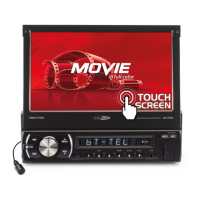

 To Next Page