EasyManua.ls Logo

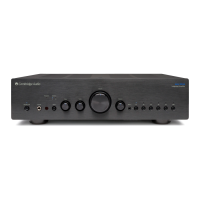
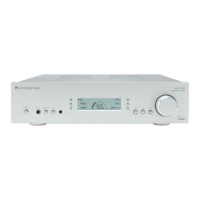
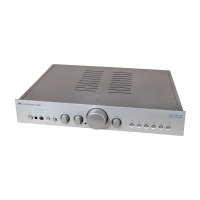
Cambridge Audio azur 840A - User Manual

Cambridge Audio azur 840A
26 pages
Print Icon
To Next Page IconTo Next Page
Loading...
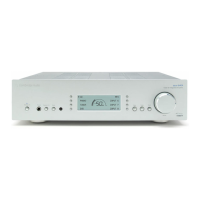
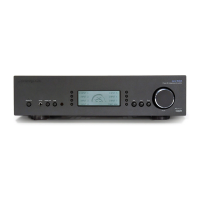
azur 840A
Class XD Integrated Amplifier
User’s Manual

Other manuals for Cambridge Audio azur 840A

Question and Answer IconNeed help?

Do you have a question about the Cambridge Audio azur 840A and is the answer not in the manual?

Summary

Introduction

Safety Precautions

Checking the Power Supply Rating

Verify the unit's voltage rating before connecting to mains power.

Plug Fitting Instructions (UK Only)

Guidance on correctly fitting or changing the mains plug.

Important Safety Instructions

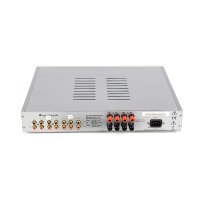
Rear Panel Connections

Power On;Off Button

The main power switch for turning the unit on and off.

AC Power Socket

Connection point for the amplifier's mains power cable.

Loudspeaker Terminals

Connects the amplifier's output to loudspeakers.

IR Emitter Input

Receives modulated IR commands for multi-room systems.

Control Bus Ports

Allows un-modulated commands for multi-room or CI systems.

Rear Panel Connections (Continued)

RS232 C Serial Port

Serial port for custom installation control and software updates.

Multi-Room Outputs

Connects multi-room keypads and speakers.

Balanced Audio Input

High-quality balanced audio input using XLR connectors.

Preamp Out Connectors

Outputs for connecting to external power amplifiers or subwoofers.

Tape Input;Output

Connects to tape decks or recorders for recording and monitoring.

Analog Input Ports

Analog line-level inputs for various audio sources.

Front Panel Controls

Standby;On Button

Switches the unit between Standby and On modes.

Headphones Jack

Connects stereo headphones for private listening.

Speaker A;B Selector

Allows selection of connected speaker sets (A, B, or A+B).

Front Panel Controls (Continued)

Input Select Buttons

Choose the audio source to listen to.

Volume Control Knob

Adjusts the audio output level for speakers and headphones.

Bass and Treble Controls

Adjusts the tonal balance of the sound output.

Direct Mode Button

Bypasses tone controls for a purer audio signal path.

Other Front Panel Controls

Includes Mode, Infrared Sensor, and Display.

Remote Control Functions

Remote Volume Adjustment

Controls the amplifier's audio output level remotely.

Remote Mute Function

Mutes or unmutes the audio output remotely.

Core Remote Operations

Includes Standby, Input Selection, Mode, and Speaker A/B.

Remote Display Brightness

Adjusts the front panel display backlight remotely.

Connections Overview

Basic Connection Diagram

Illustrates the fundamental setup with a CD player and speakers.

Tape Recorder Connection

How to connect a tape deck for recording and monitoring.

Connection Options

Speaker B System Setup

Connecting a second set of speakers for multi-room audio.

Preamp Out Connectors

Linking to external amplifiers or active subwoofers.

Advanced Audio Connections

Balanced Audio Setup

Connecting sources with balanced outputs, e.g., Azur 840C.

Operating Instructions

Volume Adjustment

How to control the listening volume.

Balance Adjustment

Setting the left-right audio balance.

Tone Control Operation

Using Bass and Treble controls for sound shaping.

Speaker Set Selection

Choosing which speaker set(s) to activate.

Amplifier Setup and Configuration

Customizing Input Names

Renaming inputs to match connected source components.

System Configure Menu Access

How to enter and navigate the amplifier's settings menu.

Protection Feature Configuration

Enabling/disabling Clip and Speaker Short detectors.

Front Panel Display Settings

Adjusting LCD brightness and display modes.

Volume Ramp Feature

Configuring automatic volume changes on standby/on.

Advanced Amplifier Settings

Volume Display Format

Choosing between dB or arbitrary units for volume indication.

Input Gain Level Adjustment

Matching loudness levels between different sources.

Fixed Level Input Configuration

Setting specific inputs to a fixed volume level.

Source and System Control

Setting Fixed Volume Sources

Assigning a constant volume level to specific inputs.

Automatic Power Control Setup

Linking power states of multiple Cambridge Audio units.

Multi-Room Audio System

Custom Installation Integration

Control Bus System Interface

Using the Control Bus for system commands.

IR Emitter and Receiver Input

Integrating with IR-based control systems.

RS232 Serial Control

Controlling the amplifier via RS232 serial commands.

Remote Control Code Teaching

Teaching IR commands to custom installation systems.

CAP5 Protection System

DC Detection Protection

Protects speakers from DC voltage faults.

Over Temperature Protection

Prevents damage from excessive internal heat.

Overvoltage;Overcurrent Protection

Safeguards output transistors from electrical stress.

CAP5 Protection System (Continued)

Short Circuit Detection

Detects and prevents damage from speaker terminal shorts.

Intelligent Clipping Detection

Prevents amplifier clipping and protects speakers.

Troubleshooting Common Issues

Audio and Power Troubleshooting

Diagnosing and resolving power and audio signal problems.

Tape Recording Troubleshooting

Troubleshooting tape deck connectivity and recording.

Stereo Imaging and Display Alerts

Resolving weak stereo imaging and flashing display alerts.

Technical Specifications

Limited Warranty Information

Summary

Introduction

Safety Precautions

Checking the Power Supply Rating

Verify the unit's voltage rating before connecting to mains power.

Plug Fitting Instructions (UK Only)

Guidance on correctly fitting or changing the mains plug.

Important Safety Instructions

Rear Panel Connections

Power On;Off Button

The main power switch for turning the unit on and off.

AC Power Socket

Connection point for the amplifier's mains power cable.

Loudspeaker Terminals

Connects the amplifier's output to loudspeakers.

IR Emitter Input

Receives modulated IR commands for multi-room systems.

Control Bus Ports

Allows un-modulated commands for multi-room or CI systems.

Rear Panel Connections (Continued)

RS232 C Serial Port

Serial port for custom installation control and software updates.

Multi-Room Outputs

Connects multi-room keypads and speakers.

Balanced Audio Input

High-quality balanced audio input using XLR connectors.

Preamp Out Connectors

Outputs for connecting to external power amplifiers or subwoofers.

Tape Input;Output

Connects to tape decks or recorders for recording and monitoring.

Analog Input Ports

Analog line-level inputs for various audio sources.

Front Panel Controls

Standby;On Button

Switches the unit between Standby and On modes.

Headphones Jack

Connects stereo headphones for private listening.

Speaker A;B Selector

Allows selection of connected speaker sets (A, B, or A+B).

Front Panel Controls (Continued)

Input Select Buttons

Choose the audio source to listen to.

Volume Control Knob

Adjusts the audio output level for speakers and headphones.

Bass and Treble Controls

Adjusts the tonal balance of the sound output.

Direct Mode Button

Bypasses tone controls for a purer audio signal path.

Other Front Panel Controls

Includes Mode, Infrared Sensor, and Display.

Remote Control Functions

Remote Volume Adjustment

Controls the amplifier's audio output level remotely.

Remote Mute Function

Mutes or unmutes the audio output remotely.

Core Remote Operations

Includes Standby, Input Selection, Mode, and Speaker A/B.

Remote Display Brightness

Adjusts the front panel display backlight remotely.

Connections Overview

Basic Connection Diagram

Illustrates the fundamental setup with a CD player and speakers.

Tape Recorder Connection

How to connect a tape deck for recording and monitoring.

Connection Options

Speaker B System Setup

Connecting a second set of speakers for multi-room audio.

Preamp Out Connectors

Linking to external amplifiers or active subwoofers.

Advanced Audio Connections

Balanced Audio Setup

Connecting sources with balanced outputs, e.g., Azur 840C.

Operating Instructions

Volume Adjustment

How to control the listening volume.

Balance Adjustment

Setting the left-right audio balance.

Tone Control Operation

Using Bass and Treble controls for sound shaping.

Speaker Set Selection

Choosing which speaker set(s) to activate.

Amplifier Setup and Configuration

Customizing Input Names

Renaming inputs to match connected source components.

System Configure Menu Access

How to enter and navigate the amplifier's settings menu.

Protection Feature Configuration

Enabling/disabling Clip and Speaker Short detectors.

Front Panel Display Settings

Adjusting LCD brightness and display modes.

Volume Ramp Feature

Configuring automatic volume changes on standby/on.

Advanced Amplifier Settings

Volume Display Format

Choosing between dB or arbitrary units for volume indication.

Input Gain Level Adjustment

Matching loudness levels between different sources.

Fixed Level Input Configuration

Setting specific inputs to a fixed volume level.

Source and System Control

Setting Fixed Volume Sources

Assigning a constant volume level to specific inputs.

Automatic Power Control Setup

Linking power states of multiple Cambridge Audio units.

Multi-Room Audio System

Custom Installation Integration

Control Bus System Interface

Using the Control Bus for system commands.

IR Emitter and Receiver Input

Integrating with IR-based control systems.

RS232 Serial Control

Controlling the amplifier via RS232 serial commands.

Remote Control Code Teaching

Teaching IR commands to custom installation systems.

CAP5 Protection System

DC Detection Protection

Protects speakers from DC voltage faults.

Over Temperature Protection

Prevents damage from excessive internal heat.

Overvoltage;Overcurrent Protection

Safeguards output transistors from electrical stress.

CAP5 Protection System (Continued)

Short Circuit Detection

Detects and prevents damage from speaker terminal shorts.

Intelligent Clipping Detection

Prevents amplifier clipping and protects speakers.

Troubleshooting Common Issues

Audio and Power Troubleshooting

Diagnosing and resolving power and audio signal problems.

Tape Recording Troubleshooting

Troubleshooting tape deck connectivity and recording.

Stereo Imaging and Display Alerts

Resolving weak stereo imaging and flashing display alerts.

Technical Specifications

Limited Warranty Information

Cambridge Audio azur 840A Specifications

General IconGeneral
Signal to Noise Ratio> 93dB (unweighted)
Input Impedance47k Ohms
Power Output120W RMS per channel (8 Ohms), 200W RMS per channel (4 Ohms)
Total Harmonic Distortion<0.001% at 1kHz
Frequency Response5Hz - 50kHz (±1dB)
Power Consumption750W max
Damping Factor>100
Weight15kg (33lbs)

Related product manuals