8
Enter
Filter
Digital
Inputs
i
Amp / AVR
VolVol
Source
Remote control
Important!
The default mode for the remote allows combined control of the
6WUHDP0DJLFDQG&DPEULGJH$XGLR$]XUVWHUHRDPSOLÀHUV
The remote can be set to control the Cambridge Audio Azur
DPSOLÀHU RU &DPEULGJH $XGLR $9 5HFHLYHUV LQVWHDG 6HH ODWHU
section on this page.
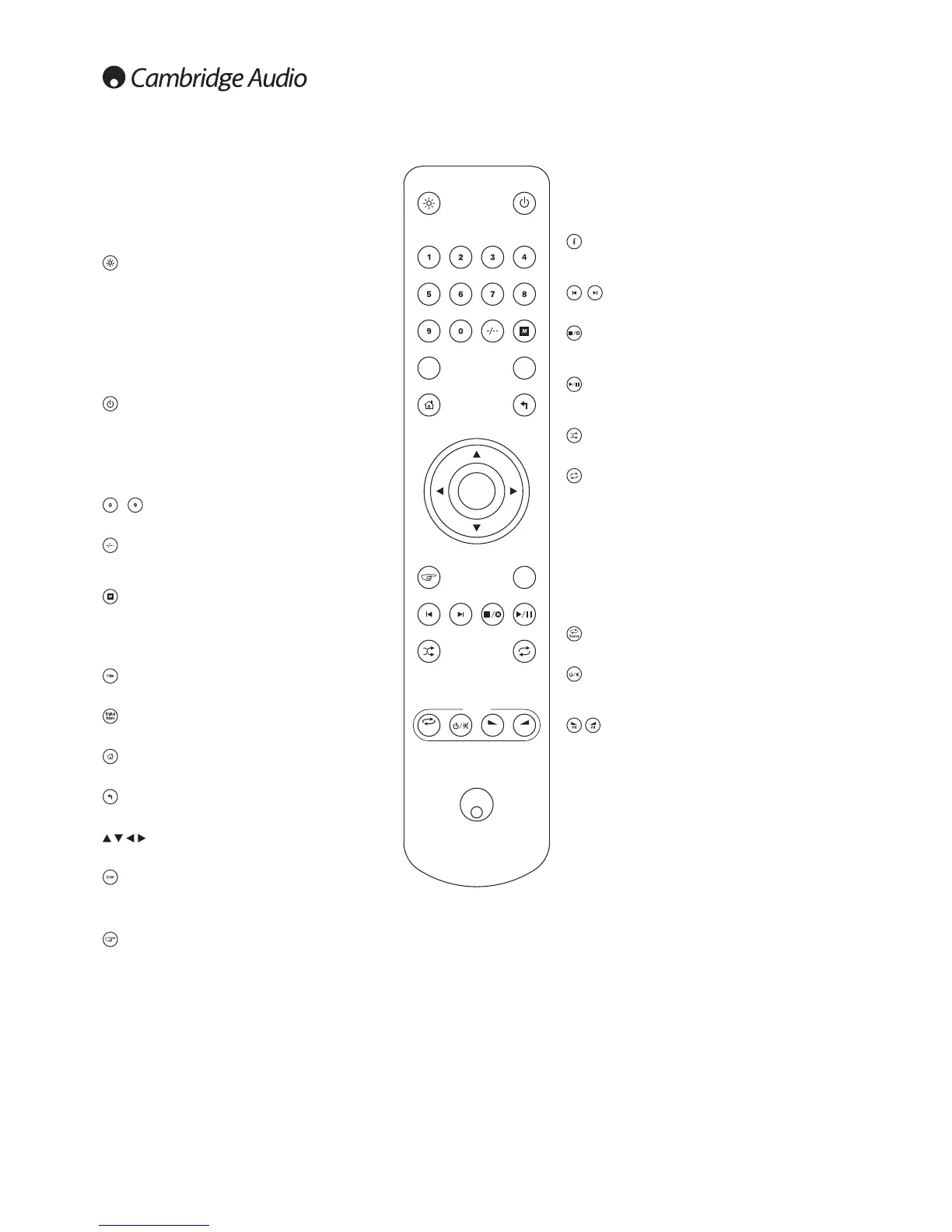
Display
Alters the brightness of the Stream Magic 6 display backlight.
There are three brightness levels; off, dim, bright and an
option to switch-off the backlight.
When the display is set to OFF, nothing will be displayed
onscreen until a selection is made via the front panel or
remote control. The display will then re-activate allowing you
to browse the menu and make your selection. The display will
then automatically switch back off after a few seconds if no
further selections are made.
6WDQGE\2Q
Switches the Stream Magic 6 between On and low power eco-
friendly Standby mode. If enabled, you can also switch the unit
into Idle mode.
1RWH 7KH 6WUHDP 0DJLF WDNHV DSSUR[LPDWHO\ VHFRQGV WR
FRPHRXWRI6WDQGE\GXULQJWKLVWLPHWKHIURQWSDQHO6WDQGE\2Q
/('ZLOOÁDVKEXWQRWKLQJZLOOEHVKRZQRQWKHGLVSOD\
numeric buttons
Press to recall stored presets.
Numerical select
To recall a preset number greater than ten, press -/-- followed by
the required preset number.
0HPRU\
Press to access the Memory features for preset recall and storage.
The Stream Magic 6 can store presets which can be Internet Radio
stations, Streams from Streaming Services or your own choice of
Internet Radio URL. See later section.
Filter
3UHVVWRWRJJOHWKURXJKWKHWKUHHGLJLWDOÀOWHURSWLRQV
Digital Inputs
Press to select the digital input source.
Home
Go directly to the top Home Menu.
5HWXUQ
Press to return to the previous menu.
1DYLJDWLRQ
Press to navigate around the main menus.
Enter
Press to accept the item/function highlighted in the display menu.
In tuner mode, press and hold to store the current station in the
preset bank.
5HSO\
This is the reply/interactive button. Press when listening to an
Internet Radio station or Streaming Service that has some form of
interaction with the user. This function will bring up an interactive
menu (where available). This feature is commonly used to allow
indication that you like or don’t like the current stream so the
service can tailor the music served to your personal taste.
For Media Play back (UPnP or Local) this button will toggle between
the 'Now Playing' display and the 'Queue' display.
LQIR
Pressing this button toggles between Menu position and Now
Playing screen.
Skip
Press once to skip forwards or backwards one track.
6WRS'HOHWH
Press once to stop media playback. Also used to delete items
where appropriate (press and hold).
3OD\3DXVH
Press once to start media playback. Press and hold to pause
media playback.
6KXIÁH
3UHVVWRWXUQWKHUDQGRPVKXIÁHSOD\EDFNIXQFWLRQRQDQGRII
5HSHDW
Press to turn repeat playback function (media play back only) on
and off.
The following buttons control the function
RI &DPEULGJH $XGLR $]XU $PSOLÀHUV
5HFHLYHUV
1RWH%\GHIDXOWWKHVHEXWWRQVZLOOFRQWURODQ$]XUVWHUHRDPSOLÀHU
7R FKDQJH WKH IXQFWLRQV RI WKHVH EXWWRQV IURP $PSOLÀHU WR $9
Receiver, press and hold down the 'Source' button whilst inserting
the batteries into the back of the remote.
Source
Scrolls through the available sources.
6WDQGE\0XWH
3UHVVWRVZLWFKWKH$PSOLÀHU5HFHLYHUEHWZHHQ2QDQGORZSRZHU
eco-friendly Standby mode. Press and hold to mute the audio.
Volume
Increases or decreases the volume.


 To Next Page