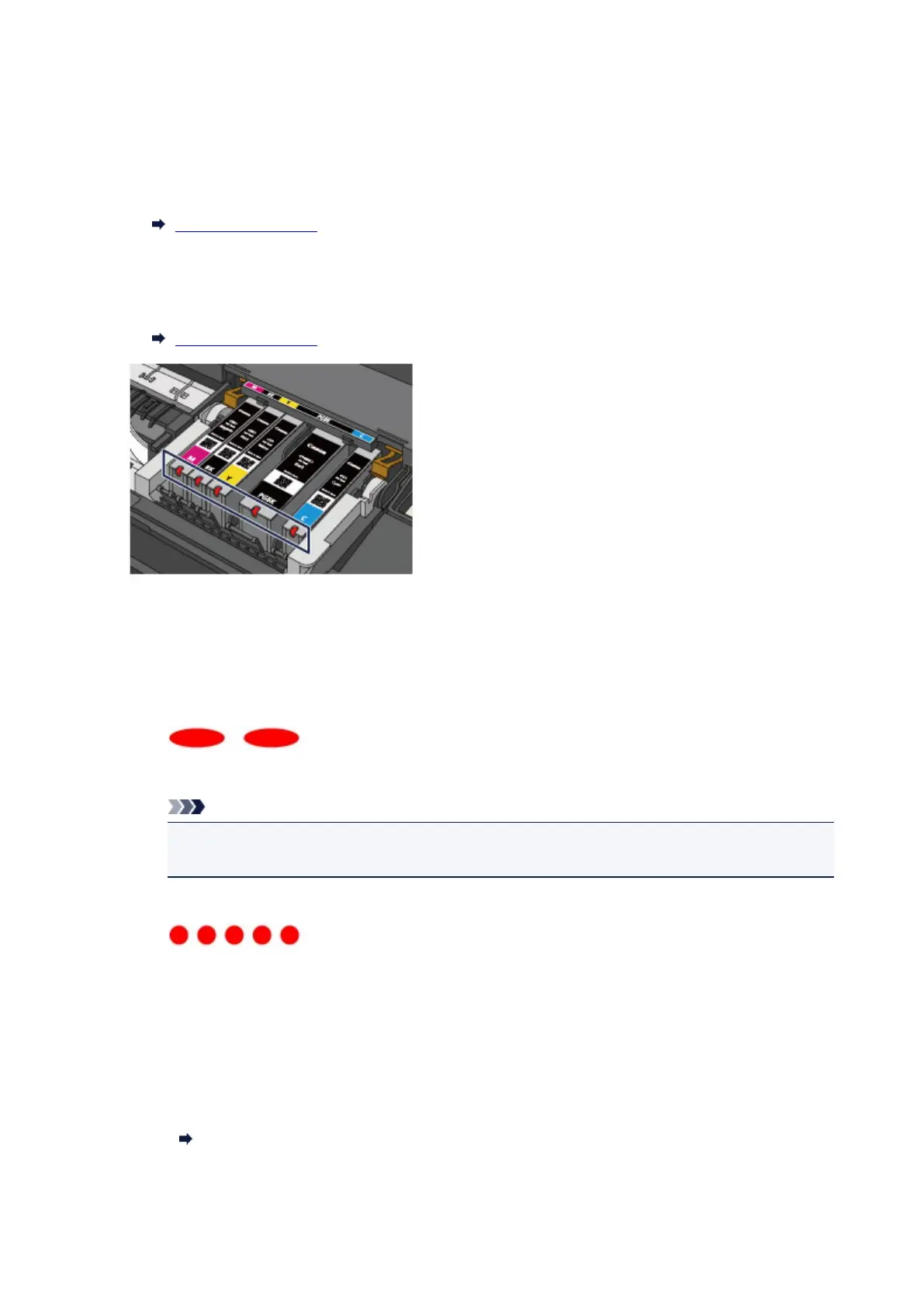
Checking the Ink Status with the Ink Lamps
1. Make sure that the power is turned on, and open the front cover gently.
2. Open the top cover.
Replacing Procedure
3. Check the ink lamp.
Close the top cover after checking the ink lamp status.
Replacing Procedure
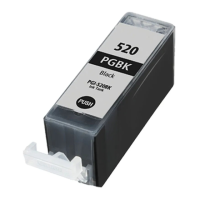
• The ink lamp is on.
The ink tank is correctly installed.
• The ink lamp is flashing.
Flashing slowly (at around 3-second intervals)
...... Repeats
Ink tank is running low. Prepare a new ink tank.
Note
•
When printing on A3 size or larger paper, ink may run out during printing. This may cause
blurred print results or horizontal white streaks.
Flashing fast (at around 1-second intervals)
...... Repeats
- The ink tank is installed in the wrong position.
Or
- The ink has run out.
Make sure that the ink tank is installed in the correct position as indicated by the label on the print
head holder. If the position is correct but the lamp flashes, there has been an error and the printer
cannot print. Check the Alarm lamp on the printer.
If an Error Occurs
•
The ink lamp is off.
The ink tank is not installed properly or the function for detecting the remaining ink level is
disabled. If the ink tank is not firmly in place, make sure that the orange protective cap has been
76
This manual downloaded from http://www.manualowl.com





 To Next Page