EasyManua.ls Logo

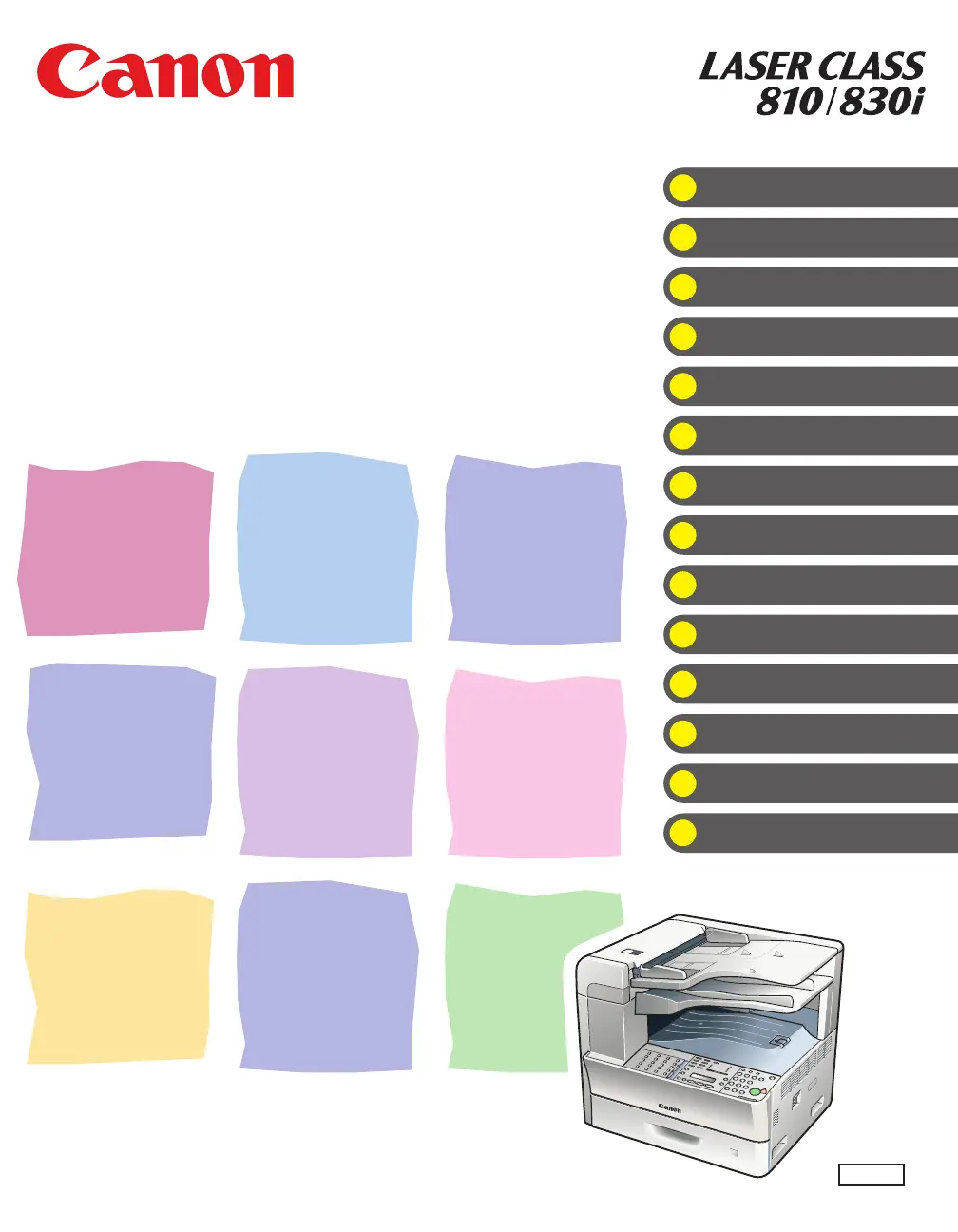
Canon Laser Class 810 - User Manual

Canon Laser Class 810
412 pages
Print Icon
To Next Page IconTo Next Page
Loading...
ENG
Basic Operation Guide
Before Using the Machine
Document and Paper
Copying
Sending Documents
Receiving Documents
Printing
PC Faxing
Remote UI
System Manager Settings
Troubleshooting
Machine Settings
Appendix
Maintenance
What Can I Do with This Machine?
Please read this guide before operating this product.
After you finish reading this guide, store it in a safe place for future reference.

Table of Contents

Other manuals for Canon Laser Class 810

Questions and Answers

  • S
    Stacey TurnerAug 7, 2025
    What to do if my Canon Laser Class 810 displays , , , or ?
    • D
      Dawn WilliamsAug 7, 2025
      If you see , , , or on the Canon Printer's LCD, first remove any jammed paper from the machine. Check the paper cassette or multi-purpose tray for jams as well. Before loading paper, fan and tap the paper stack on a flat surface. Ensure the paper meets the printer's requirements. Finally, clear any paper scraps from inside the machine.
  • A
    Angelica JonesAug 11, 2025
    What to do if my Canon Laser Class 810 Printer displays ?
    • V
      vdavisAug 11, 2025
      If appears on the Canon Printer's LCD, load the correct size paper or change the paper size in or of the menu.
  • T
    travishuffmanAug 15, 2025
    What to do if my Canon Laser Class 810 displays ?
    • J
      James GarciaAug 15, 2025
      If appears on the Canon Printer's LCD, remove any jammed paper from inside the machine first, then from the paper cassette if necessary. Even the edge of the paper stack by a flat surface before loading it. Check that the paper you are using meets the requirements for use. Also, make sure you have removed any scraps of paper from inside the machine.
  • T
    Todd CookAug 20, 2025
    How to fix a Canon Laser Class 810 Printer when nothing appears on the LCD?
    • A
      athomasAug 20, 2025
      If the LCD is blank, ensure the power cord is securely connected to both the Canon printer and the wall outlet. Then, turn on the main power switch. If the printer is in Sleep mode, press the [Energy Saver] button on the operation panel.
  • S
    Stacy BeanAug 25, 2025
    How to fix the Error indicator flashing on a Canon Printer?
    • D
      dhartAug 25, 2025
      If the Error indicator on your Canon printer is flashing, try these steps: First, clear any paper jams. Load paper into the paper cassette or multi-purpose tray. If the problem persists, turn off the main power switch, wait for more than 10 seconds, and then turn it back on.
  • D
    Dylan MaxwellAug 28, 2025
    Why can't my Canon Laser Class 810 Printer send documents to email, I-fax, or file server?
    • E
      Edward CarterAug 28, 2025
      If your Canon printer cannot send a document to an e-mail address, I-fax address, or file server, wait a while after turning on the main power switch before attempting to send. Ensure the e-mail address you entered, or the e-mail or file server address registered in the Address Book is correct. Check the SMTP Server and DNS Server settings. Also, verify the user and password settings, and send the document again.
  • E
    Eric BarnettSep 1, 2025
    How to enable two-sided printing on my Canon Printer for received documents?
    • R
      Rodney PerrySep 1, 2025
      To print received documents on both sides of the paper with your Canon printer, make sure that is set to .

Canon Laser Class 810 Specifications

General IconGeneral
Print Resolution600 x 600 dpi
Printing TechnologyLaser
Monthly Duty Cycle5, 000 pages
Weight6.8 kg
Media TypeEnvelopes, plain paper
Model810
Supported Operating SystemsWindows
Weight (kg)6.8

Related product manuals