System Manager Settings
9-2
Specifying the System Manager Settings
You can set an ID and a password for the System Manager. Once the System Manager
ID/password is set, restrictions can be placed on storing or changing the System
Settings.
When you use Department ID Management, you need to set both the System Manager ID and password
to restrict the access to the <SYSTEM SETTINGS> menu from the operation panel, or using the Remote UI.
Otherwise, all users will be considered as System Manager, and anyone can access the <SYSTEM SETTINGS>
menu from the operation panel, or use the Remote UI without restriction.
You can enter a maximum of 32 characters for the System Manager’s name.
The maximum number of digits that you can store for the System Manager ID and System Password is seven.
If you enter fewer than seven digits for either setting, the machine stores them with leading zeros.
Example: If <321> is entered, <0000321> is stored.
You cannot store a System Manager ID with only zeros as the number, such as <0000000>. If you enter a
number that begins with zeros, the leading zeros are ignored.
Example: If <02> or <002> is entered, <0000002> is stored.
To delete information that has been entered, press and hold down [Clear]
enter the correct number.
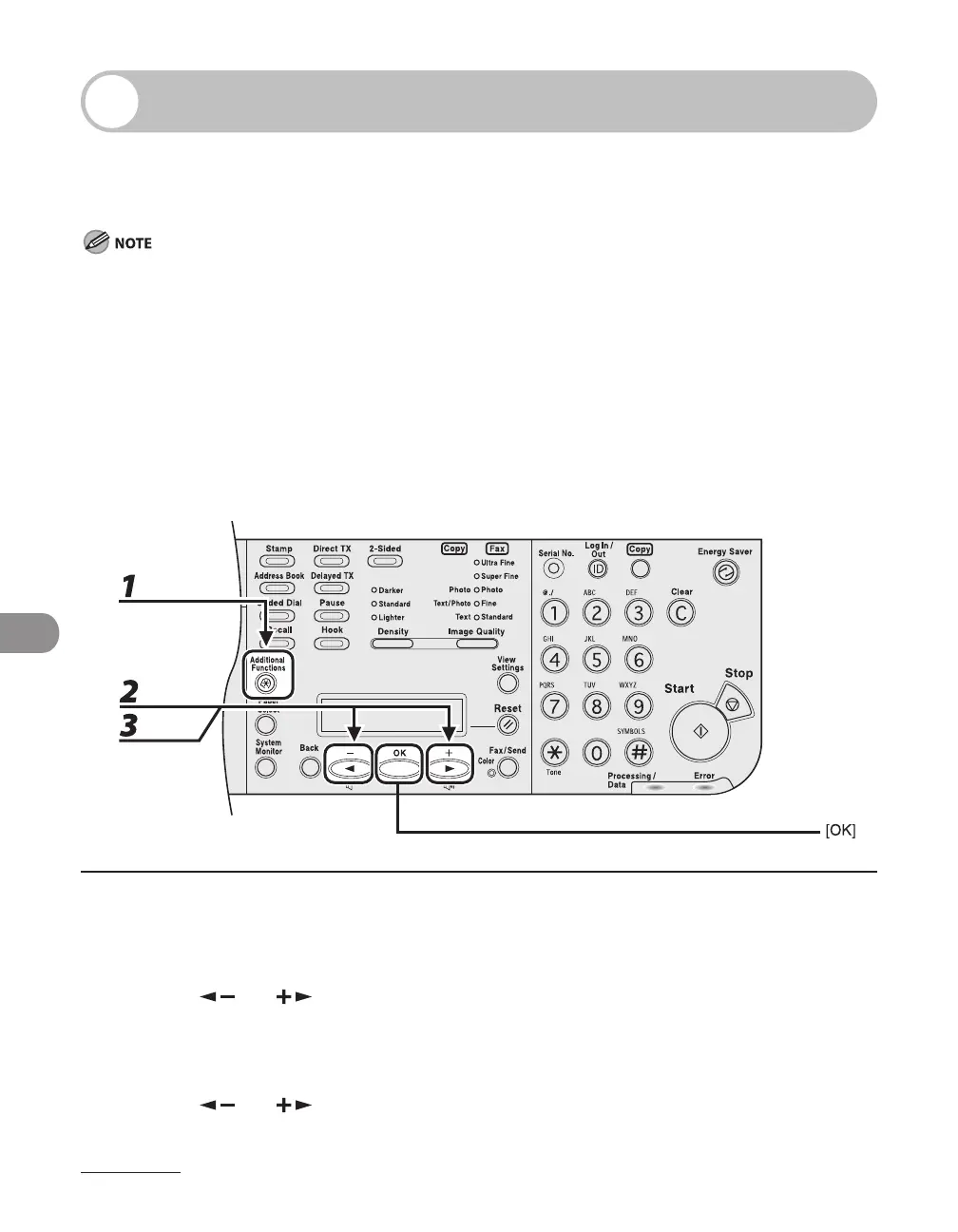
1 Press [Additional Functions].
2 Press [ ] or [ ] to select <SYSTEM SETTINGS>, then press [OK].
If the System Manager ID and System Password have been set, enter the System Manager ID and System
Password using the numeric keys, then press [Log In/Out (ID)].
3 Press [ ] or [ ] to select <SYS. MANAGER INFO>, then press [OK].
–
–
–
–
–





 To Next Page