Troubleshooting
11-4
Paper Jams
When <PAPER JAM> appears on the LCD
display, remove jammed paper from inside
the machine first, then from the paper
cassette if necessary. Check the following if
you experience repeated paper jams:
Even the edge of the paper stack by a flat
surface before loading it in the machine.
Check that the paper you are using meets
the requirements for use.
Make sure you have removed any scraps
of paper from inside the machine.
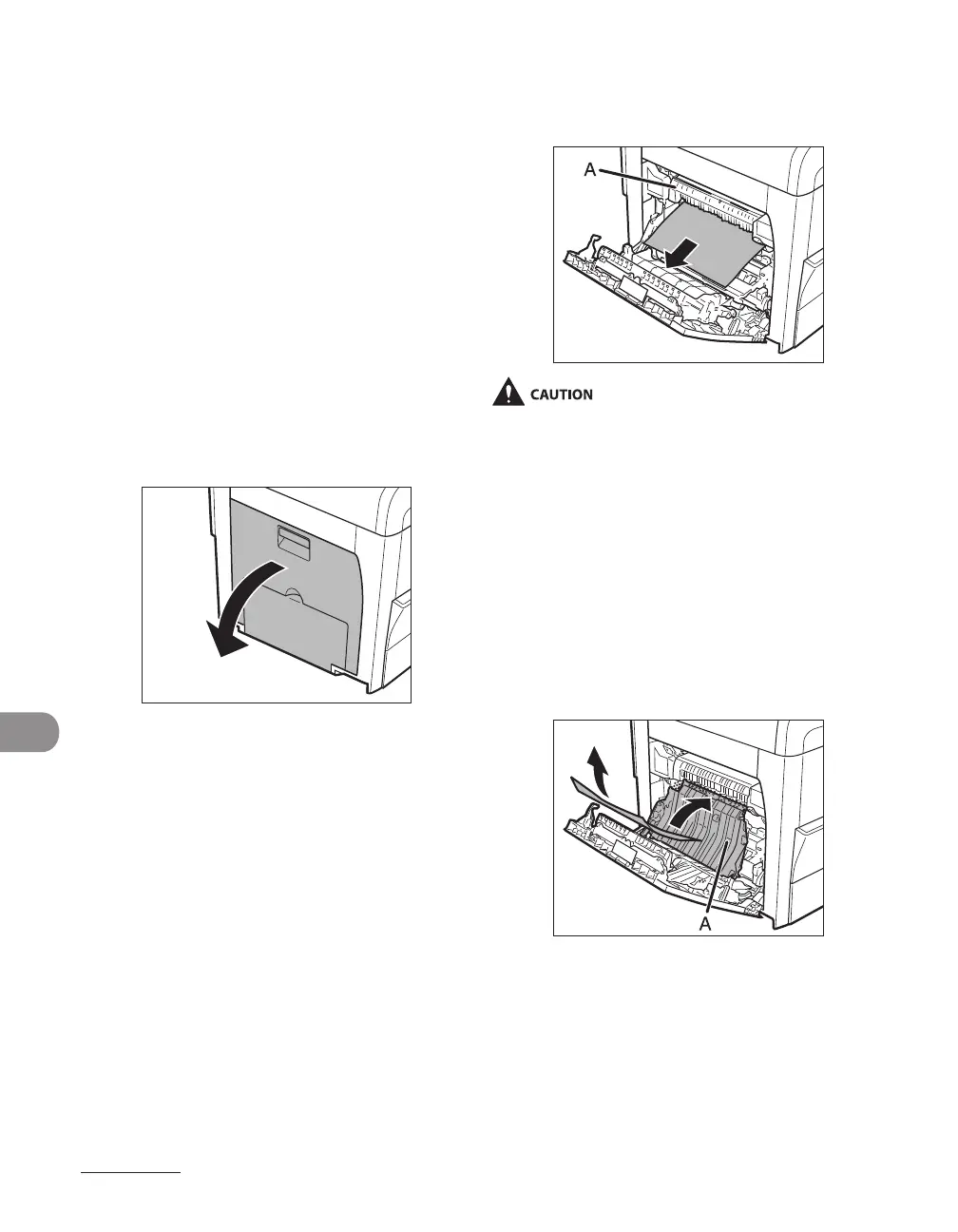
1 Open the left cover.
–
–
–
2 Carefully pull the jammed paper
out of the machine.
Do not touch the fixing assembly (A) as it
becomes very hot during use.
If you tear the paper, remove any torn
pieces to avoid further jams.
If loose toner comes into contact with your
skin or clothing, wash with cold water.
Warm water will set the toner.
3 Tilt the 2-sided transport guide (A)
toward the machine, then remove
the jammed paper (Only for 2-
sided copying).
–
–
–





 To Next Page