Document and Paper
2-12
Setting Paper Size and Type
The default settings are <LTR> and <PLAIN PAPER>. When you place other size and/or
types of paper, follow this procedure to change the settings.
The procedure is same for paper cassette and multi-purpose tray except for selecting
the paper cassette or multi-purpose tray in step 3 and 6.
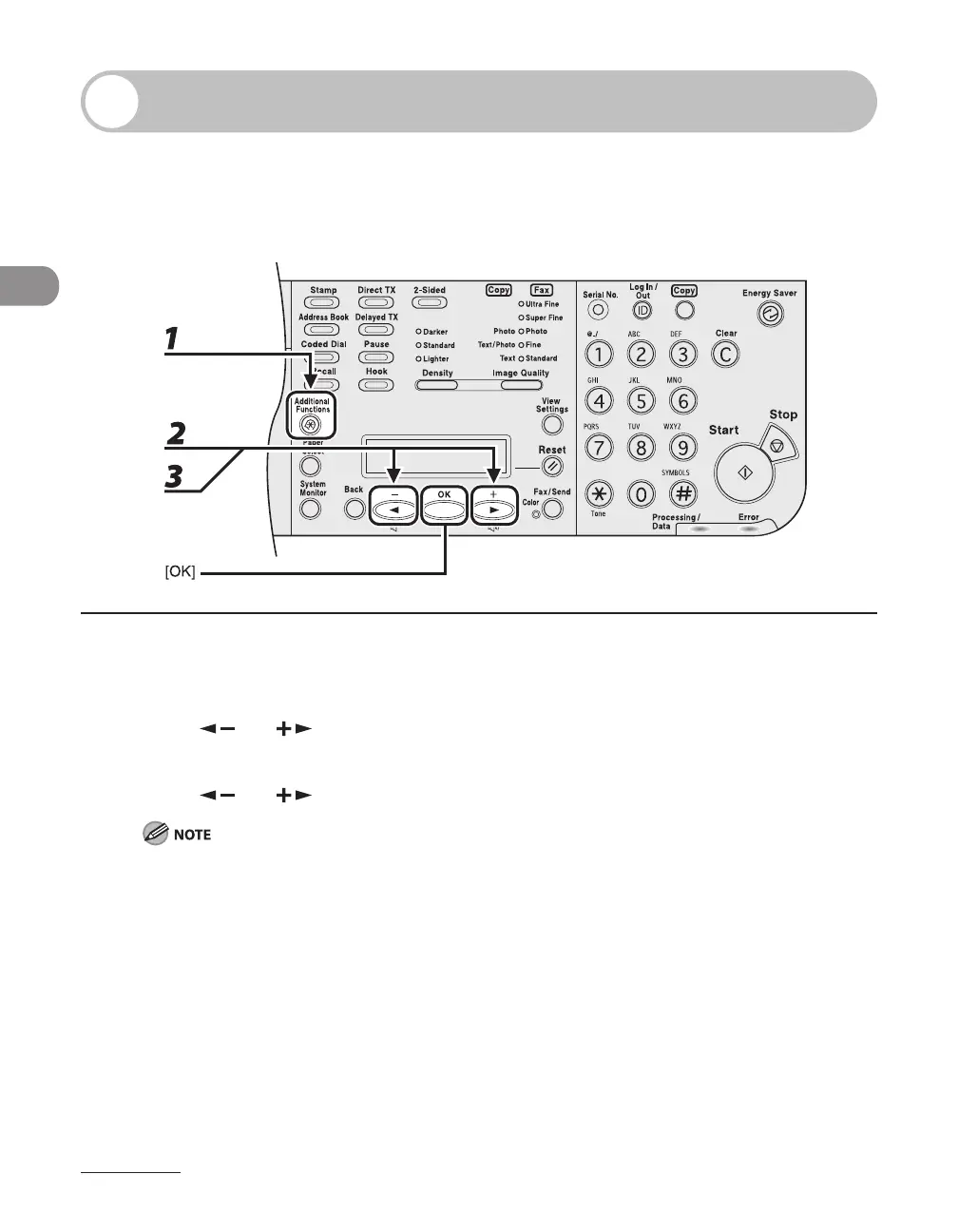
1 Press [Additional Functions].
2 Press [ ] or [ ] to select <PAPER SETTINGS>, then press [OK].
3 Press [ ] or [ ] to select <CASSETTE 1> or <MP TRAY>, then press [OK].
If an optional paper cassette is attached, you can also select <CASETTE2>.





 To Next Page