2-13
Document and Paper
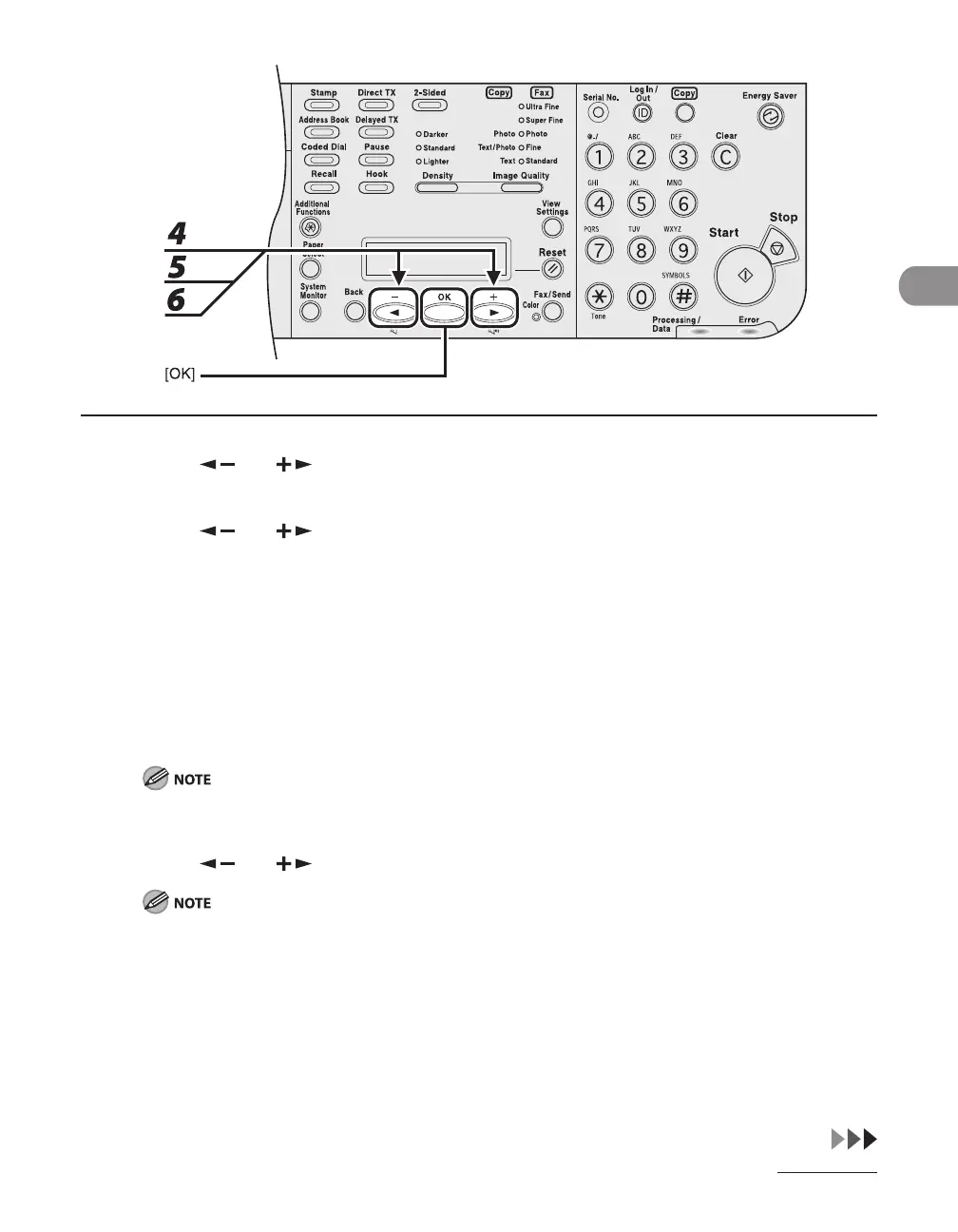
4 Press [ ] or [ ] to select <PAPER SIZE>, then press [OK].
5 Press [ ] or [ ] to select the paper size, then press [OK].
You can select from the following paper sizes:
If you select <CASETTE 1> or <CASETTE 2> in step3:
<LTR>, <LGL>, <A4>, <OFICIO>, <BRAZIL-OFICIO>, <MEXICO-OFICIO>, <FLSP>
If you select <MP TRAY> in step3:
<LTR>, <LGL>, <A4>, <B5>, <A5R>, <STMTR>, <EXECUTIV>, <COM10>, <MONARCH>, <DL>, <ISO-C5>,
<ISO-B5>, <OFICIO>, <BRAZIL-OFICIO>, <MEXICO-OFICIO>, <FOLIO>, <G-LTR>, <G-LGL>, <FLSP>,
<CUSTOM SIZE>*
* When selecting this size, enter the height, and press [OK].
Enter the width, and press [OK].
The paper sizes available will vary depending on the country where the unit was purchased.
6 Press [ ] or [ ] to select <SELECT PAPER TYPE>, then press [OK].
If you have selected <EXECUTIV>, <COM10>, <MONARCH>, <DL> or <ISO-C5> for the paper size in step
5, <SELECT PAPER TYPE> is not displayed. Skip to step 8.





 To Next Page