4-5
Sending Documents
Scan Settings
You can adjust the image quality (Fax) and density of the document you send.
The higher image quality you set, the better the output will be, but the longer the
transmission will take.
When you send e-mail, I-fax or send documents to a file server, you can optionally set
the file format, if multiple images are sent as separate files or a single file, resolution,
and original type according to the type of document you are sending (LASER CLASS
830i Only). (See “Send Settings (E-Mail/I-Fax/File Server) (LASER CLASS 830i Only) ,” on
p.
4-8.)
Image Quality (Fax)
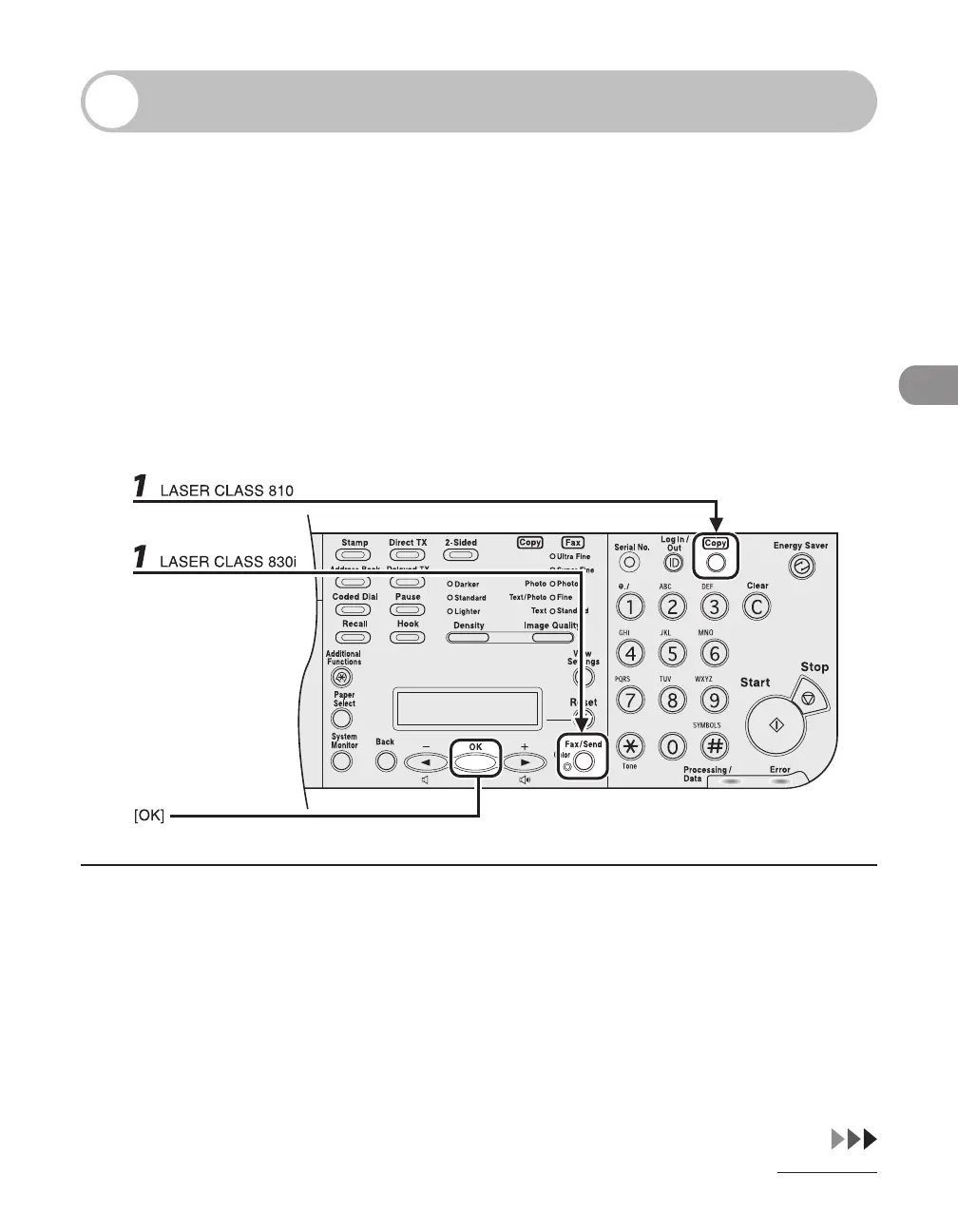
1 Press [Fax/Send] to select <FAX>, then press [OK].
If using the LASER CLASS 810, you can switch to the Fax mode by pressing [Copy/Fax].





 To Next Page