9-9
System Manager Settings
Changing the Password and Page Limit
You can change the password and page limit settings that you have registered.
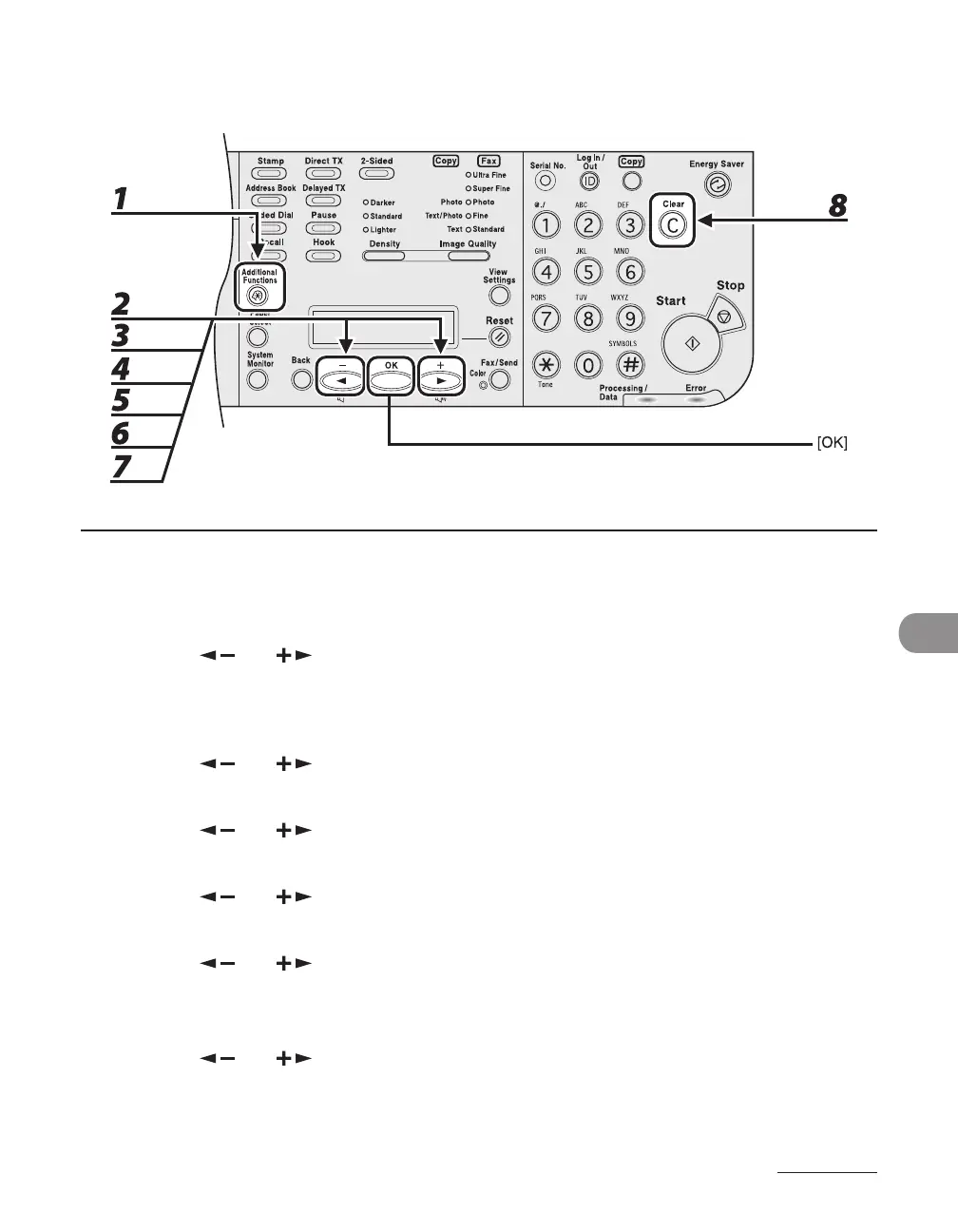
1 Press [Additional Functions].
2 Press [ ] or [ ] to select <SYSTEM SETTINGS>, then press [OK].
If the System Manager ID and System Password have been set, enter the System Manager ID and System
Password using the numeric keys, then press [Log In/Out (ID)].
3 Press [ ] or [ ] to select <MANAGE DEPT. ID>, then press [OK].
4 Press [ ] or [ ] to select <ON>, then press [OK].
5 Press [ ] or [ ] to select <REGISTER DEPT. ID>, then press [OK].
6 Press [ ] or [ ] to select the Department ID whose password and page limit
you want to change, then press [OK] twice.
7 Press [ ] or [ ] to select <PASSWORD>, then press [OK].
8 Press [Clear] to clear the current password.





 To Next Page