System Manager Settings
9-10
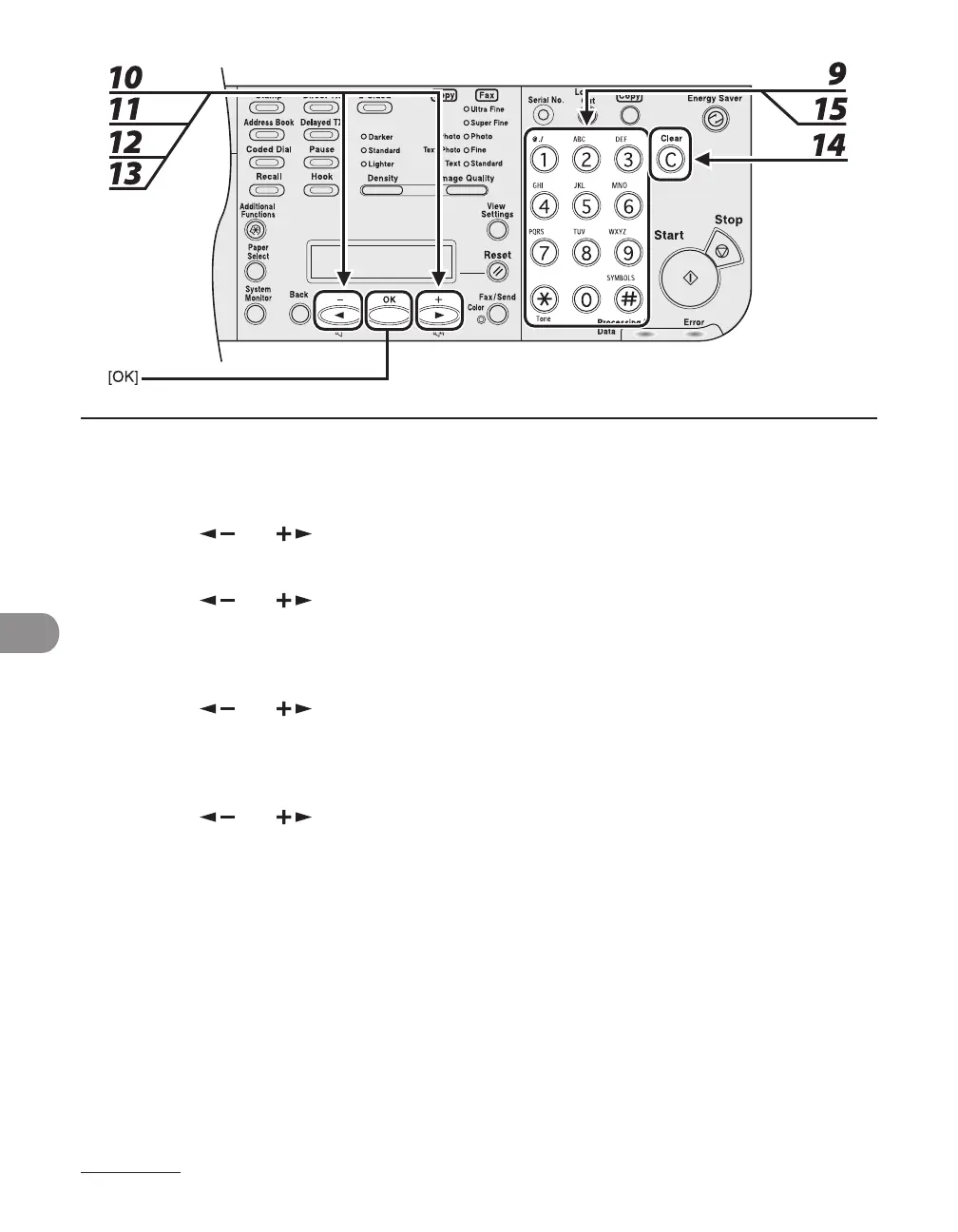
9 Use the numeric keys to enter the new password, then press [OK].
10 Press [ ] or [ ] to select <PAGE LIMIT SET.>, then press [OK].
11 Press [ ] or [ ] to select the desired function, then press [OK].
You can select <TOTAL PRINT LIMIT>, <COPY LIMIT>, <BLACK SCAN LIMIT>, <COLOR SCAN LIMIT>
(LASER CLASS 830i Only), or <PRINT LIMIT>.
12 Press [ ] or [ ] to select <ON> or <OFF>, then press [OK].
<OFF>: Does not set a page limit restriction. Skip to step 16.
<ON>: Set a page limit restriction.
13 Press [ ] or [ ] to select <PAGE TOTALS> (when <TOTAL PRINT LIMIT> is
selected), then press [OK].
The message displayed will vary depending on which function you selected in step 11.
Example: <COPY LIMIT> appears when <COPY LIMIT> is selected.
14 Press [Clear] to clear the current number of page limit restriction.
15 Use the numeric keys to enter the maximum number of pages that can be made
by the registered Department ID, then press [OK].





 To Next Page