System Manager Settings
9-22
Handling Documents with Forwarding Errors
You can set how the machine handles the documents that failed to be forwarded.
If a forwarding error occurs when both <PRINT> and <STORE TO MEMORY> are set to <OFF>, the received
document will be lost.
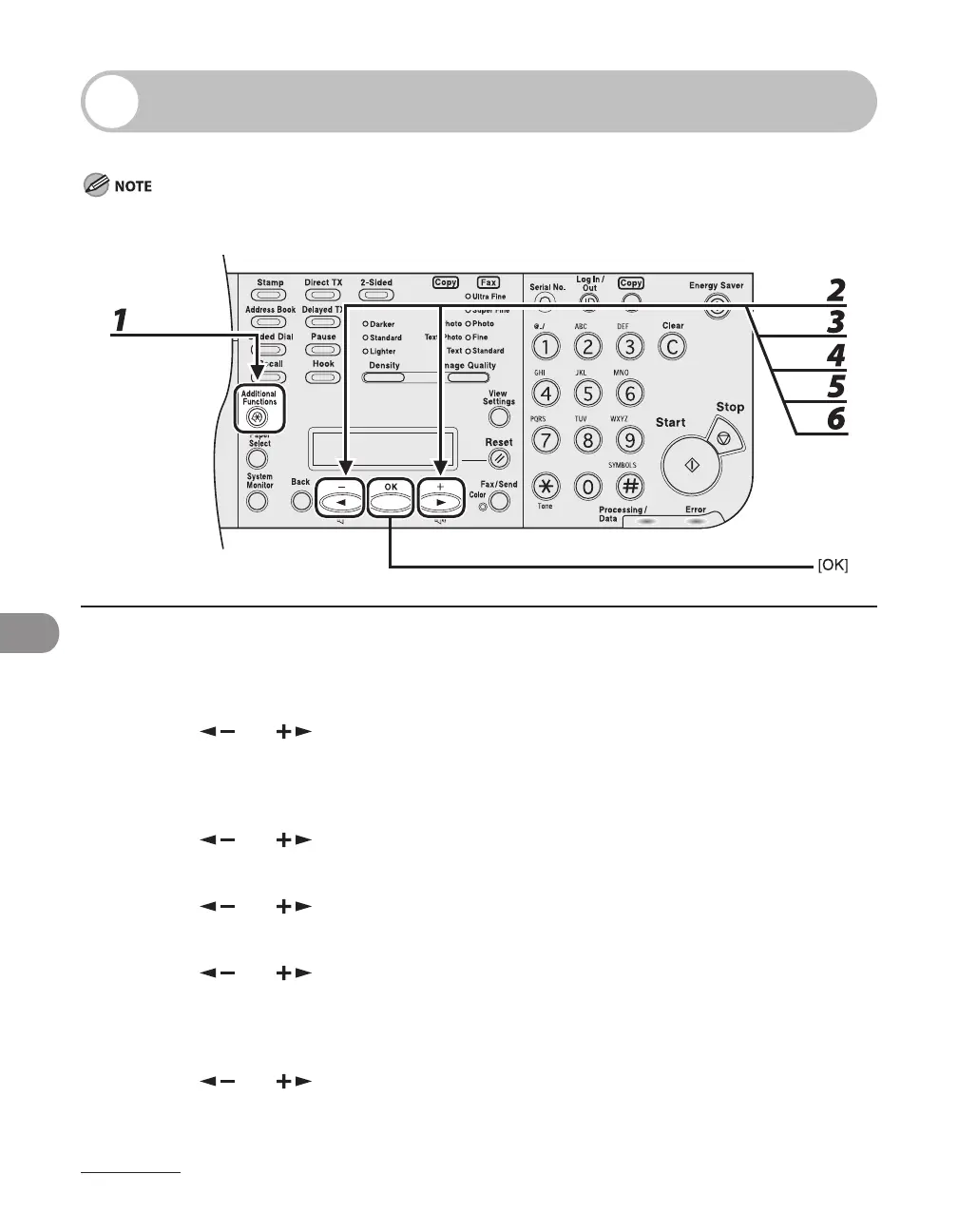
1 Press [Additional Functions].
2 Press [ ] or [ ] to select <SYSTEM SETTINGS>, then press [OK].
If the System Manager ID and System Password have been set, enter the System Manager ID and System
Password using the numeric keys, then press [Log In/Out (ID)].
3 Press [ ] or [ ] to select <FORWARD ERR. SET.>, then press [OK].
4 Press [ ] or [ ] to select <PRINT>, then press [OK].
5 Press [ ] or [ ] to select <ON> or <OFF>, then press [OK].
<ON>: The machine prints received documents when document forwarding fails.
<OFF>: The machine does not print the image.
6 Press [ ] or [ ] to select <STORE TO MEMORY>, then press [OK].





 To Next Page