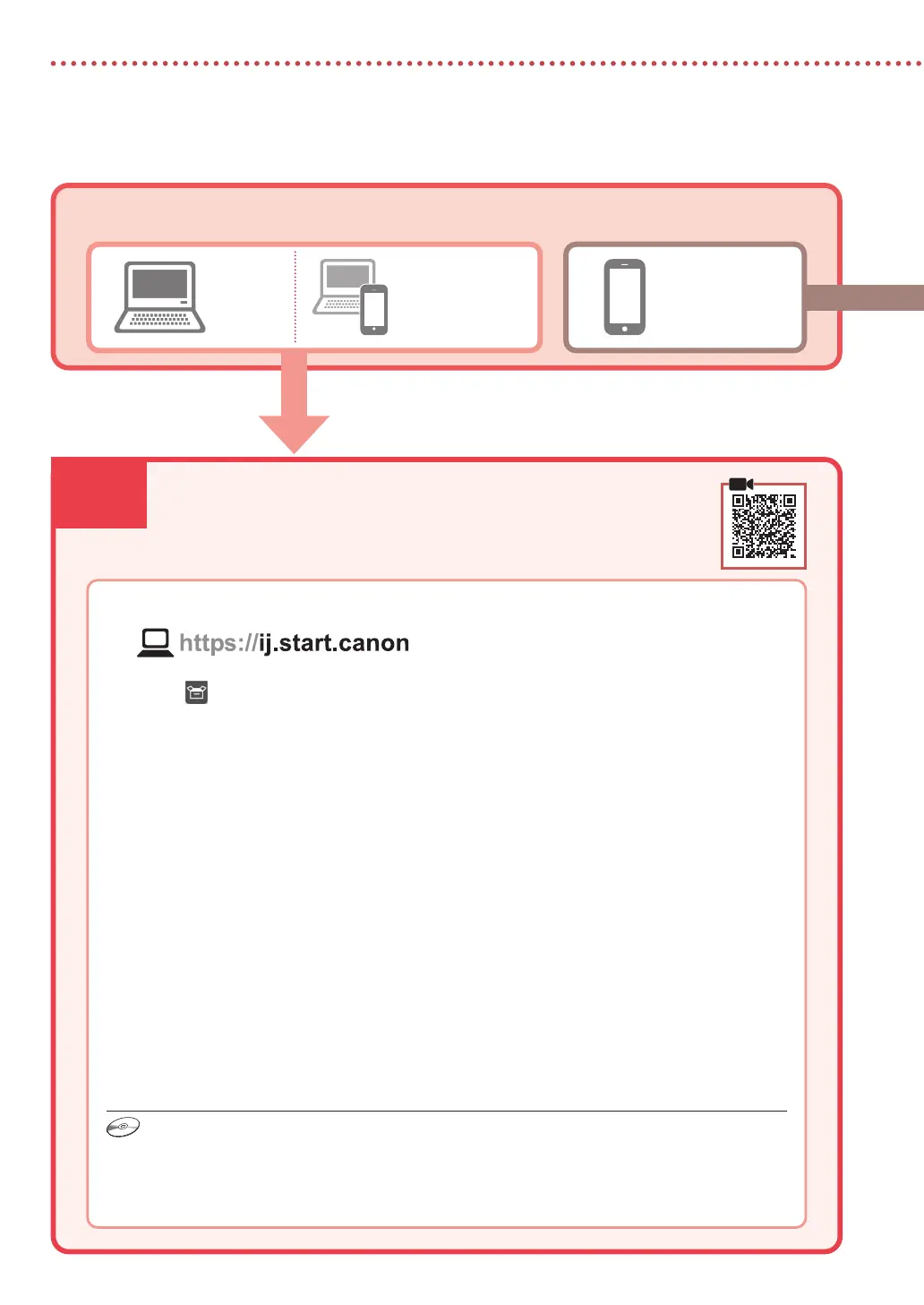
5-a
4
Setting Up the Printer
Computer Smartphone
Computer and
smartphone
Connecting to a Computer
If you are using multiple computers, perform these steps on each computer.
1
Access the Canon website from your computer.
2
Select Set Up.
3
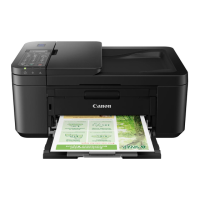
Enter your printer's model name and click Go.
4
Click Start, and then select Connecting to a Computer/Smartphone.
•
The following steps are for Windows users.
5
Click Download.
6
Run the downloaded le.
•
Follow the on-screen instructions. This may take some time.
•
To connect to a smartphone as well, see "5-b. Connecting to a Smartphone" on page 5.
•
Once you have added your printer, you can print from your Computer. To print, see "Loading Paper"
on page 6.
•
To set up a fax, see "Using Fax Function" on page 5.
What device are you connecting?
5-a Connecting to a Computer
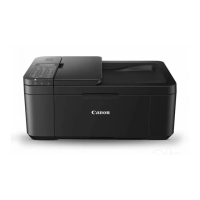
Using the Setup CD-ROM (E4500 series only)
Double click EasySetup.exe in the CD-ROM, and then continue from step 3. If you do not have an
internet connection, open the win folder in the CD-ROM and double click SETUP.exe. This will install the
printer driver.



 To Next Page