EasyManua.ls Logo

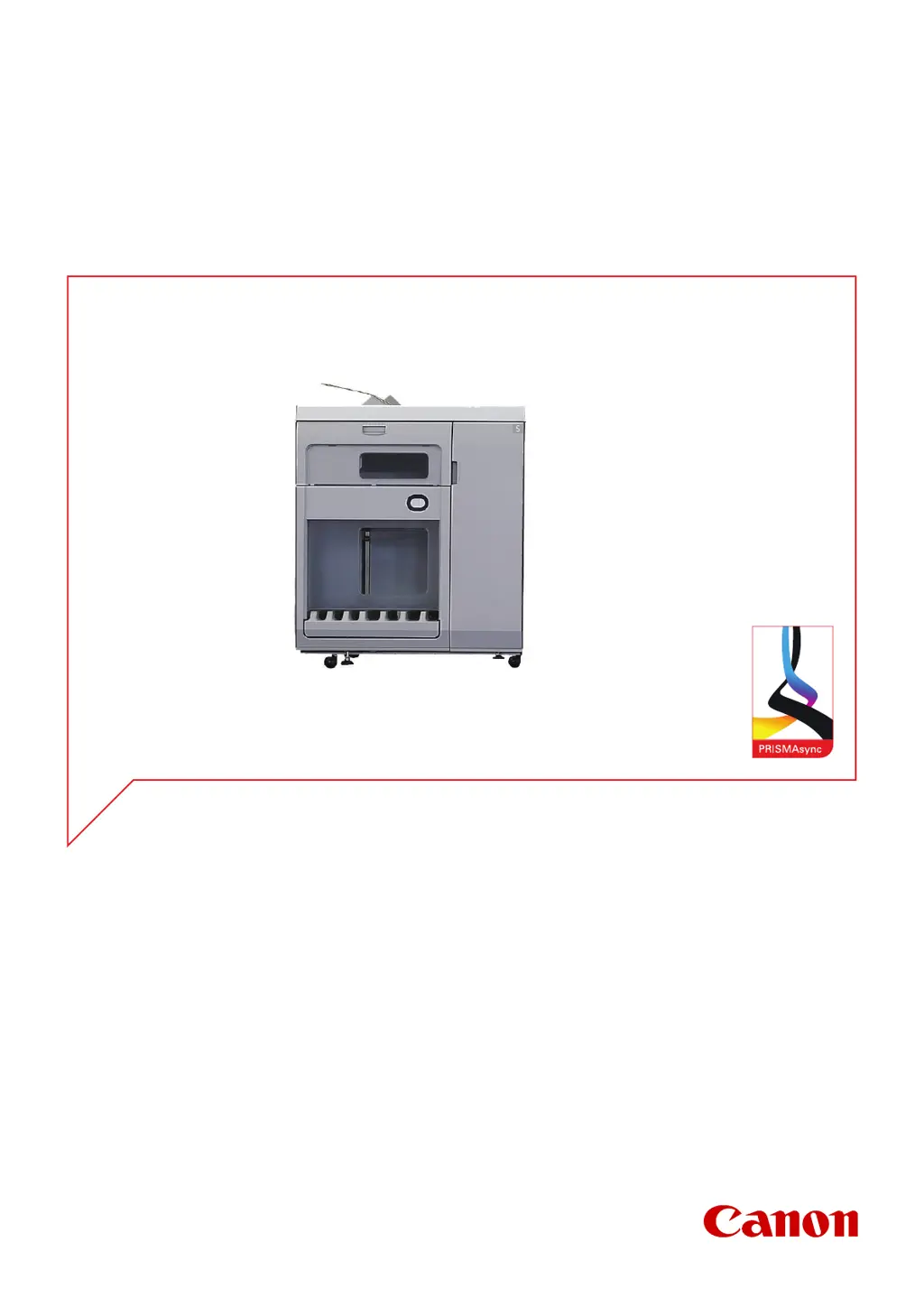
Canon High Capacity Stacker-H1 - User Manual

Canon High Capacity Stacker-H1
52 pages
Print Icon
To Next Page IconTo Next Page
Loading...
Operation guide
High Capacity Stacker-H1

Questions and Answers

  • N
    nstevensAug 9, 2025
    How to clear a paper jam in the input paper path (A2-A5) of Canon Printer Accessories?
    • L
      Lori JamesAug 9, 2025
      To clear a paper jam in the input paper path, follow these steps: 1. Open the front door. 2. Turn A7 to remove jammed paper. 3. Open A2, A3, A4, and A5 to remove the jammed paper. 4. Close the front door.
  • R
    Robert MartinezAug 14, 2025
    How to clear a paper jam in the paper path (B1) of Canon Printer Accessories?
    • T
      Thomas BrownAug 14, 2025
      To clear a paper jam in the paper path, do the following: 1. Open the top cover. 2. Open B1 and remove the jammed paper. 3. Close the top cover.
  • C
    Christian MurphyAug 19, 2025
    How to clear a paper jam in the input paper path of the registration unit (A6-A7) in Canon Printer Accessories?
    • B
      Brenda HallAug 19, 2025
      To clear a paper jam in the input paper path of the registration unit, complete these steps: 1. Open the front door. 2. Turn A7 to remove the jammed paper. 3. Remove the jammed paper from A6. 4. Close the front door.
  • R
    Richard EdwardsAug 25, 2025
    How to clear a paper jam in the horizontal paper path (B2-B5) of Canon Printer Accessories?
    • C
      carolyn14Aug 25, 2025
      To clear a paper jam in the horizontal paper path, you should: 1. Open the top cover. 2. Open B2, B3, B4, and B5 to remove the jammed paper. 3. Close the top cover.
  • C
    cynthiacooperAug 30, 2025
    What to do if there is an error sheet in the internal error tray (A1) of Canon Printer Accessories?
    • W
      Wanda LambAug 30, 2025
      If there's an error sheet in the internal error tray, here's what to do: 1. Open the front door. 2. Remove the sheets from the internal error tray (A1). 3. Close the front door.
  • J
    jasonprestonSep 3, 2025
    How to clear a paper jam at the flip wheel (C1) of Canon Printer Accessories?
    • R
      Ryan BurnettSep 4, 2025
      To clear a paper jam at the flip wheel, you can: 1. Open the front cover. 2. Open C1 and remove the jammed paper from the flip wheel. 3. Close the front cover.

Canon High Capacity Stacker-H1 Specifications

General IconGeneral
BrandCanon
ModelHigh Capacity Stacker-H1
CategoryPrinter Accessories
LanguageEnglish

Related product manuals