20
Requirements for Infrared Communication with the PDA
In order to use infrared communication, your PDA must satisfy the following requirements:
Setting the Media Type, Paper Size, and Layout When Printing
From a PDA
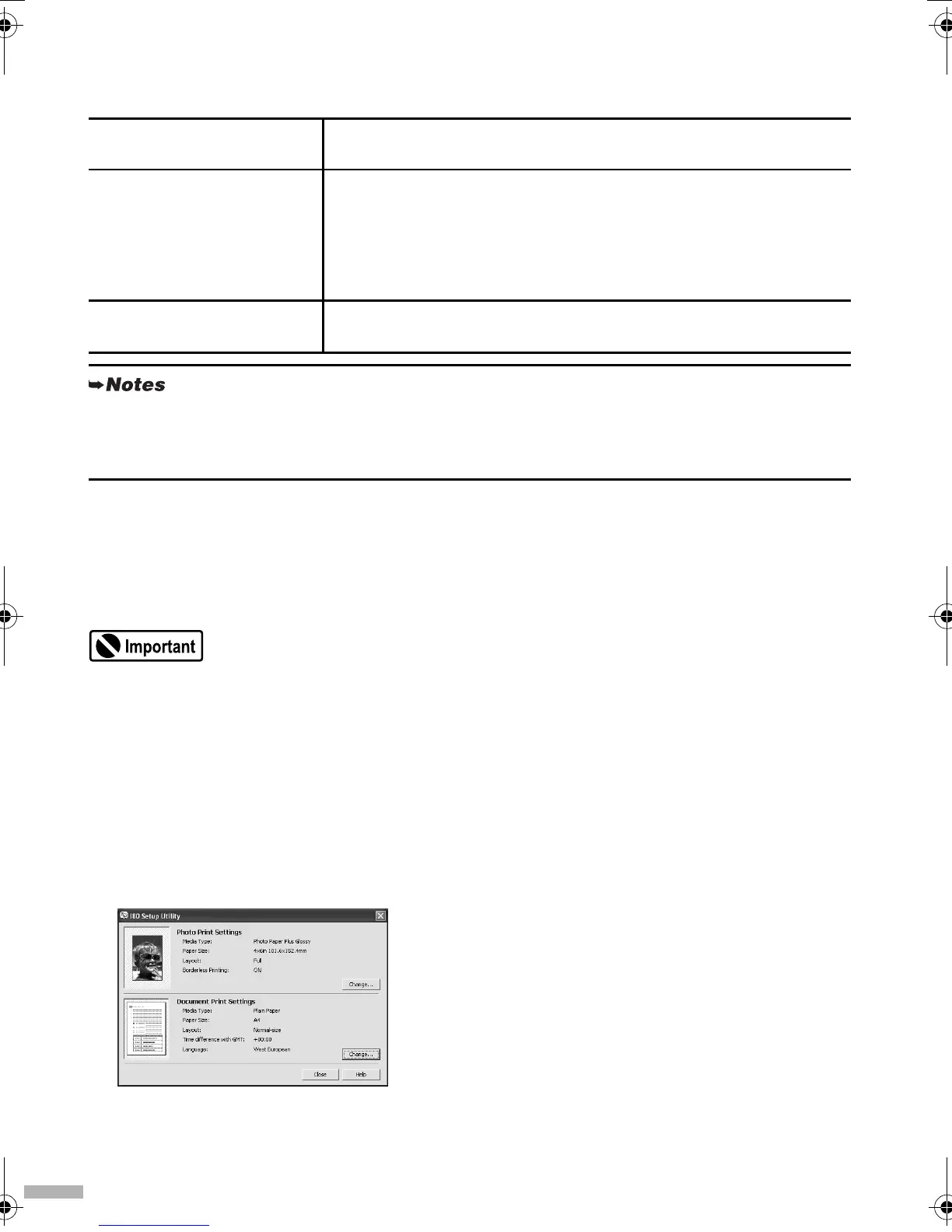
You can select the media type, page size, layout, and borderless printing in the
i80 Setup Utility
when
printing from a PDA or mobile phone.
Before using the
i80 Setup Utility
, you must connect this printer to your computer with a USB cable and
install the printer driver and the
i80 Setup Utility
.
1
Set up the printer.
(1) Ensure that the universal AC adapter is connected securely.
When using an optional battery, ensure that it has been charged.
(2) Connect the printer to your computer with a USB cable.
(3) Open the paper rest, turn on the printer, and then turn on the computer.
2
Start the i80 Setup Utility.
Windows
Click
Start
and select
All Programs
(or
Programs
),
Canon Utilities
,
i80 Setup Utility
and
i80 Setup Utility
.
Macintosh
Open the
Applications
folder, and then double-click the
i80 Setup Utility
folder and the
i80 Setup Utility
icon.
PDA
The PDA must have an IrDA port and support the file transfer using
the IrOBEX (Infrared Object Exchange) protocol
Printable contents
• Microsoft Pocket PC 2002
Contacts (perform printing from the contacts list), Calendar, Tasks,
and Image (JPEG images only)
• Palm Computing Palm OS 3.5/4.1
Contacts, Date Book, To Do List, and Memo Pad (text only; printing
hand-written memo pad is not supported)
Character code
• Alphanumeric code
• ISO 8859-1/2/5
To carry out printing through infrared communication with a mobile phone:
• The mobile phone must have an IrDA port and support IrMC ver. 1.1.
• JPEG images are only supported.
i80.fm Page 20 Monday, September 29, 2003 4:59 PM



 To Next Page