Printing from a USB Memory Device (Memory Media
Print)
1648-0HE
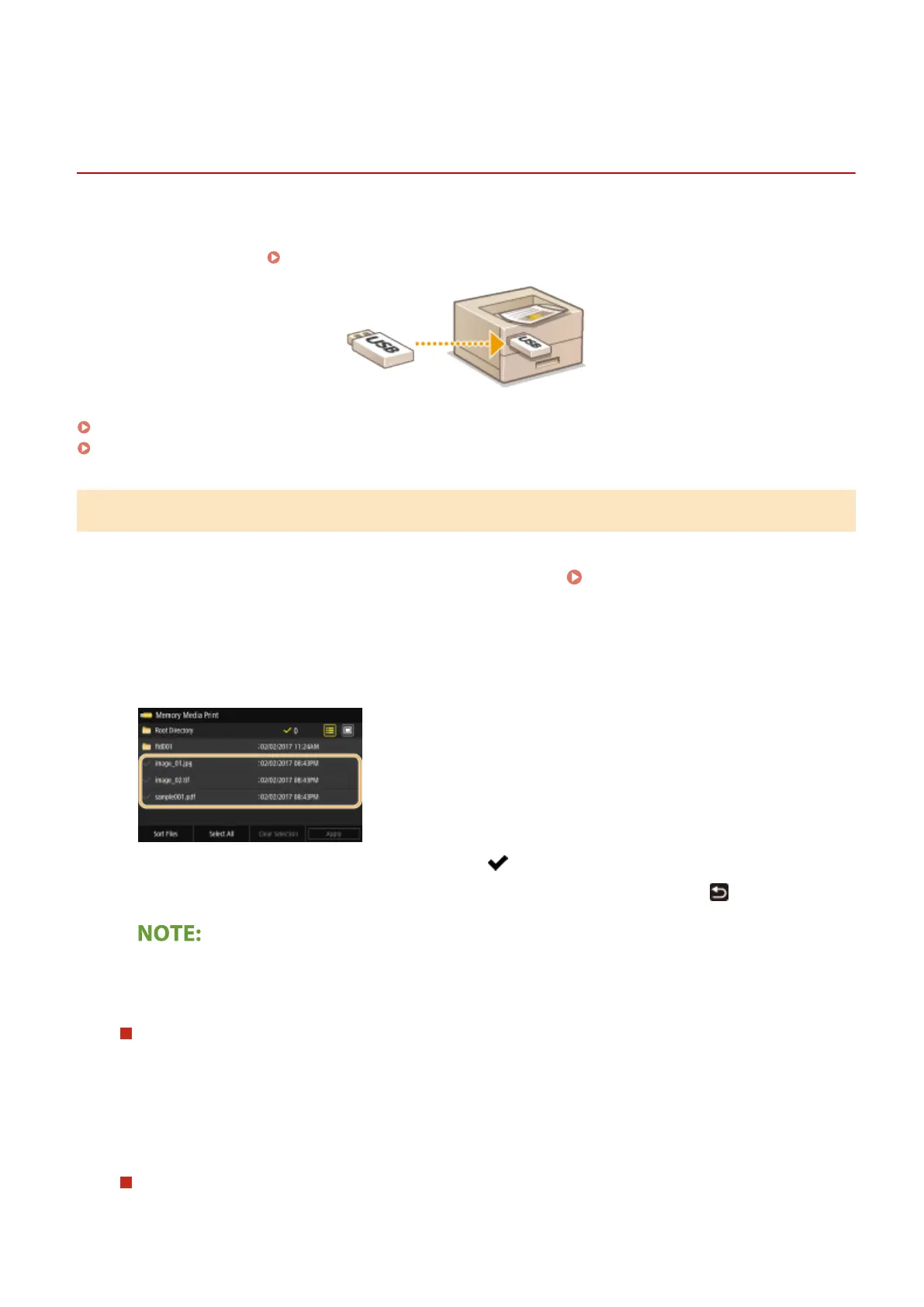
You can print les directly by connecting a USB memory device to the machine. Using this function, you can print
without using a computer. For more information about the available USB memory devices and how to insert/remove
the USB memory device, see Insert a USB Memory Device(P. 90) .
Printing a File from a USB Memory Device in the Touch Panel Model(P. 180)
Printing a File from a USB Memory Device in the Black and White LCD Model(P. 187)
Printing a File from a USB Memory Device in the Touch Panel Model
1
Select <Memory Media Print> in the Home screen. Home Screen(P. 107)
2
Select the check box for the le you want to print.
● You can select multiple les.
● To clear a selection, select the le you have selected ( ) again.
● Selecting a folder displays its contents. To return to the folder in the upper level, select
.
● Folders and les lower than the fth directory are not displayed.
● When you move to another folder, the previous le selections will be cleared.
To select all les
1
Select <Select All>.
● To clear all selections, select <Clear Selection>.
2
If le types are mixed, select <JPEG/TIFF Files> or <PDF Files>.
To change the le display method
You can select the le display method from "Preview"/"Details."
Printing
180




 To Next Page