EasyManua.ls Logo

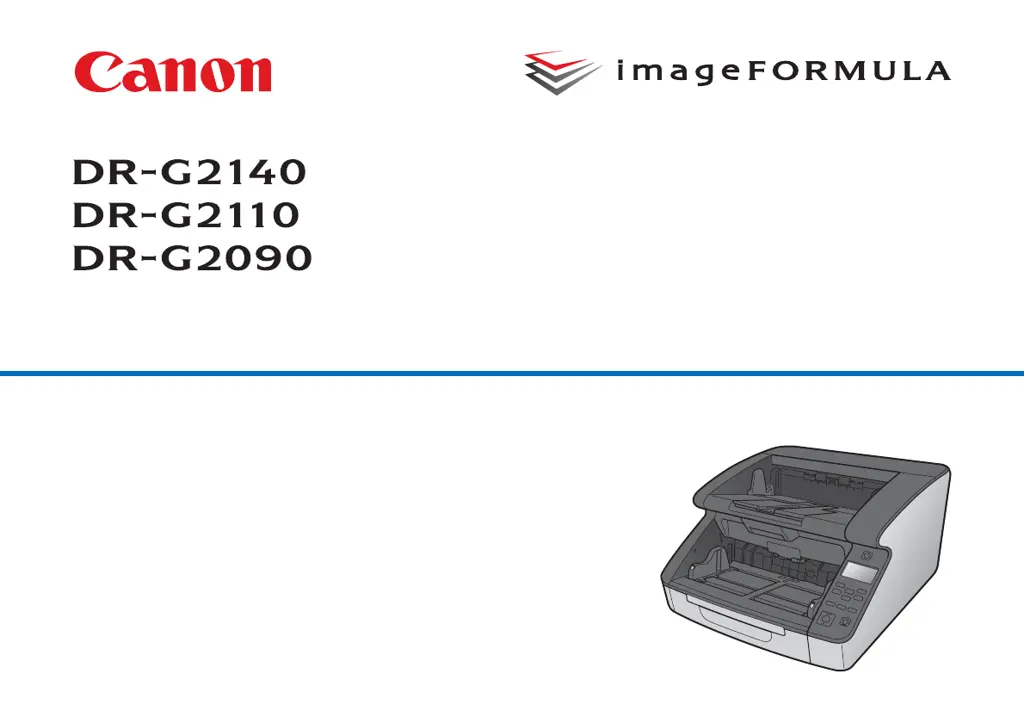
Canon imageFORMULA DR-G2110 - User Manual

Canon imageFORMULA DR-G2110
182 pages
Print Icon
To Next Page IconTo Next Page
Loading...
Please read this manual before operating this scanner.
After you finish reading this manual, store it in a safe place
for future reference.
User Manual

Table of Contents

Other manuals for Canon imageFORMULA DR-G2110

Questions and Answers

  • D
    Desiree StephensSep 8, 2025
    How to prevent text or images bleed through on Canon imageFORMULA DR-G2110 scanner?
    • J
      Jason NguyenSep 8, 2025
      To prevent text or images from bleeding through from the back side of documents, try increasing the [Brightness] setting on the scanner driver's [Brightness] tab sheet. You can also enable the 'Prevent Bleed Through/Remove Background' setting. If the paper is very thin, consider photocopying the original and scanning the copy.
  • C
    Christopher HarrisAug 25, 2025
    How to fix Canon Scanner that won't turn on?
    • M
      Molly GuerreroAug 25, 2025
      If your Canon Scanner will not turn on, ensure the power cord is properly connected and that the power plug is plugged into a power outlet.
  • P
    Patrick BrownAug 25, 2025
    Why is my Canon Scanner ignoring driver settings?
    • W
      William Rodriguez MDAug 26, 2025
      If documents are not scanned according to the settings configured in the scanner driver for your Canon Scanner, edit settings in the [Select document] panel, or create a new [Select document] panel using the desired scanning conditions.
  • J
    Julie WheelerSep 18, 2025
    How to fix light characters that are blurred on Canon imageFORMULA DR-G2110?
    • E
      erinbrownSep 18, 2025
      If light characters are blurred (disappear), select the [Emphasize thin line] check box in the [Image control] tab in the scanner driver.
  • A
    Alfred RichardsonSep 8, 2025
    How to enable duplex scanning on Canon Printer?
    • B
      brooksnicholasSep 9, 2025
      To enable duplex (two-sided) scanning, go to the scanner driver's [Basic] tab sheet and set [Scanning Side] to [Duplex].
  • D
    Daniel PrestonSep 13, 2025
    How to fix Canon Printer pages that are missing in scan?
    • R
      rhondahammondSep 13, 2025
      To address missing pages during scanning, decrease the likelihood of skipping blank page value. Also, try setting the [Scanning Side] to another mode, such as simplex or duplex.
  • M
    millerjenniferSep 3, 2025
    Why is my Canon Scanner image abnormal in one application?
    • T
      Theresa ShawSep 3, 2025
      If the scanned image is abnormal in a particular application when using your Canon Scanner, try scanning with auto-detection disabled.
  • C
    Carla ShannonSep 4, 2025
    Why are pages missing when scanning with my Canon Scanner?
    • D
      Dale ReyesSep 4, 2025
      When pages are missing from your scan with the Canon Scanner, decrease the likelihood of skipping blank page value. Additionally, set the [Scanning Side] to another mode, such as simplex or duplex.
  • S
    Steven StoneSep 23, 2025
    What to do if imprinter cover is open on Canon imageFORMULA DR-G2110?
    • A
      Annette JohnsonSep 23, 2025
      If your Canon Printer imprinter cover is open, close the imprinter cover.
  • K
    Kristen AdamsAug 29, 2025
    How to enable duplex scanning on Canon Scanner?
    • A
      Andrea BuckleyAug 29, 2025
      To enable duplex (two-sided) scanning on your Canon Scanner, set [Scanning Side] to [Duplex] on the scanner driver's [Basic] tab sheet. Note that if Scanning Side is set to [Skip blank page], images of blank pages are not saved.

Summary

Scanner Setup Guide

Step 3: Install Software

Provides system requirements and instructions for installing the scanner software.

Step 4: Connect to Computer and Power

Instructions for connecting the scanner to a computer and power supply.

Step 5: Turn Power ON

Procedure for turning on the scanner after connection.

Scanner Anatomy and Controls

Operation Panel Overview

Explains the components and display areas of the scanner's control panel.

Document Detection and Counting

Detecting Document Double Feed

Steps to configure the scanner for detecting double document feeds.

Scanner Configuration and User Mode

Configuring Scanner Driver Settings

How to configure scanner driver settings, including User Mode items.

Scanner Settings and Network Configuration

Network Settings

Configuration of network parameters including LAN and mDNS settings.

Scanning Operations with CaptureOnTouch

Registering and Editing Scanning Shortcuts

Process for creating and modifying custom scanning shortcuts.

Image Editing and Scan Configuration

Scan Settings Configuration

Configures color mode, page size, DPI, scanning side, and other scan parameters.

Output Settings and Indexing

Configures output formats, save locations, and index file settings.

Scanner Driver Configuration and Settings

Overview of Scanner Driver Functions

Explains the structure and functions of the scanner driver interface.

Basic Scanning Settings

Configures core settings like color mode, page size, DPI, and scanning side.

Advanced Batch Separation Methods

Batch Separation Using Blank Pages

Uses blank pages as separators for automatic file separation.

Batch Separation Using Patch Code Sheets

Uses patch code sheets for automatic batch separation of documents.

Scanner Web Menu Configuration

Accessing the Web Menu

Steps to access the scanner's Web menu via a web browser.

Maintenance and Firmware Updates

Restores factory defaults and updates the scanner's firmware via the Web menu.

Scanner Maintenance

Daily Cleaning Procedures

General procedures for cleaning the scanner to maintain peak scanning quality.

Cleaning Internal Components

How to clean sensors, glass, rollers, and pads for optimal performance.

Roller and Pad Replacement

Replacing Pickup, Feed, and Retard Rollers

Step-by-step guides for removing and reinstalling the scanner rollers.

Replacing the Separation Pad

Instructions for detaching and attaching the separation pad (retard roller cover).

Imprinter Maintenance and Operation

Imprinter Ink Cartridge Management

Procedures for replacing and cleaning imprinter ink cartridges.

Troubleshooting Common Issues

General Problem Solving

Solutions for common issues like power, recognition, and document feeding.

Handling Paper Jams and Detection Events

Paper Jam, Skew, and Staple Detection Processing

Procedure for handling paper jams, skew, or staple detection events.

Scanner Error Messages

Error Message Reference

Lists common error messages displayed on the scanner panel and their meanings.

Canon imageFORMULA DR-G2110 Specifications

General IconGeneral
TypeDocument Scanner
Resolution600 dpi
InterfaceUSB 3.0, USB 2.0
Output FormatsJPEG, TIFF, PDF
Operating Temperature10°C to 35°C
Operating Humidity20 - 80 % RH

Related product manuals