29
1
2
컴퓨터에서 사진 인쇄하기
Easy-PhotoPrint EX는 쉽게 사진을 인쇄할 수 있게 합니다.
이 절에서는 4"× 6" 크기의 포토 플러스 광택지 II를 사용하여 경계면 없는 사진을 인쇄하는 방법을 설명합니다. 여기에서의 화면은 Windows Vista를 기준으로 합니다.
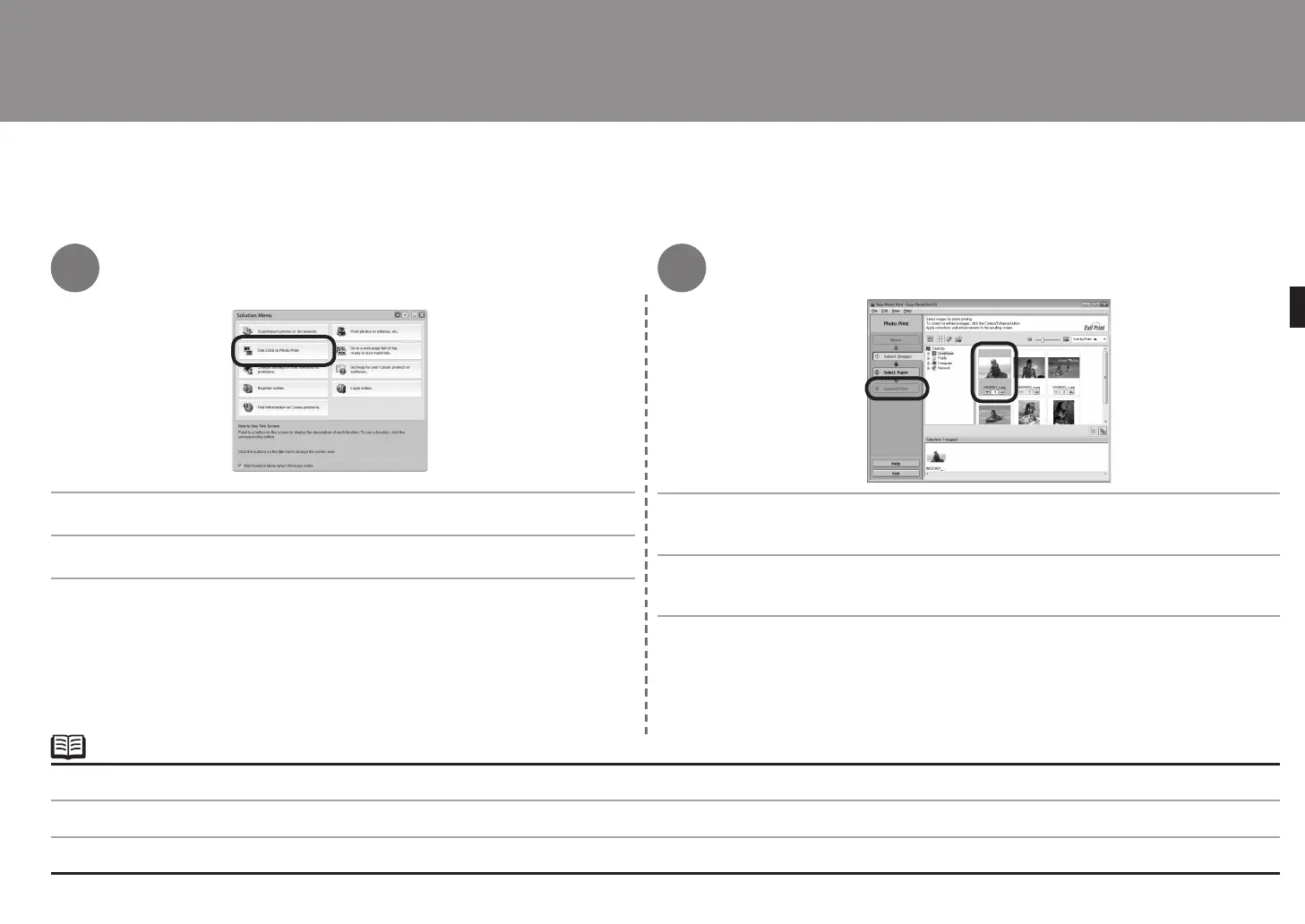
Solution Menu에서 원클릭 사진 인쇄를 클릭합니다.
Easy-PhotoPrint EX가 시작됩니다.
Solution Menu 열기에 대한 내용은 25페이지의 "Solution Menu"를 참조하십시오.
더 많은 정보는
고급 가이드
전자 안내서를 참조하십시오.
•
•
홀더에서 인쇄하려는 이미지를 선택한 다음 레이아웃/인쇄를 클릭합니다.
사진이 선택되면 매수는 "1"로 설정됩니다.
從電腦列印相片
Easy-PhotoPrint EX允許輕鬆地列印相片。
本節說明如何在 4"×6"大小的超光亮相片紙 II上執行滿版列印相片。以下螢幕基於 Windows Vista。
在 Solution Menu中,按 一下按一下以進行相片列印。
Easy-PhotoPrint EX啟動。
有關啟動 Solution Menu的資訊,請參閱第 25 頁的「Solution Menu」。
有關更多的資訊,請參閱電子手冊:
《進階指南》
。
•
•
在資料夾中選擇想要列印的影像,然後按一下佈置 / 列印。
選擇相片時,影印份數會設定為「1」。
Print Photos from a Computer
Easy-PhotoPrint EX allows you to print photos easily.
This section explains how to print borderless photos using 4" x 6" size Photo Paper Plus Glossy II. The screens are based on Windows Vista.
In Solution Menu, click One-Click to Photo Print.
Easy-PhotoPrint EX starts.
For opening Solution Menu, refer to "Solution Menu" on page 25.
For more information refer to the on-screen manual: Advanced Guide.
•
•
Select the image you want to print in a folder, then click Layout/Print.
When a photo is selected, the number of copies is set to "1".



 To Next Page