
 Need help?
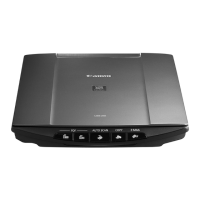
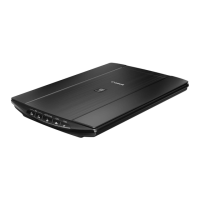
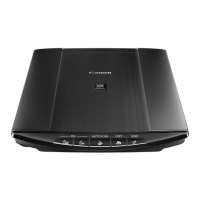
Do you have a question about the Canon LIDE200 and is the answer not in the manual?
Instructions on how to print the manual for offline use.
Steps to download and install the most recent scanner driver.
How to navigate and use the manual's table of contents feature.
Method for searching for specific information within the manual using keywords.
Guide on scanning photos and documents using the scanner's features.
Instructions for scanning several documents simultaneously for efficiency.
Method for scanning documents exceeding the scanner's platen size.
Adjusting image parameters like brightness and color for optimal results.
Techniques for enhancing image quality by correcting focus, defects, and color degradation.
Different methods for printing scanned photographs to suit various needs.
Instructions for sending scanned images directly through email.
How to locate and find previously scanned or saved images.
Limitations and restrictions when using the scanner driver software.
Issues that may arise when using the scanner driver with specific applications.
Correct placement of a single document on the scanner platen for optimal scanning.
Guidelines for positioning multiple documents on the scanner platen.
Overview of MP Navigator EX's capabilities for scanning and image management.
Explanation of the different user interface screens within MP Navigator EX.
Step-by-step guide to launching the MP Navigator EX application.
Guided process for scanning photos and documents using MP Navigator EX.
How to scan multiple documents simultaneously with MP Navigator EX.
Using Stitch Assist to scan and combine large images that exceed platen size.
Utilizing the One-click feature for simplified scanning workflows.
Using MP Navigator EX's auto-correction features to improve image quality.
Performing manual adjustments to image brightness, contrast, and other settings.
Making fine-tune adjustments to image brightness, contrast, and other visual properties.
Methods for finding and locating scanned images within MP Navigator EX.
Organizing scanned images into user-defined or automatic categories.
Procedures for saving scanned images to a computer's storage.
Creating PDF files from scanned images for easy sharing and archiving.
Instructions for creating and modifying PDF files using MP Navigator EX.
How to print scanned documents and images.
Attaching scanned images to emails for sending.
Using MP Navigator EX or bundled software for image editing tasks.
Securing PDF files by setting passwords for opening and editing.
Accessing and modifying PDF files that have security passwords applied.
Interface for initiating scans and importing images into MP Navigator EX.
Screen for managing and viewing images already saved on the computer.
Configuring one-click scanning actions for quick access to functions.
Settings for saving scanned images when using one-click mode.
Simple scanning interface for quick adjustments and previews.
Comprehensive settings for detailed control over scanning parameters.
Automatic document detection and scanning without manual adjustments.
Procedures for launching the ScanGear driver application.
Simple scanning interface for quick adjustments and previews.
Comprehensive settings for detailed control over scanning parameters.
Automatic document detection and scanning without manual adjustments.
Scanning multiple documents simultaneously using advanced settings.
Enhancing image quality by reducing noise, dust, scratches, and correcting fading.
Fine-tuning color tones and reproducing natural colors using color patterns.
Modifying image saturation and correcting color casts for better visual appeal.
Modifying image brightness and contrast levels for optimal exposure and clarity.
Using histograms to analyze and adjust image tonal distribution.
Fine-tuning image brightness and tonal range using tone curves.
Adjusting the threshold level for black and white conversion and text clarity.
Overview of the Basic Mode interface and its functions.
Explanation of the Advanced Mode interface and its comprehensive settings.
Configuring document type, paper size, and color mode for scanning.
Setting output resolution, size, and other parameters for scanned images.
Adjusting image properties like auto tone, unsharp mask, and dust reduction.
Tools for fine-tuning image brightness, contrast, saturation, and color balance.
Using automatic scanning for simplified document detection.
Solutions for issues encountered during software and driver installation.
Common scanning issues and their troubleshooting steps.
Solutions for problems related to MP Navigator EX and other software.
Specific troubleshooting for issues encountered with MP Navigator EX.
 General
| Scanning Element | CIS |
|---|---|
| Interface | USB 2.0 |
| Type | Flatbed |
| Light Source | Three-color (RGB) LED |
| Maximum Resolution | 19200 x 19200 dpi |
| Maximum Document Size | 216 x 297 mm |
| Document Size | A4 |
| Color Depth | 48-bit input / 24-bit output |
| Power Supply | USB bus power |
| Power Consumption | 2.5 W (max) |
| Dimensions (W x D x H) | 250 x 370 x 40mm |


 To Next Page