13
En
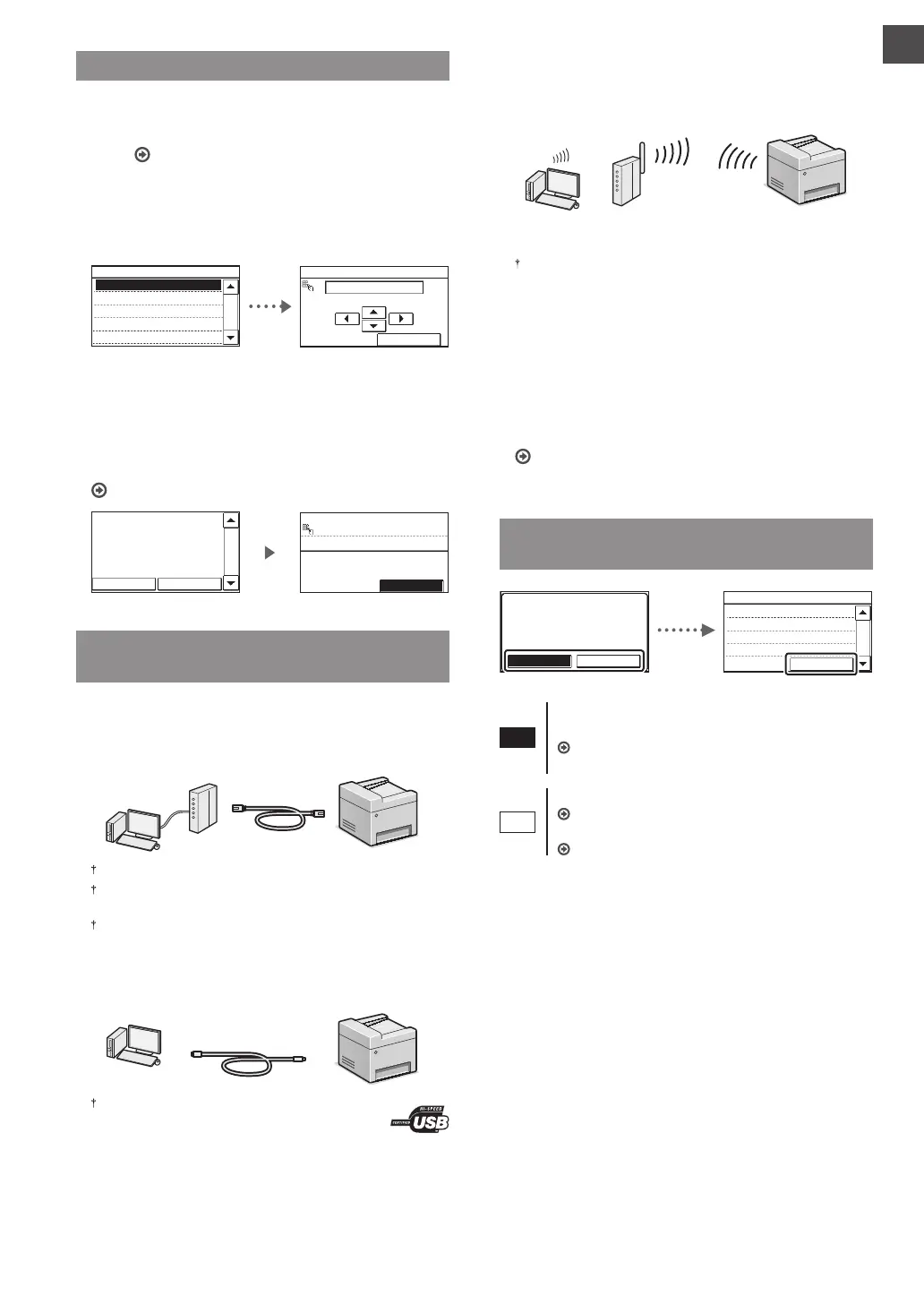
Specifying the Initial Settings
The rst time you turn on the power, follow the instructions
on the screen. For details on navigating the menu and how to
input the numbers, see “Navigating the Menu and Text Input
Method” ( P.12).
●
Complete settings starting with language
and through to date and time
Follow the instructions on the screen, set the language,
region, time zone, and date and time.
3/7
Language
English
Estonian
Finnish
French
German
Current Time Set.
08/08 2014 10:00 AM
(0:00-12:59)
Apply
●
Setting a Remote UI PIN
You can set a PIN for access to the Remote UI. Protect the
machine from unauthorized access by only allowing users
with access privileges to use the machine.
To specify settings later, please refer to “Setting a Remote UI
PIN” in the User’s Guide.
User’s Guide “Setting a Remote UI PIN”
Setting the Remote UI
Access PIN is recommended
when using Remote UI to
prevent unauthorized
access by a third party.
1/2
No
Yes
*******
Remote UI Access PIN
Apply
Choosing the Method to Connect the
Machine
●
Connecting via a Wired LAN
You can connect the machine to a wired router. Use the LAN
cables to connect the machine to the wired router (access
point).
Connect the computer to the router by cable or wirelessly.
Make sure that there is an available port in the router to connect
the machine and the computer.
Have a LAN Cable of Category 5 twisted-pair cable or higher ready.
●
Connecting via a USB cable
You can connect the machine to the computer using a USB
cable.
Make sure that the USB cable you use has the following
mark.
●
Connecting via a Wireless LAN
You can connect the machine to the computer through a
wireless router*. Since it is wirelessly connected, no LAN
cables are needed.
* A wireless router (access point) that supports IEEE802.11b/g/n is
required.
Connect the computer to the router by cable or wirelessly.
If you do not sure whether your router is wireless or
wired:
See the instruction manual provided with your network
device, or contact the manufacturer.
●
Direct Connection
Connect a mobile device to the machine wirelessly and
directly without routing through a wireless LAN router (or
access point).
User’s Guide “Can Be Used Conveniently with a Mobile
Device” ▶ “Make Direct Connection (Access Point Mode)”
Choosing the Method to Connect:
Via Wireless LAN or Other Method
Do you want to use the
wireless LAN to connect
to the network?
The settings can be
configured later.
Yes No
Current Time Set.
Must rechg. battery
for 24 hours to save
time settings. After
turning main power
1/3
Close
Yes
Connect to the computer via a wireless LAN
immediately
Start from step 4 of “Setting Wireless LAN” in the
Wireless LAN Setting Guide.
No
Connect to the computer via a wired LAN
Proceed to “Connecting via a Wired LAN” (P.14).
Connect to the computer via a USB cable
Proceed to “Connecting via a USB Cable” (P.14).






 To Next Page