14
En
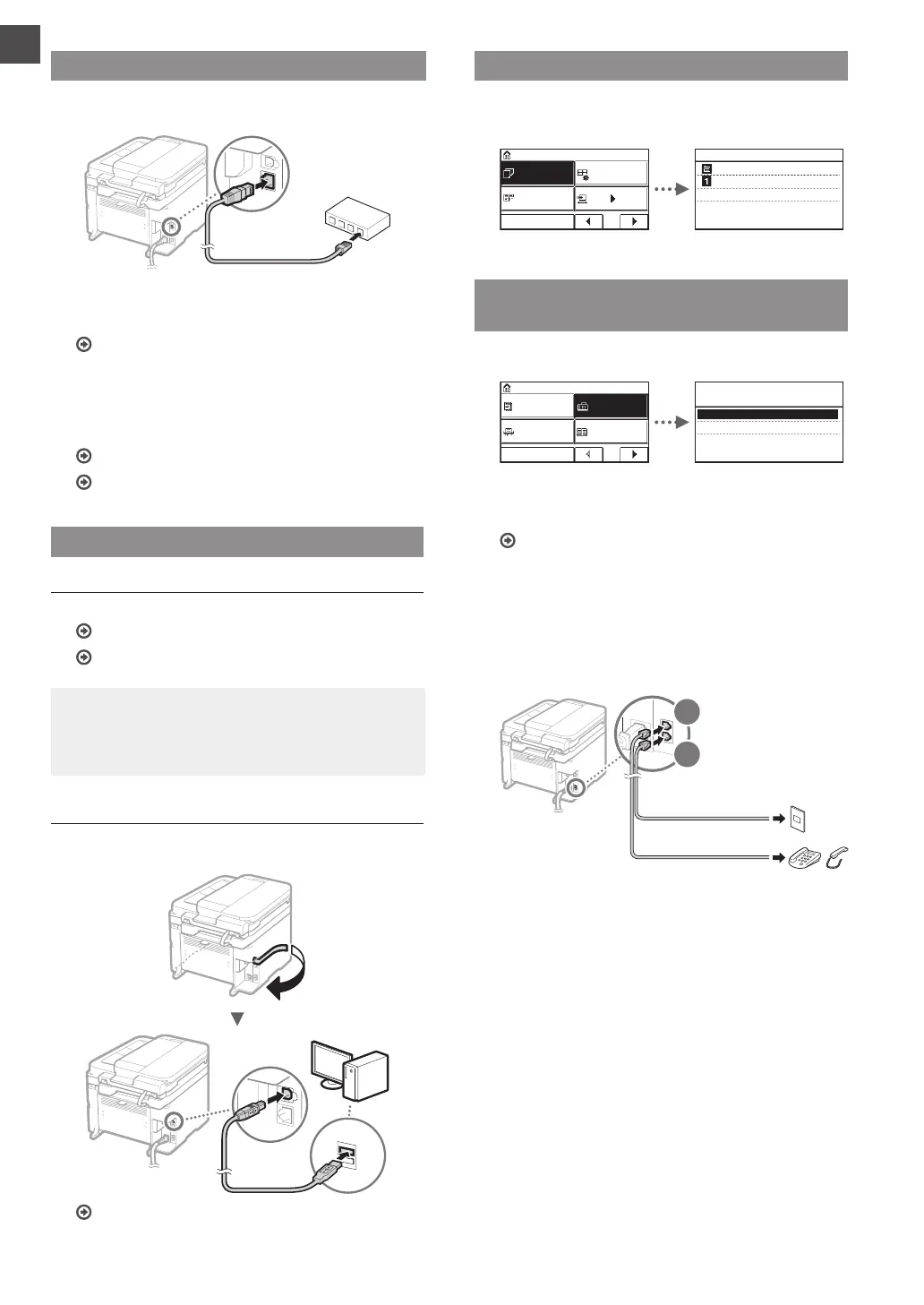
Connecting via a Wired LAN
1
Connect the LAN cable.
The IP address will be automatically con gured in 2
minutes. If you want to set the IP address manually, see
the following items.
User’s Guide “Network” ▶ “Connecting to a Network” ▶
“Setting IP Addresses”
2
Install the driver and software using the provided
DVD-ROM.
See “For details on the installation procedures:” (P.15).
Proceed to “Setting a Paper Size and Type” on this page.
Connecting via a USB Cable
Install the Driver and Software
Install the driver and software on the provided DVD-ROM.
See “For details on the installation procedures:” (P.15).
Proceed to “Setting a Paper Size and Type” on this page.
NOTE
• If you connected the USB cable before installing, rst
remove the USB cable and then re-install.
Connecting via a USB Cable
Follow the MF Driver Installation Guide to connect the USB
cable.
Proceed to “Setting a Paper Size and Type” on this page.
Setting a Paper Size and Type
Following the instructions on the screen, set the paper size
and type.
Paper Set.
Home
Home Set.
Paper Save
Menu
Scan PC1
2/4
Paper Settings
MP Tray
Drawer 1
Select Frequently Used Pape...
Specifying Initial Fax Settings and
Connecting a Telephone Cable
1
Specify the initial fax settings.
Copy
Home
Fax
Scan
Menu
Addr. Book
1/4
Perform Fax Setup?
Set Up Now
Set Up Later
Follow the “Fax Setup Guide” to specify a fax number, a
unit name, and a receive mode. For more details on the
receive mode, see the User’s Guide.
User’s Guide “Faxing” ▶ “Con guring Initial Settings for Fax
Functions” ▶ “Deciding Which Fax Receive Mode to Use”
How to use a user name
When you send a document, the sender information that
you registered is printed on the recipient’s paper.
2
Connect a telephone cable.
A
B
Telephone line connector
Telephone/Handset (Optional)
When <Connect Telephone Line> appears on the
display, connect the telephone cable by referring to the
illustration.
When installing the optional handset:
For more details, see the supplied manual with the
handset.






 To Next Page