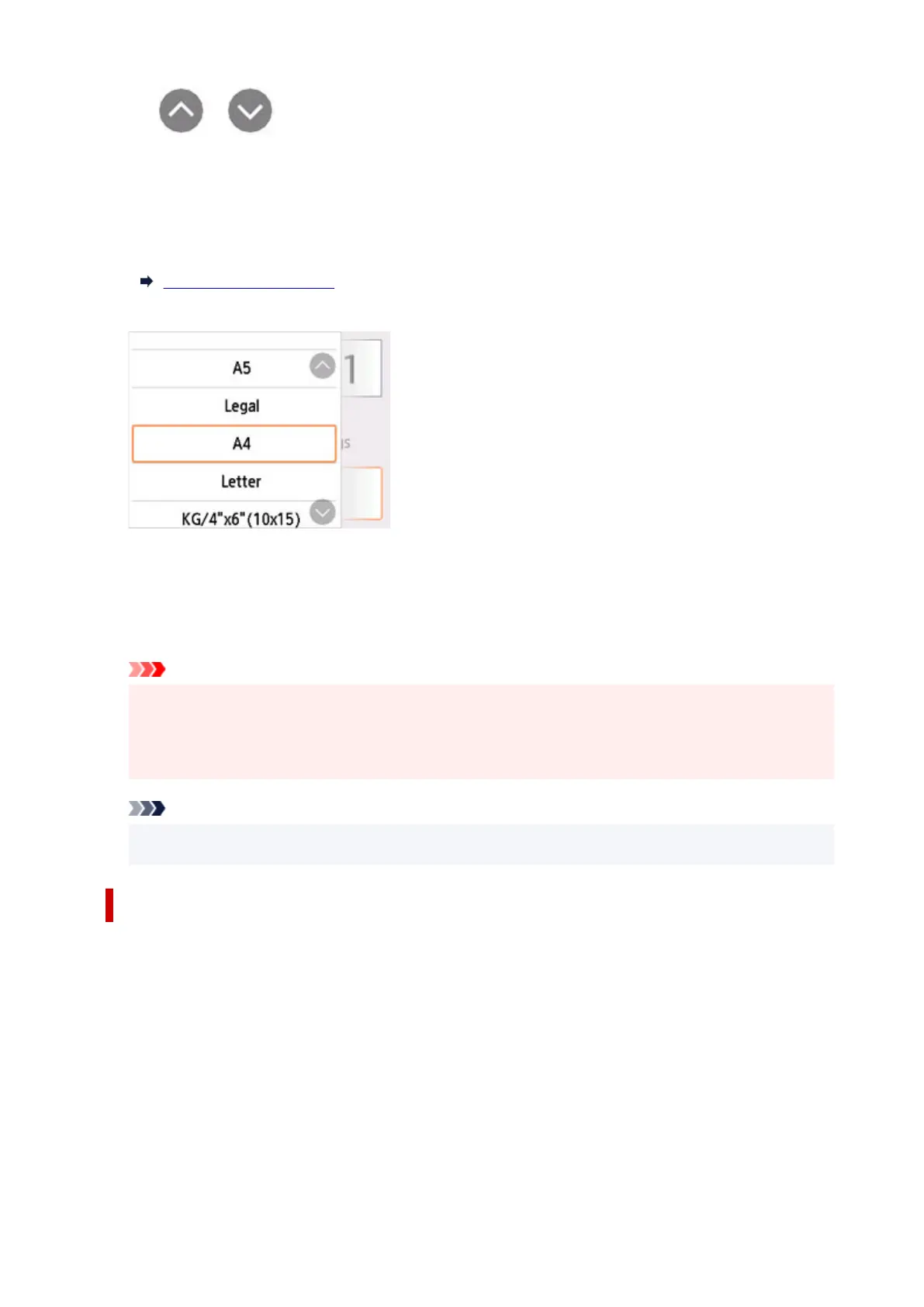
Tap or to specify the number of copies.
If you keep touching here, the number scrolls by 10.
You can also flick the number to specify.
C: Display the print setting items.
For more on the setting items:
Setting Items for Copying
D: Specify the page size and the media type.
7.
Press Black button or Color button.
The printer starts copying.
Remove the original on the platen or from the document output slot after copying is complete.
Important
• Do not open the document cover or remove the original from the platen until scanning is
completed.
•
If you load the original in the ADF, do not move the original until copying is complete.
Note
• To cancel copying, press the Stop button.
Adding Copying Job (Reserve copy)
If you load the original on the platen, you can add the copying job while printing (Reserve copy).
The screen below is displayed when you can add the copying job.
291



 To Next Page