When (Thumbnail) is displayed on Toolbar:
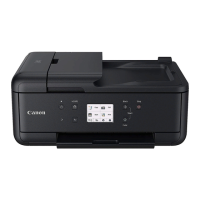
Cropping frames are specified according to the document size, and thumbnails of scanned images
appear. Only the images with the checkbox selected will be scanned.
Note
• When multiple images are previewed, different outlines indicate different selection status.
Focus Frame (thick blue outline): The displayed settings will be applied.
Selected Frame (thin blue outline): The settings will be applied to the Focus Frame and
Selected Frames simultaneously. To select multiple images, click them while pressing the Ctrl
key.
Unselected (no outline): The settings will not be applied.
• Double-click a frame to enlarge the image. Click (Frame Advance) at the bottom of the
screen to display the previous or next frame. Double-click the enlarged frame again to return it to its
original state.
When (Whole Image) is displayed on Toolbar:
Items on the Platen are scanned and appear as a single image. All portions in the cropping frames will be
scanned.
320



 To Next Page