Viewer for Java
1
13
● Use a proxy server for your LAN
1 From the “Tools” menu, select “Internet Options” and click the “Connections” tab.
2 Click “LAN settings” to open the Local Area Network (LAN) Settings dialog box.
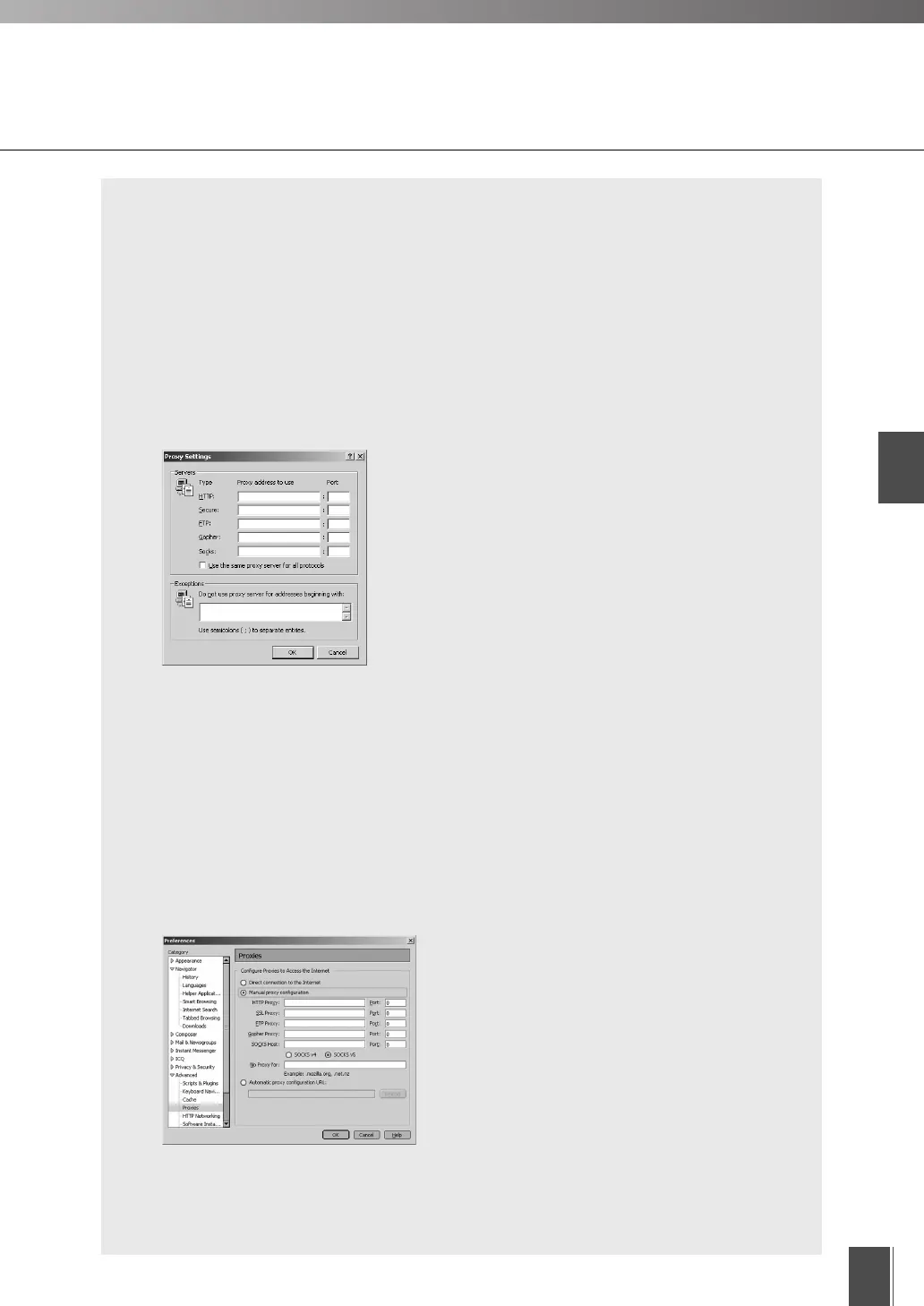
3 Tick “Use a proxy server for your LAN” in “Proxy server” and click “Advanced”.
4 In the “Exceptions” field, enter “Camera server IP address: HTTP conversion server
service port”. If there are multiple settings, use a semicolon (;) as the separator (e.g.
192.168.100.1:80;192.168.0.20:80).
5 Click “OK” to close the Proxy Settings dialog box, Local Area Network (LAN) Settings
dialog box and the Internet Options dialog box.
* For Internet Explorer 6.0
Using Netscape
Specify either “Manual proxy configuration” or “Automatic proxy configuration URL” below.
● Automatic proxy configuration URL
1 From the “Edit” menu, select “Preferences”.
2 Select “Proxies” in “Advanced” and select “Automatic proxy configuration URL”.
3 In the “Automatic proxy configuration URL” field, enter the URL (e.g. http://192.168.100.
10/proxy.pac) of the Settings file.
4 Click “OK” to close the Preferences dialog box.
* For Netscape 7.1
Preparations for Using the Viewer for Java








 To Next Page