This document is an instruction manual for a CarPlay integration module designed for Mercedes-Benz NTG 5.0/5.1 systems. The device, identified as Model No. CI-CARPLAY-NTG5, has a main board software version (MB-SW Ver.) of 060603 and a CarPlay software version (CP-SW Ver.) of C7.1. The manual itself is version 1.4, dated November 28, 2018.
Function Description:
The CarPlay integration module is a 3-in-1 device that supports Apple CarPlay, Android Auto, and screen mirroring functions. It allows users to integrate their smartphone's functionalities into the Mercedes-Benz NTG 5.0/5.1 infotainment system, providing access to navigation, music, calls, and other apps directly from the car's display and controls. Beyond smartphone integration, the module also supports USB HD video and lossless music playback (APE, WAV, FLAC, MP3, WMA, etc.), offering a versatile multimedia experience. It includes two CVBS video inputs for front and rear view cameras, enhancing driving safety and convenience. The system supports Parking Distance Control (PDC) and Flexible Parking Guidelines (FPG) when connected to compatible camera systems. For specific 360 panoramic systems, it offers VGA input for a clearer picture. The module supplies 12V power to the backup camera.
Compatibility:
The device is compatible with Mercedes-Benz vehicles from 2015 onwards that are equipped with the NTG 5.0/5.1 system and a 7.4 or 8.4-inch monitor, specifically those with a 4-pin LVDS connector. Compatible Mercedes-Benz models include:
- A Class (W176)
- B Class (W246)
- C Class (W205)
- E Class (W212)
- V Class (W447)
- CLA (C117)
- CLS (W219)
- GLC (X253)
- GLE (W166)
- GLS (X166)
Important Technical Specifications:
- Model No.: CI-CARPLAY-NTG5
- MB-SW Ver.: 060603
- CP-SW Ver.: C7.1
- Main Unit Dimensions: 143 x 102 x 26 mm
- Video Inputs: 2 CVBS (for front/rear cameras), 1 VGA (for 360 panoramic system)
- Power Output: 12V for backup camera
- Display Resolution Support (DIP Switch configurable):
- 800x480 (for 7.4"/8.4" monitors)
- 960x480 (for 8.4" monitors)
Usage Features:
- Operation: The system can be operated using the OEM Comand controller and steering wheel buttons.
- Switching Between Systems: Users can switch between the original OEM interface and the add-on interface by long-pressing the "BACK" button. The sequence is OEM -> Add-on -> DVR -> OEM. The system automatically switches to the add-on module UI when a phone/USB stick is connected.
- Front View Camera Display: Two alternative ways to display the front view are available via DIP setting:
- Display automatically for 10 seconds after shifting from "R" gear.
- Long-press the "BACK" button to display the front view/DVR.
- Audio Delivery: Audio can be delivered to the OEM radio through various methods, including activating the OEM AUX function, or using an FM/BT audio transmitter. An AUX-USB adapter and 3.5mm AUX cable are provided for this purpose.
- CarPlay/Android Auto Interaction:
- Apple CarPlay: Disconnect Bluetooth connection between the phone and car stereo when using CarPlay. The Comand controller allows navigation (dial to move pointer, click to return/switch mode), and steering wheel buttons facilitate answering/hanging up calls (short press) and activating Siri (long press 3S). A long press of 10S reboots the CarPlay module.
- Android Auto: Ensure the smartphone is connected to the original car stereo's Bluetooth for phone call audio. Google Assistant activation via factory buttons is not available; users should use the voice command "OK Google" instead. The Comand controller allows menu-pointer switching between A and B areas, bringing up the upper left menu, and turning the dial to move the menu-pointer.
- Mirroring: Connect an Android smartphone/iPhone with a USB cable and enter "MirrorLink" for screen mirroring. For Android devices, always "trust or allow" pop-up notifications and enable "USB Debugging." The Android device must connect to the car stereo's Bluetooth for all audio delivery.
- USB Multimedia Playback: Connect a USB memory stick to the "USB" port and select the "USB" icon to play music, pictures, and videos.
Maintenance Features:
- Software Update: The module supports further software updates via a TF card, ensuring the system remains up-to-date with new features and improvements.
- DIP Setting Configuration: DIP switches allow for customization of various features, including:
- Enabling/disabling Dynamic Parking Guideline.
- Enabling/disabling 360 Panoramic view.
- Selecting CVBS or VGA for 360 mode.
- Configuring front view camera display behavior.
- Setting display resolution (800x480 or 960x480).
- Specifying car model year range (2015- A/B/CLA/GLA/CLS/GLS/GLE/E Class or 2015- C/V/GLC Class).
- Selecting between original or aftermarket rear view camera.
- Selecting between external or original microphone.
- Note: The interface must be rebooted for DIP setting changes to take effect.
Safety and Installation Warnings:
- Driving Safety: Do NOT operate the interface while driving to protect driving safety and comply with traffic laws.
- Reversing Assistance: The reversing surveillance function is for assistance only; always check surroundings when reversing.
- Professional Installation: All installation steps should be performed by a well-trained specialist.
- Power Management:
- The ignition key should be off during installation.
- Connect the power cable LAST after all other installations are finished.
- Do NOT plug or pull connected cables while the device is powered on to prevent damage to the monitor or accessories.
- Wiring Precautions:
- Install wiring to avoid contact with metal parts, which can cause damage, shorts, arcing, and fires.
- Avoid contact with hot surfaces when wiring the main unit.
- Insulate connecting plugs to prevent short circuits.
- Route cables carefully to avoid affecting active components like the steering wheel, throttle, and brake pedal. Fasten cables securely.
- Environmental Conditions: Do NOT place the product in damp environments or water to prevent electric shock, damage, and fire caused by short circuits.
- Pre-Installation Check: Verify all components are present in the box upon receipt. Report any missing items to the supplier/manufacturer.
- Post-Installation Check: Before final loading, start the engine and check if the interface functions correctly, if key controls are accurate, and if the vehicle interface has any scratches. Provide feedback to the supplier/manufacturer for any issues.
- Component Handling: During installation, place disassembled automotive components carefully to avoid scratching the instrument panel. Do not leave leftover connecting cables in the car.

 Need help?
 General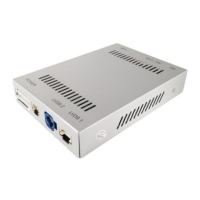

 To Next Page
