SECTION 2 - CONTROLS, INSTRUMENTS AND OPERATION
2ï40
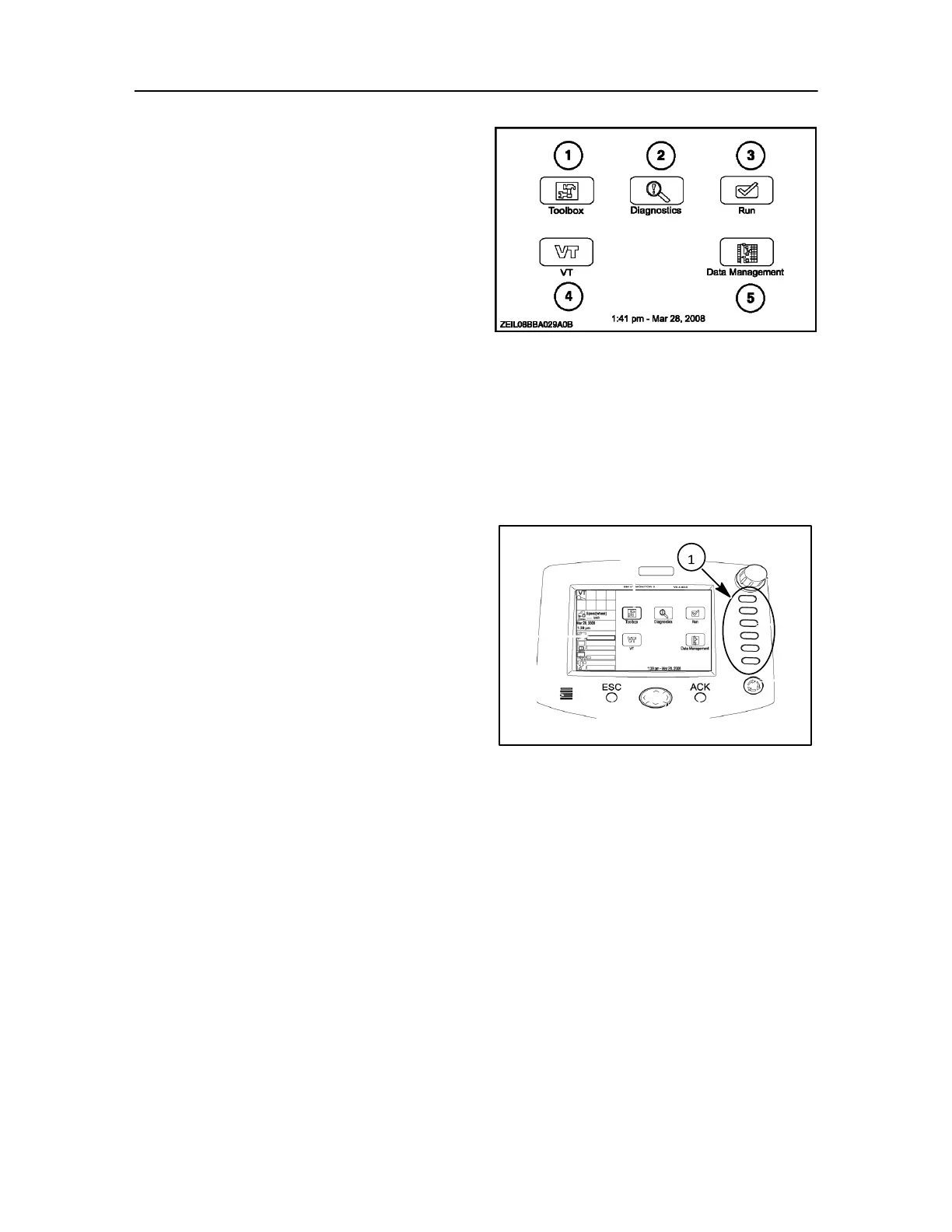
When the baler is attached the software from the
baler is uploaded into the monitor with icons as
shown. All icons are selectable using the soft keys or
touch screen.
1. Tool Box icon - to access screens for setting up:
Display preferences
Operator preferences
Customising run screens
The toolbox provides the location where shared
tools used by other applications can be configured.
2. Diagnostics icon - is selected to access screens
70
for checking: Software revisions
Controller status
3. Run screen icon - is used to access user screens
for all applications resident on the display. These
screens are normally used while operating the
equipment (which in this instance will be the baler
when connected).
4. VT icon - returns the user to the run menu.
5. Data management icon - allows access to
screens for importing, filtering, and deleting data.
BLACK AND WHITE DISPLAY
Soft key keypad
The six soft keys to the right of the display executes
the commands and are discussed further in this
manual.
On any screen, if an icon is present adjacent to a soft
key, the key has a function. If no icon is present, the
key has no function.
IMPORTANT: Many references are made to the soft keys
in this manual. These keys are the only way to execute a
command, the menu ICONS on the display
are not touch screen sensitive.
The various farming applications for the monitor determine
which icons display on any screen.
Pressing a soft key immediately displays the screen or
executes the action shown by the icon to its left.
IMPORTANT: The icon does not need to be highlighted for
the soft key or use rotary encoder to work.
Navigation keypad
The navigation keypad contains arrows.
Use the arrows to move through pop-up lists and screens
and highlight items for selection.
Once an item is highlighted, it can be selected. The
action performed by the selection key is determined
by its context.



 To Next Page