EasyManua.ls Logo

Casio CTK-496 - User Manual

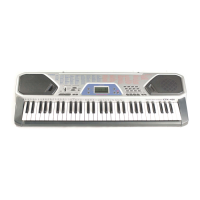
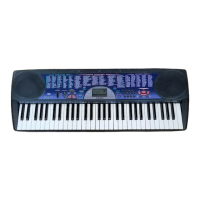
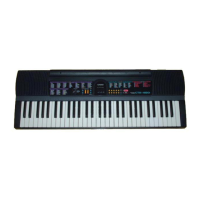
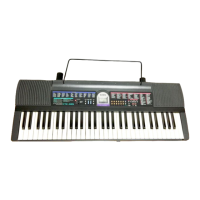
Casio CTK-496
45 pages
Print Icon
To Next Page IconTo Next Page
Loading...
CTK496/700ES1A
ES
USER’S GUIDE
GUÍA DEL USUARIO

Other manuals for Casio CTK-496

Questions and Answers

  • R
    Rachel RodriguezJul 26, 2025
    How to fix no sound on my Casio CTK-496 Electronic Keyboard?
    • T
      thompsoncharlesJul 26, 2025
      If there is no sound from your Casio Electronic Keyboard, first, ensure the AC adapter is correctly attached, the batteries are correctly inserted (+/–), and the batteries are not dead. Then, check that the POWER/MODE switch is set to the NORMAL position. Also, the volume might be too low, so increase it using the MAIN VOLUME buttons. Finally, confirm the POWER/MODE switch is not in the CASIO CHORD or FINGERED position; if it is, switch it to NORMAL.
  • B
    Brad WardAug 3, 2025
    What to do if a Song Bank tune is missing on Casio CTK-496 Electronic Keyboard?
    • R
      Randy GarciaAug 3, 2025
      If the Song Bank tune is missing on your Casio Electronic Keyboard, check if the left-hand or right-hand part is turned off. Look at the display; if the indicator for either part is not showing, press the corresponding button (LEFT ON/OFF, RIGHT ON/OFF) to turn it on. Also, adjust the accompaniment volume, as it might be set to 0.
  • A
    Andrea ColonAug 10, 2025
    Why does key or tuning not match on Casio CTK-496 Electronic Keyboard?
    • P
      pjacobsAug 10, 2025
      If the key or tuning does not match when playing along with another instrument on your Casio Electronic Keyboard, it might be because the tuning or transpose parameter is not set to 0 or 00. Change the transpose or tuning parameter value to 0 or 00.
  • G
    Guy PadillaAug 17, 2025
    What to do if auto accompaniment doesn't sound on Casio Electronic Keyboard?
    • S
      stevenbutlerAug 18, 2025
      If the auto accompaniment does not sound on your Casio Electronic Keyboard, the auto accompaniment volume may be set to 0. Use the ACCOMP VOLUME button to increase the volume.

Summary

Safety Precautions

Symbols

Explains symbols used for safety and damage prevention.

Symbol Examples

Illustrates common safety symbols like caution and prohibition.

Introduction

Care of your keyboard

Provides instructions on how to maintain and care for the musical instrument.

General Guide

Using the Display

Details the various functions and information displayed on the keyboard's screen.

Power Supply

Using batteries

Instructions for loading and replacing batteries, including battery life and low battery indicators.

Using the AC Adaptor

Guidelines and precautions for connecting and using the AC power adaptor.

Connections

Phones;Output Terminal

How to connect headphones or external audio equipment to the keyboard.

Sustain jack Terminal

Information on connecting a sustain pedal for musical expression.

Accessories and Options

Advises on using only specified accessories for safety and proper function.

Basic Operations

Playing the Keyboard

Fundamental steps for turning on the keyboard and producing sound.

Selecting a Tone

Guide on how to choose from the available instrument sounds.

Auto Accompaniment

Selecting a Rhythm

Procedure for choosing and setting up rhythmic patterns for accompaniment.

Using Auto Accompaniment

Explains how to use the feature for automatic bass and chord accompaniment.

Using the Song Bank

Playing Back a Song Bank Tune

Steps to select and play built-in demonstration songs.

Playing Along with a Song Bank Tune

Instructions for practicing songs by playing along with melody or accompaniment parts.

Keyboard Settings

Transposing the Keyboard

How to change the key of the keyboard for easier playing or vocal accompaniment.

MIDI

Changing MIDI Settings

How to adjust MIDI parameters like Tone Map and Keyboard Channel.

Troubleshooting

No keyboard Sound

Addresses issues where the keyboard produces no sound, covering power and volume.

Static noise when a microphone is connected

Tips for resolving static or feedback noise when using a microphone.

Specifications

Appendix

Tone List

A comprehensive list of all available instrument tones and their numbers.

Fingered Chord Chart

Shows left-hand fingerings for various chords used in Fingered Mode.

Rhythm List

MIDI Implementation Chart

Casio CTK-496 Specifications

General IconGeneral
MIDI-keyboard number of keys61 keys
InterfaceUSB
DC-in jackYes
Dimensions (WxDxH)956 x 354 x 132 mm
Power requirements9 V DC
Weight and Dimensions IconWeight and Dimensions
Weight3800 g

Related product manuals