EasyManua.ls Logo

Casio fx-83GT PLUS - Page 9

Casio fx-83GT PLUS
32 pages
Print Icon
To Next Page IconTo Next Page
To Previous Page IconTo Previous Page
Loading...
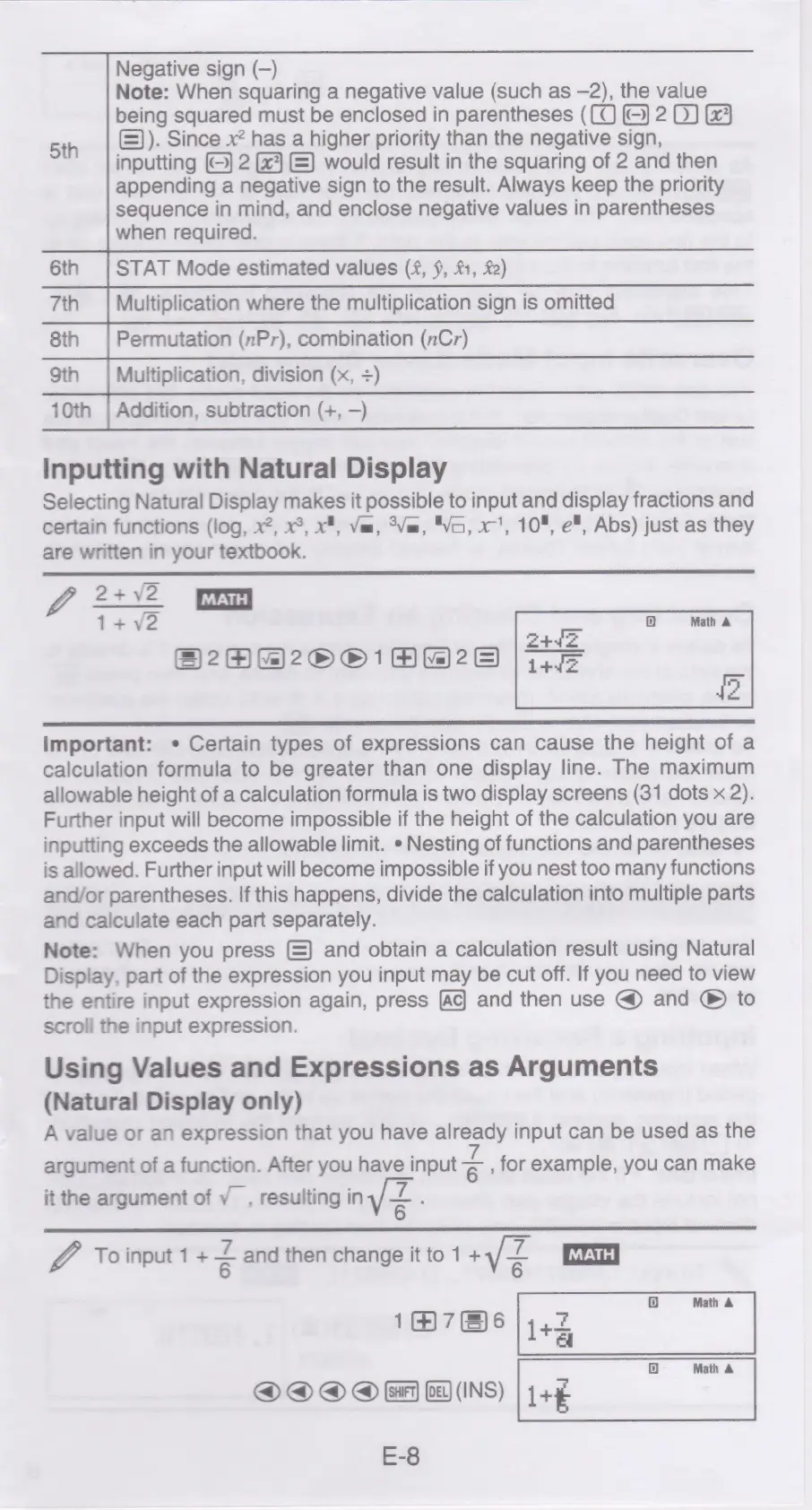
Negative
sign
(-)
Note:
When
squaring
a
negative
value
(such
as
—2),
the
value
being
squared
must
be
enclosed
in
parentheses
((Q
©)
2
0)
&3
()).
Since
x?
has
a
higher
priority
than
the
negative
sign,
inputting
(©)
2
7)
E)
would
result
in
the
squaring
of
2
and
then
appending
a
negative
sign
to
the
result.
Always
keep
the
priority
sequence
in
mind,
and
enclose
negative
values
in
parentheses
when
required.
6th
|
STAT
Mode
estimated
values
(£,
},
£1,
£2)
7th
|
Multiplication
where
the
multiplication
sign
is
omitted
8th
|
Permutation
(nPr),
combination
(nCr)
5th
9th
|
Multiplication,
division
(x,
+)
10th
|
Addition,
subtraction
(+,
—)
inputting
with
Natural
Display
Selecting
Natural
Display
makes
it
possible
to
input
and
display
fractions
and
certain
functions
(log,
x2, x°,
x¥,
Va,
°Vm,
"Vo,
x’,
10",
e",
Abs)
just
as
they
are
written
in
your
textbook.
Go
22N2
1+y2
S2AB@20010%)28)
Important:
¢
Certain
types
of
expressions
can
cause
the
height
of
a
calculation
formula
to
be
greater
than
one
display
line.
The
maximum
allowable
height
of
a
calculation
formula
is
two
display
screens
(31
dots
x
2).
Further
input
will
become
impossible
if
the
height
of
the
calculation
you
are
inputting
exceeds
the
allowable
limit.
*
Nesting
of
functions
and
parentheses
is
allowed.
Further
input
will
become
impossible
if
you
nest
too
many
functions
and/or
parentheses.
If
this
happens,
divide
the
calculation
into
multiple
parts
and
calculate
each
part
separately.
Note:
When
you
press
()
and
obtain
a
calculation
result
using
Natural
Display,
part
of
the
expression
you
input
may
be
cut
off.
If
you
need
to
view
the
entire
input
expression
again,
press
and
then
use
@
and
®
to
scroll
the
input
expression.
Using
Values
and
Expressions
as
Arguments
(Natural
Display
only)
A
value
or
an
expression
that
you
have
already
input
can
be
used
as
the
argument
of
a
function.
After
you
have
input
S:
for
example,
you
can
make
it
the
argument
of
v_,
resulting
in
<
:
V4
To
input
1
+
<
and
then
change
it
to
1
+¥z
1D}
Math
A
176
|
442
i
|
1D]
Math
&
@@Q@
OM
Ws)
|1+¢
E-8

Related product manuals