EasyManua.ls Logo

Casio VZ-10M - Page 16

Casio VZ-10M
113 pages
Print Icon
To Next Page IconTo Next Page
To Previous Page IconTo Previous Page
Loading...
sways,
your
VZ-10M
is
very
similar
to
a
computer,
asit
is
capable
‘and
generating
a
large
amount
of
digital
sound
data.
This
“data
"is
maintained
by
the
VZ-10M
“Operating
System,”
which
you
‘f
as
a
collection
of
system
programs
that
control
the
overall
Of
the
VZ-10M.
interface
with
the
VZ-10M
operating system
can
be
found
in
functions
which
can
be
called
up
on
the
VZ-10M's
builtin
graphic
These
functions
contain
a
number
of
parameters,
which
deter-
various
characteristics
of
VZ-10M
sounds.
In
fact,
sound
syn-
the
VZ-10M
basically
consists
of
inputting
values
for
these
jcomputer,
you
generally
enter
a
certain
program,
and use
a
cursor
t0
different
positions
in
the
displayed
page,
and
use
the
keyboard
Pcommands,
values,
text,
etc.
(this
is,
of
course
a
simplified
ex-
)
‘works
much
in
the
same
way,
and
it
features
a
number
of
‘System
Controls”
which
are
used
to
perform
the
same
‘8
computer
keyboard
or
mouse
would
perform.
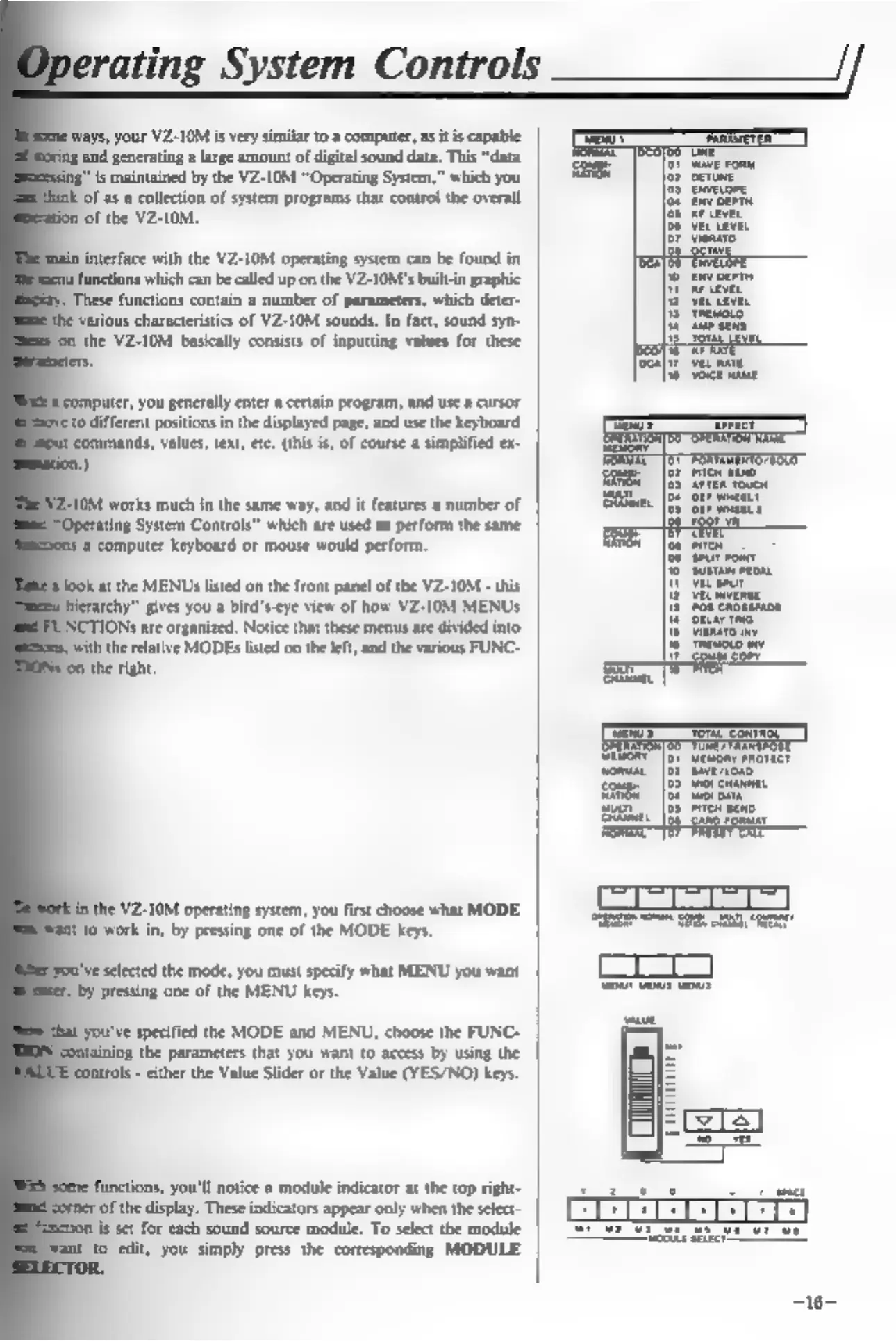
fat
the
MENUs
listed
on
the
front
panel
of
the
VZ-10M
-
this
rchy””
gives
you
a
bird's-eye
view
of
how
VZ-10M
MENUs
the
VZ-10M
operating
system,
you
first
choose
what
MODE
to
work
in,
by
pressing
one
of
the
MODE
keys.
ve
selected
the
mode,
you
must
specify
what
MENU
you
want
by
pressing
one
of
the
MENU
keys.
‘you've
specified
the
MODE
and
MENU,
choose
the
FUNC-
the
parameters
that
you
want
to
access
by
using
the
‘controls
-
either
the
Value
Slider
or
the
Value
(YES/NO)
keys.
functions,
you'll
notice
a
module
indicator
at
the
top
right-
‘ofthe
display.
These
indicators
appear
only
when
the
select-
is
set
for
each
sound
source
module.
To
select
the
module
0
edit,
you
simply
press
the
corresponding
MODULE
~16-

Other manuals for Casio VZ-10M

Related product manuals