EasyManua.ls Logo

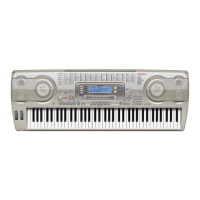
Casio WK-6600 - User Manual

Casio WK-6600
132 pages
Print Icon
To Next Page IconTo Next Page
Loading...
E
CTK6200/WK6600E1A
USER’S GUIDE
Please keep all information for future reference.
Safety Precautions
Before trying to use the keyboard, be sure to read the
separate “Safety Precautions”.
CTK
-
6200
WK
-
6600

Table of Contents

Other manuals for Casio WK-6600

Questions and Answers

  • S
    Shawn ClarkAug 17, 2025
    What to do if my Casio WK-6600 Electronic Keyboard power will not turn on?
    • M
      Melissa WalshAug 17, 2025
      If your Casio Electronic Keyboard won't power on, there are a few things you can check: * Ensure the AC adapter is properly connected or that the batteries are correctly installed. * Try replacing the batteries with a fresh set or use the AC adapter. * If a 'Please Wait' message appeared during an operation, and the keyboard still won't turn on, you can try a reset: Hold down the R-2 ([B] E.Piano) and R-5 ([E] BASS) buttons while pressing the L-1 (POWER) button. Be aware that this will erase all data and restore factory settings.
  • C
    Christina HayesAug 20, 2025
    What to do if the display lights up momentarily but power does not turn on when I press the L-1 (POWER) button on Casio WK-6600?
    • M
      Mark KennedyAug 20, 2025
      If the display of your Casio Electronic Keyboard lights up briefly but the power doesn't stay on when you press the L-1 (POWER) button, make sure to press the button firmly and completely.
  • E
    ehowellAug 22, 2025
    Why nothing happens when I press any key on my Casio WK-6600?
    • D
      David MartinAug 22, 2025
      If pressing the keys on your Casio Electronic Keyboard produces no sound, consider the following: * Verify and adjust the main volume. * Check if headphones or another device are connected to the T-8 (PHONES) jack on the back of the keyboard. * Try turning the power off and then back on to reset the keyboard settings.
  • B
    Brandon HarrisAug 26, 2025
    Why does my Casio Electronic Keyboard suddenly power down after a few minutes?
    • D
      Diana WilsonAug 26, 2025
      Your Casio Electronic Keyboard might be powering down after a few minutes because the Auto Power Off feature is enabled.
  • J
    Jeanne PetersonAug 28, 2025
    What to do if Casio Electronic Keyboard outputs a loud sound and then suddenly powers down?
    • W
      wjohnsonAug 28, 2025
      If your Casio Electronic Keyboard emits a loud sound and then shuts down, try replacing the batteries with new ones or using the AC adapter.
  • C
    Christina AllenAug 31, 2025
    Why nothing happens when I start an Auto Accompaniment on Casio Electronic Keyboard?
    • E
      Elizabeth CamposAug 31, 2025
      If nothing happens when you start Auto Accompaniment on your Casio Electronic Keyboard: * If you're using rhythms E:029 to E:038, you need to play a chord on the keyboard for sound to be produced. * Check and adjust the accompaniment volume setting. * If there is no user rhythm stored in memory, Auto Accompaniment will not start when you press the L-16 (START/STOP) button while a rhythm in the range of F:001 to F:010 is selected, try turning the power off and then back on to reset the keyboard settings.
  • J
    Joan BrownSep 2, 2025
    Why does the display keep going out or is flashing on my Casio Electronic Keyboard?
    • E
      Eric GreenSep 2, 2025
      If the display on your Casio Electronic Keyboard is flashing or keeps going out, try replacing the batteries with new ones or using the AC adapter.
  • Y
    yburkeSep 5, 2025
    How to fix if the metronome does not sound on Casio Electronic Keyboard?
    • O
      oliverpatriciaSep 5, 2025
      If the metronome on your Casio Electronic Keyboard isn't producing any sound: * Check and adjust the metronome volume setting. * Try turning the power off and then back on to reset the keyboard settings.
  • S
    Sara AndrewsSep 8, 2025
    What to do if nothing happens or notes do not play normally when I play on the left side of Casio Electronic Keyboard?
    • G
      George JohnsonSep 8, 2025
      If you experience issues with sound or note playback on the left side of your Casio Electronic Keyboard, press the L-17 (ACCOMP ON/OFF) button to disable chord input with chord keyboard.
  • C
    Colleen DiazSep 12, 2025
    Why screen contents are visible only from straight ahead on Casio Electronic Keyboard?
    • A
      Allison GutierrezSep 12, 2025
      The screen contents of your Casio Electronic Keyboard being visible only from straight ahead is due to production limitations and does not indicate a malfunction.

Summary

Safety Precautions

General Guide

Modes

Explains the three operating modes: Rhythm, Card, and Song Sequencer.

Saving Settings

Explains how to store created data and how settings are retained.

Getting Ready to Play

Power Supply

Details how to connect to a household power outlet or use batteries.

Connections

Connecting Audio Equipment or an Amplifier

Explains how to connect external speakers for enhanced sound output.

Selecting and Playing a Tone

Selecting a Tone

Describes the procedure to select a single tone for the entire keyboard.

Layering and Splitting Tones

Explains how to play two or three different tones simultaneously.

Using Auto Accompaniment

Playing an Auto Accompaniment

Guides on selecting rhythms and playing chords for accompaniment.

Applying Effects to a Sound

Selecting an Effect

Details how to select and apply reverb, chorus, or DSP effects.

Using the Mixer

Mixer Operation

Explains how to adjust mixer parameters for individual parts and global settings.

Using the Tone Editor

Creating a User Tone

Guides on editing preset tones to create custom user tones.

Music Presets

Creating a User Preset

Explains how to save custom tone and rhythm settings as user presets.

Saving Keyboard Setups to Registration Memory

To save a setup to registration memory

Describes how to store and recall keyboard configurations for quick access.

Using the Song Sequencer

Starting One-touch Recording (EASY REC)

Guides on how to start recording performances using a single button.

Editing Events

Explains how to edit individual note, pitch bend, and other events.

Using the Function Menu

Function Menu Settings

Details the meaning and ranges of various function menu items.

Using a Memory Card

Saving Data to a Memory Card

Explains how to save user data like rhythms, tones, and songs to a memory card.

Loading Data from a Memory Card

Guides on importing data from a memory card into the keyboard's memory.

Connecting to a Computer

Minimum Computer System Requirements

Lists the system requirements for connecting the keyboard to a computer.

Reference

Troubleshooting

Provides solutions for common symptoms and problems encountered with the keyboard.

Specifications

Lists the technical specifications of the CTK-6200/WK-6600 keyboard.

Casio WK-6600 Specifications

General IconGeneral
Control typeButtons
MIDI-keyboard number of keys76 keys
MetronomeYes
Product colorBlack
Sound effectsChorus, Equalization, Flanger/Digital Signal Processing (DSP), Reverberation
Volume controlDigital
Maximum polyphony (notes)48
Music memory capacity (songs)5
InterfaceUSB
Headphone outputs1
Display typeLCD
Battery typeD
Power source typeAC, Battery
Number of batteries supported6
Cables includedAC
Weight and Dimensions IconWeight and Dimensions
Depth385 mm
Width1161 mm
Height147 mm
Weight7200 g

Related product manuals