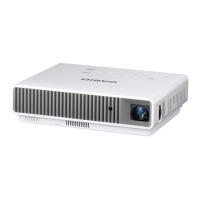
EasyManua.ls Logo

Casio XJ-A246 - User Manual

Casio XJ-A246
58 pages
Print Icon
To Next Page IconTo Next Page
Loading...
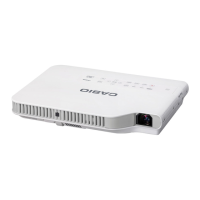
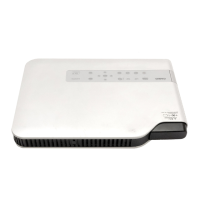
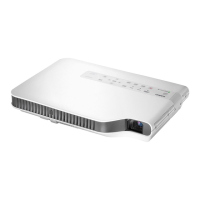
DATA PROJECTOR
XJ-A141/XJ-A146
*
XJ-A241/XJ-A246
*
XJ-A251/XJ-A256
*
User’s Guide
z Be sure to read the precautions in the separate Setup Guide.
z Be sure to keep all user documentation handy for future
reference.
E
* USB Port Models

Table of Contents

Other manuals for Casio XJ-A246

Questions and Answers

  • A
    andrew66Aug 15, 2025
    Why does my Casio Projector wireless LAN connection keep dropping?
    • P
      Penny WarrenAug 15, 2025
      If your wireless LAN connection between the projector and computer is unstable, there are a few things to consider. First, if you're running any other wireless LAN utility besides Wireless Connection 3 on your computer, close it. Second, the projector and computer may be too far apart, or there might be a physical obstacle like a wall between them. Try moving them closer or removing the obstacle. Finally, a nearby microwave oven, Bluetooth device, or other device could be interfering with the wireless LAN signal. Try relocating the interfering device.
  • R
    Ryan HessAug 18, 2025
    What to do if computer screen won't project from Casio Projector?
    • J
      Joseph RamosAug 18, 2025
      If you've successfully established a wireless LAN connection but the computer screen contents won’t project, ensure that 'Wireless' is selected as the input source by pressing the [INPUT] key on the projector. If 'Wireless' is already selected, click the button on the computer’s Wireless Connection 3 window. Also, if the projection image has been frozen or cut off, press the [ESC] key to cancel the freeze/blank operation.
  • S
    sanchezedwardAug 21, 2025
    How to fix Casio XJ-A246 Projector when [Reconnect] remains on the Wireless Connection 3 window?
    • J
      jose40Aug 22, 2025
      If the '[Reconnect]' message persists and your computer won’t connect to the projector, try the following: - Close any other wireless LAN utilities running on your computer besides Wireless Connection 3. - Move the projector and computer closer to each other, removing any obstacles like walls. - Relocate any nearby devices that could be interfering with the wireless LAN signal, such as microwave ovens or Bluetooth devices. - Ensure the projector is turned on. - Enable the computer’s wireless LAN function, if it is disabled. - Check that the computer’s wireless LAN function satisfies the required 'Wireless LAN' conditions under 'Minimum System Requirements'.
  • D
    David MatthewsAug 25, 2025
    What to do if Casio XJ-A246 power has turned off automatically due to internal overheating?
    • J
      Justin LeeAug 26, 2025
      If your Casio Projector's power has turned off automatically because of internal overheating, follow these steps: 1. Check the projector’s intake and exhaust vents for any blockages, ensuring sufficient space around the unit. 2. Remove any dust accumulated around the intake and exhaust vents. If the vents are clear, confirm the POWER/STANDBY indicator is lit amber (without flashing), and then turn the power back on. If the error repeats upon restart, it indicates a deeper issue.
  • A
    April HooverAug 27, 2025
    Why Projector List dialog box won't display in Casio XJ-A246 Projector?
    • R
      Raymond HoffmanAug 27, 2025
      If Wireless Connection 3 is running but the Projector List dialog box doesn’t appear, first make sure all of the projectors are turned on. Then, check that all of the projectors have wireless adapters installed. Also, if the projectors and computer are too far from each other, or there is a physical impediment, move them closer and/or remove the impediment. Finally, relocate any nearby microwave ovens, Bluetooth devices, or other devices that may be interfering with the wireless LAN signal.
  • K
    Kenneth MartinezAug 30, 2025
    How to improve slow projection image switching on Casio XJ-A246?
    • O
      Omar BradyAug 30, 2025
      To improve slow projection image switching, check the projector’s 'Projection Setting'. If 'High-resolution' is selected, change the setting to 'High-speed'. Also, if your computer is running Windows Vista or Windows 7, try disabling Windows AeroTM.
  • N
    Nicole HortonSep 2, 2025
    What to do if System Admin front page doesn't appear on Casio XJ-A246?
    • M
      Matthew RiversSep 2, 2025
      If the System Admin front page does not appear when you enter the projector's IP address in your web browser, reconnect the wireless LAN between the projector and computer if the connection was terminated. Also, the browser you are using may be configured to use a proxy server. Disable the proxy server configuration.
  • C
    Caleb MelendezSep 5, 2025
    Why isn't the SSID of my Casio Projector showing on the Projector List?
    • M
      Mr. James KerrSep 6, 2025
      If the SSID of the projector you want to connect to is not listed in the Projector List dialog box, check the 'SSID Broadcast' setting of the projector. If it is set to 'Disable', change it to 'Enable'. Also, ensure that the projector is turned on.
  • M
    Michael BarreraSep 8, 2025
    How to display username when projecting from a computer on Casio XJ-A246 Projector?
    • E
      Eddie BennettSep 8, 2025
      To display the user name when projecting from a computer, make sure that 'On' is selected for the 'Show User Name Display' item on the System Admin page 'Setup' screen.
  • J
    Joshua BennettSep 12, 2025
    Why System Admin page does not appear from Wireless Connection 3 on Casio Projector?
    • L
      Loretta SchultzSep 12, 2025
      If the System Admin page does not appear when you try to access it from Wireless Connection 3, it might be because the browser you are using is configured to use a proxy server. Since a proxy server configuration can prevent access to the System Admin page, you should change your browser configuration.

Summary

Projector Overview

Projector Features and Main Functions

Describes the key features and capabilities of the CASIO projector models.

Remote Controller and Projector Operation Keys

Projector Setup and Precautions

Essential Setup Precautions

Important safety and operational guidelines for projector setup and ventilation.

Connecting Image Output Devices

Connecting a Computer via Analog RGB

Instructions for connecting a computer's RGB output to the projector for display.

Connecting a Video Device or Computer via HDMI

Guidance on using an HDMI cable for audio and video projection.

Connecting to Video Devices

Details for connecting composite and component video sources to the projector.

Operating the Projector During Projection

Selecting the Input Source

Steps to choose the active video input signal for display.

Audio Volume Control

Eco Mode Settings (Power Saving, Low Noise)

Selecting and Adjusting Eco Mode

Guide to choosing Eco Mode settings for power saving and quiet operation.

Advanced Projector Settings Configuration

Navigating the Setup Menu

Explains how to display and navigate the projector's main setup menus.

Basic Setup Menu Configuration Example

Demonstrates common steps for adjusting settings like contrast and color mode.

Projector Password Protection

Password Management and Recovery Procedures

Covers initial password input, usage precautions, and what to do if the password is forgotten.

Changing and Managing the Projector Password

Step-by-step guide to changing the password and enabling/disabling protection.

Turning Password Protection On;Off and Entering Password

Instructions for activating/deactivating password lock and entering it at startup.

Restoring Projector Settings to Factory Defaults

Resetting Specific Main Menus to Defaults

How to restore settings for individual menu categories like Image or Screen.

Resetting All Setup Menu Settings to Defaults

Procedure to revert all projector settings to their original factory state.

Setup Menu Contents

Projector Cleaning and Maintenance

Troubleshooting Projector Issues

Understanding Indicator Lights and Status

Explains the meaning of different power, light, and temp indicator states.

Interpreting Warning Messages and Errors

Guide to understanding error codes and warning messages displayed by the projector.

Supported Input Signal Specifications

Projector Technical Specifications

Model-Specific Specifications

Compares key specs like brightness, DLP chip, terminals, and languages across models.

Casio XJ-A246 Specifications

General IconGeneral
Brightness2500 ANSI Lumens
Light SourceLaser & LED Hybrid
Lamp Life20, 000 hours
Display TechnologyDLP
Zoom Ratio1.2x
Screen Size30 - 300 inches
Max ResolutionUXGA (1600 x 1200)
Input TerminalsHDMI, VGA, Composite
Output TerminalsAudio Out
Keystone CorrectionVertical ±30°
Operating Temperature5°C - 35°C
Resolution1280 x 800

Related product manuals