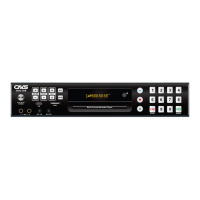
How to fix a CAVS Karaoke System with no power?
- CCharlene KrauseAug 22, 2025
If your CAVS Karaoke System has no power, make sure the power plug is securely inserted into the power outlet and press the “Power” button on the front panel.
How to fix a CAVS Karaoke System with no power?
If your CAVS Karaoke System has no power, make sure the power plug is securely inserted into the power outlet and press the “Power” button on the front panel.
How to stop speaker noise when using the microphone on my CAVS Karaoke System?
If the speaker makes a noise when using the microphone with your CAVS Karaoke System, keep the microphone away from the speaker and do not place it toward the speaker.
Why does the picture freeze on my CAVS Karaoke System during playback?
If the picture on your CAVS Karaoke System freezes momentarily during playback, check the disc for fingerprints/scratches and clean with a soft cloth wiping from centre to edge.
Why won't my CAVS Karaoke System recognize the Flash Drive or CARD?
If your CAVS Karaoke System is unable to recognize the Flash Drive/CARD, take out the Flash Drive/CARD and re-connect to the player. Check if the cable is plugged in correctly. Check that the External HDD has its own power input. The external HDD must be connected to its own power supply for proper operation.
What to do if keys aren't working on my CAVS Karaoke System?
If no key operation is effective on your CAVS Karaoke System (either by the unit or the remote control), set the POWER button to OFF and then back to ON. Alternatively, turn off the power, disconnect the power plug and then re-connect it.
How to resolve no picture on a CAVS Karaoke System?
If your CAVS Karaoke System has no picture, ensure that the video equipment is connected properly and that the input setting for the video equipment is set properly.
Why won't my CAVS Karaoke System play, or stops immediately?
If your CAVS Karaoke System fails to start playing, or starts and stops immediately, condensation may have formed. Wait about 1 to 2 hours to allow the player to dry out. Alternatively, the disc may be dirty and require cleaning. Ensure that the disc is inserted with the label side up.
What to do if the microphone doesn't work on my CAVS Karaoke System?
If the microphone on your CAVS Karaoke System isn't working, check if the microphone is switched ON. Check the microphone volume of the Player and the Amplifier. If the microphone is defective, replace it.
How to troubleshoot no sound on CAVS Karaoke System?
If your CAVS Karaoke System has no sound or the sound is distorted, ensure that the audio equipment is connected properly and that the input setting for the audio equipment is set correctly.
Why is my CAVS Karaoke System remote not working?
If the remote control of your CAVS Karaoke System isn't working, check if the batteries are inserted with the correct polarities (+/-). If they are depleted, replace them with new ones. Also, point the remote control unit at the remote control sensor, ensure you are not more than 23 feet/7 meters away, and remove any obstacles between the remote control and the sensor.
Proper methods for handling, storing, and cleaning discs to maintain quality.
Guidelines for placing, moving, and cleaning the karaoke player unit.
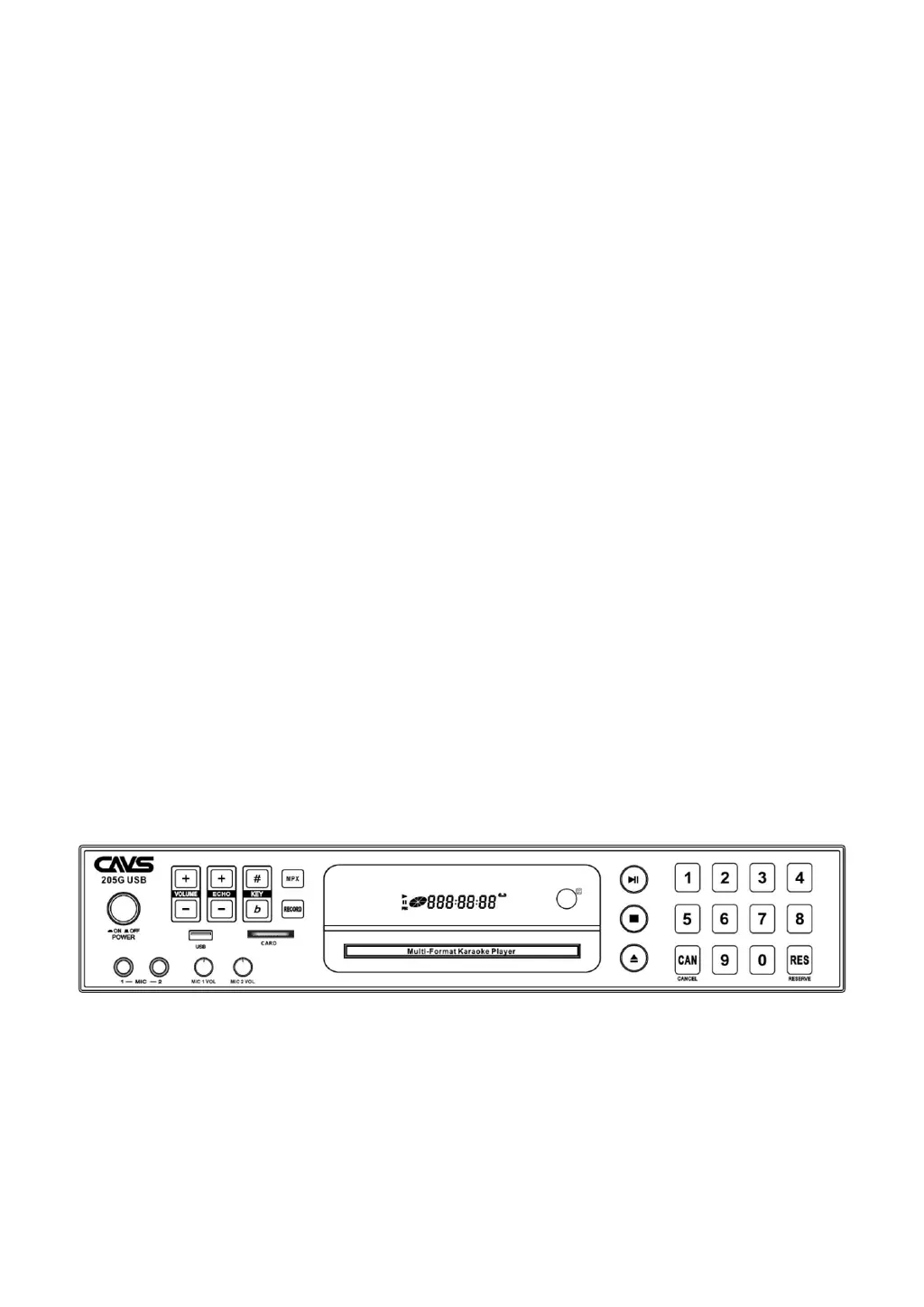
Detailed explanation of buttons and indicators on the player's front panel.
Description of all input and output ports on the back of the player.
Explanation of buttons and operations for the remote control.
Information on operation range, battery, and IR extension for the remote.
Steps to connect the player to the AC power outlet.
How to connect audio outputs to an amplifier for sound.
How to connect video outputs to a TV or monitor for display.
Instructions for connecting the player to a coin-operated machine.
How to connect and use USB flash drives and memory cards.
Controls for power, disc tray, and stopping playback.
Managing playback, track skipping, fast forward/reverse, and navigation.
Methods for selecting songs/tracks using numeric input and modes.
Adjusting volume, EQ, MPX, and switching playback modes.
Using features like SLOW, ZOOM, INFO, SUBTITLE, GOTO, A-B, REPEAT, MUTE.
Navigating menus, titles, and entering setup mode.
Setting up microphones, adjusting volume, echo, and key levels.
Finding and selecting songs by title, artist, or number.
How to program and manage a list of songs for playback.
Copying SCDG/MP3+G discs and ripping CD+G discs to storage.
Creating song lists and managing repeat modes for playback.
Configuring TV system, screen saver, HD output, and video type.
Setting a password and configuring disc rating levels for playback.
Selecting OSD, Audio, Subtitle, and Menu languages.
Setting audio outputs, score display, coin mode, key, echo, and mic volume.
Adjusting brightness, contrast, hue, saturation, and sharpness of video.
Switching audio output modes and changing font size.
Configuring OP Mode, Dynamic Range, and Dual Mono output.
Resolving problems related to power, playback start/stop, and disc errors.
Solutions for no picture, no sound, distorted video, or frozen images.
Fixing issues with remote control, on-screen display, and general operation.
Addressing problems with language selection, AVI files, and media playback.
Resolving problems with microphone functionality and scoring.
Troubleshooting issues with Flash Drive/CARD and External HDD recognition.
| Supported Format | Super CD+G, MP3+G, CD+G, AVI, MPG and JPG Supported Video Resolution: 720 * 480p |
|---|---|
| TV System | PAL/NTSC/Multi System |
| Others | Power source: DC 5V Adapter (AC 100-240V~ 50/60Hz) Power consumption: <15W |
| Video Output | Composite, HDMI VIDEO AUDIO Output Progressive Scan up to 720P, 1080i, 1080P |
| Audio Output | AUDIO L/R Out (For Karaoke) HDMI VIDEO AUDIO Out (For Karaoke) COAXIAL Out |
| Input | Microphone Input: 2EA Flash Drive: 1EA, Ver2.0 Card Input: 1EA |