16 I ENGLISH
A. CONNECTING
+
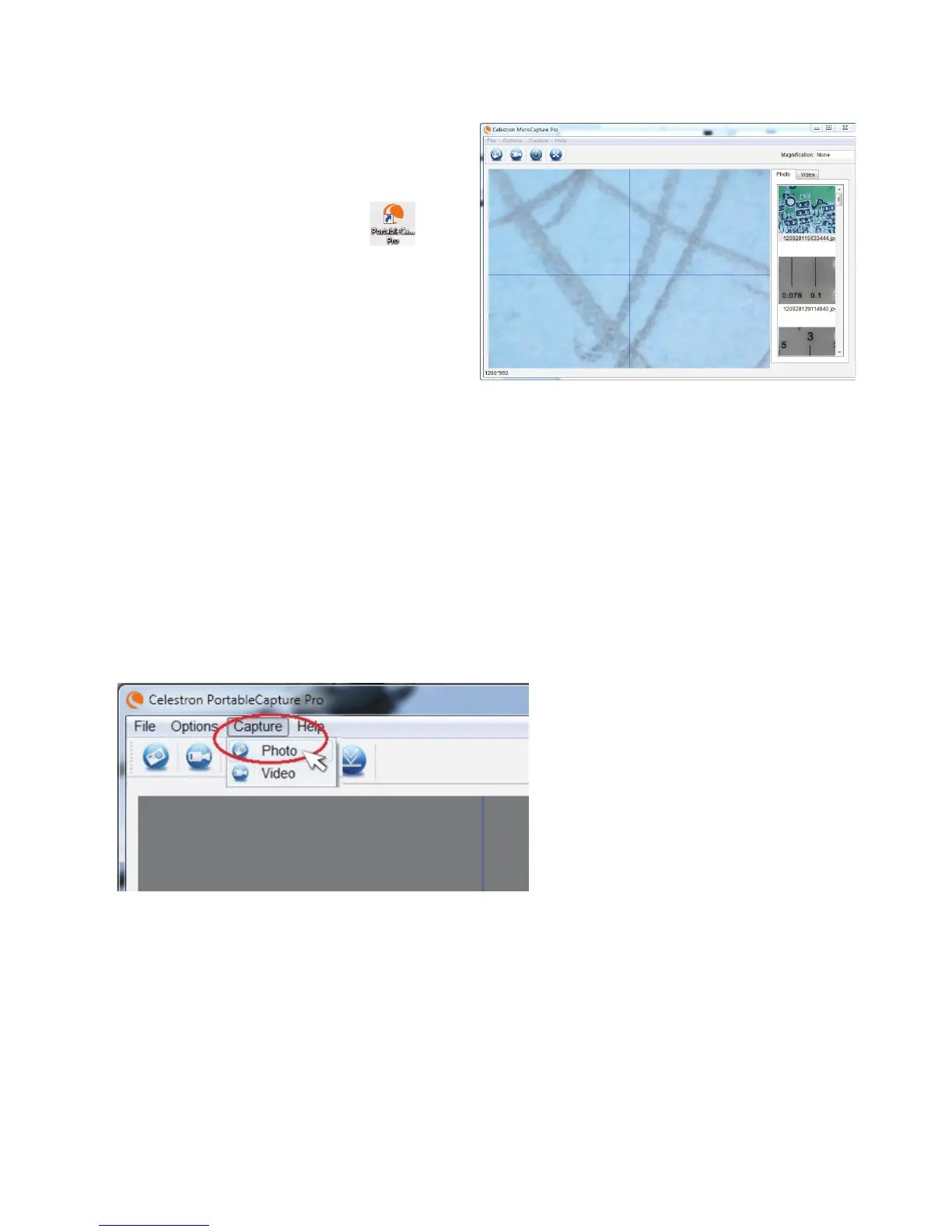
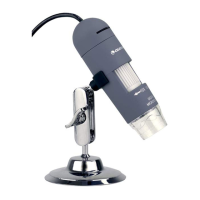
Connect the microscope to your computer via the USB
2.0 cable.
+
Click on the Micro CapturePro desktop icon
to launch the software.
+
Your microscope should automatically connect and begin
streaming images.
NOTE: If the microscope is not connected to the USB port, the following error message
will be displayed: “No device detected. Please connect your microscope directly
to an open USB port.”
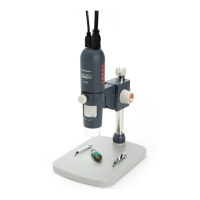
1. Illuminator Brightness
2. Focus Wheel
3. Stage Adjustment Wheel
4. Stage Lock Wheel
5. Power button
7. Using yoUr MiCrosCoPE
8. Using THE soFTWArE
A. CApTUrE A phOTO/vIdEO
+
To capture a photo, click on the Capture menu and scroll down to Photo.
+
To begin recording video, click on the Capture menu and scroll down to Video. Repeat to stop recording.
B. OThEr MENU ITEMs
FILE: Under the File menu item, you will find:
1. Photos Directory: Directs you to designate a folder on your hard drive for photo storage.
2. Videos Directory: Directs you to designate a folder on your hard drive for video storage.
3. Exit: Closes the Micro CapturePro software.


 To Next Page