ENGLISH 15
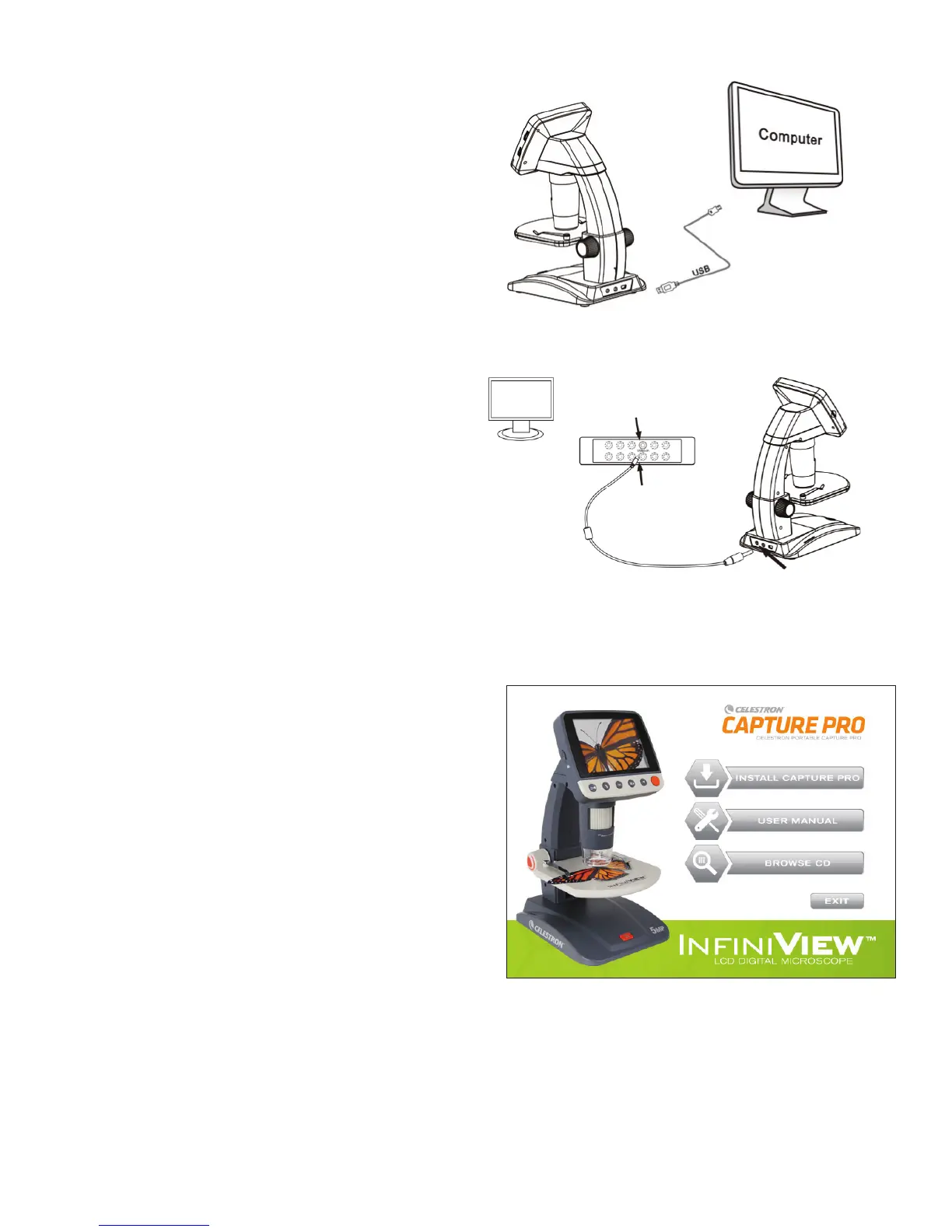
CONNECT TO Tv:
+
Insert the 1/8-inch plug on the end of the supplied
video cable into the Infi niView™ AV OUT port located
on the back of the base.
+
Insert the yellow RCA plug on the video cable into one
of your television’s yellow video input connectors.
NOTE: Refer to your television’s manual to locate your TV’s video connector.
+
Turn on the television. (Be sure your television is tuned
to the appropriate input channel.)
+
You should now see an image of the specimen you
are viewing on your television screen.
Video-in on TV monitor
Video-out
TrANsFEr FIlEs TO COMpUTEr
+
Connect your Infi niView™ to your computer via USB 2.0
+
On the LCD screen, choose “Upload Images”, using the
OK button.
+
Your computer will copy the fi les on your MicroSD card
to your hard drive.
+
When the transfer is complete, you can open the fi les
on your computer.
UsING ThE CElEsTrON pOrTABlE
CApTUrE prO sOFTWArE
+
Connect the Infi niView™ to your computer as described
above.
+
Choose “Preview on Computer” Mode from the 2 choices
on the LCD screen.
+
Open the Celestron Portable CapturePro Software on
your PC.
NOTE: Once the software is launched, the LCD screen will go blank and you will begin
controlling the microscope with the computer. However, you will still use the
Infi niView™ to control the following features:
NOTE: When you connect to a computer via USB, the lithium battery will charge.


 To Next Page