17
DVD System Operation
System operation will define the setting of the set; these definitions will be stored until you change them
again.
General Steps of Setup Menu
1. Pause or Stop the player. Press SETUP on the remote control. The main menu will be shown as below.
2. Press the
ɼ/ɽbuttons to select the Icon of the desired section, e.g. “TV System" and press
ɺbutton to open that section.
3. Press
ɼ/ɽ to select the desired feature and again press ɺbutton to open that section.
4. Press
ɼ/ɽ to select the desired feature and then press "OK" to select the new setting.
5 To exit the menu, press "SETUP" or
ɽ to select EXIT SETUP and then press "OK"
When launching the setup routine, the pressing of the following buttons will turn off the setup menu,
while the choices that have been changed will be saved.
Menu specification
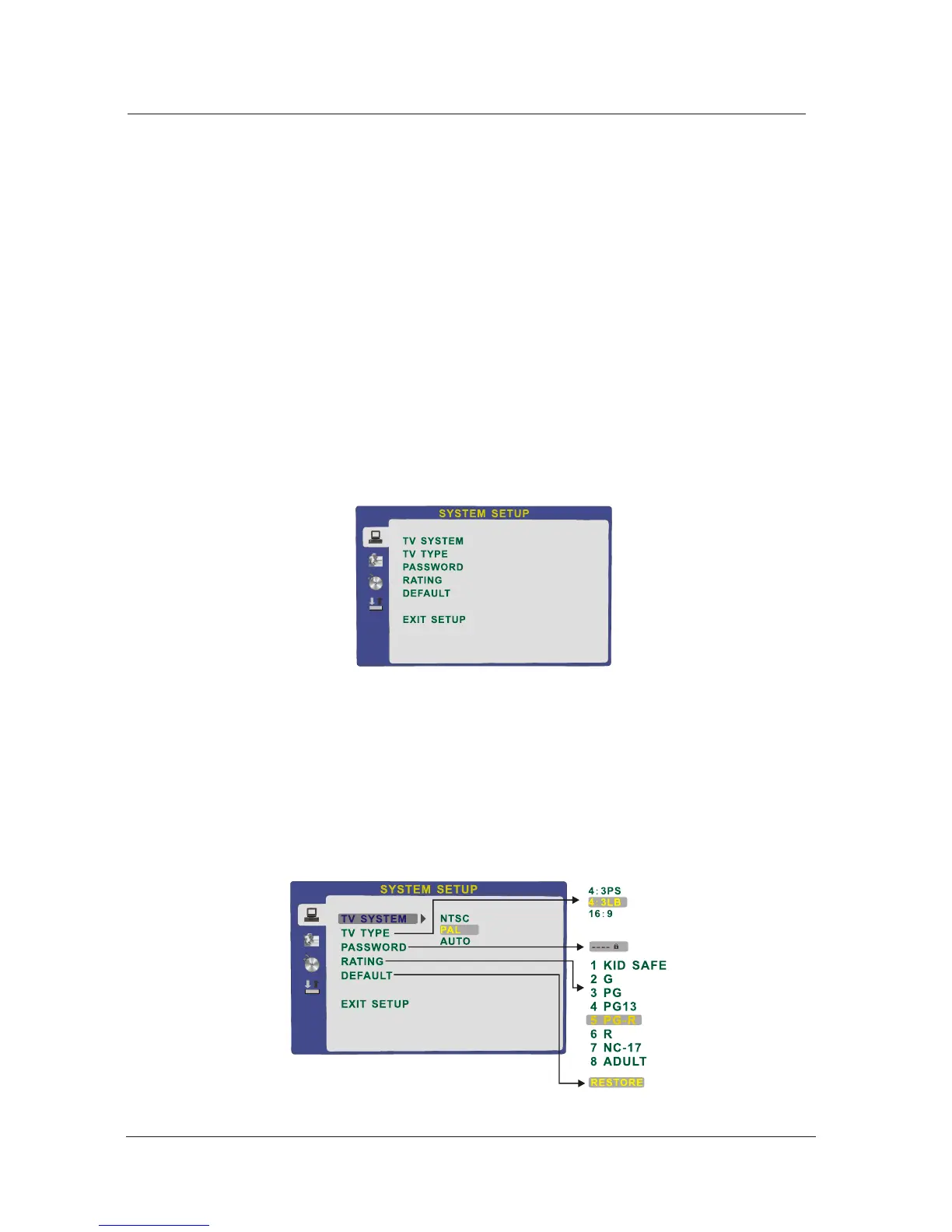
1. SYSTEM SETUP
The system setup options are illustrated below:
DVD System Operation
3. The player will then start to play the first track, of the selected directory.
4. To change directories use the direction buttons.
Zoom In the Video Image
1. Compatible with DVD, SVCD, VCD, JPEG discs.
2. The Zoom Function allows you to enlarge the video image.
3. Press Zoom repeatedly to activate the function and choose the required zoom factor: Zoom 1, Zoom 2,
Zoom 3, Zoom 4, Zoom 1 /2, Zoom 1 /3, Zoom 1/4, Zoom Off.
Digital Audio Disc
1. Compatible with Digital Audio discs
2. The player will search the disc directory automatically and display the contents on screen.


 To Next Page