8
4.4 Advanced Selective Pairing: Hands-Free or A2DP Stereo
Phone Pairing allows the headset to establish two Bluetooth
®
proles:
Hands-Free or A2DP Stereo. Advanced Selective Pairing allows the headset
to separate the proles to enable connection with two devices.
4.4.1 Phone Selective Pairing - Hands-Free Prole
Execute Phone Selective Pairing in the Conguration Menu.
4.4.2 Media Selective Pairing - A2DP Prole
Execute Media Selective Pairing in the Conguration Menu.
5. MOBILE PHONE USAGE
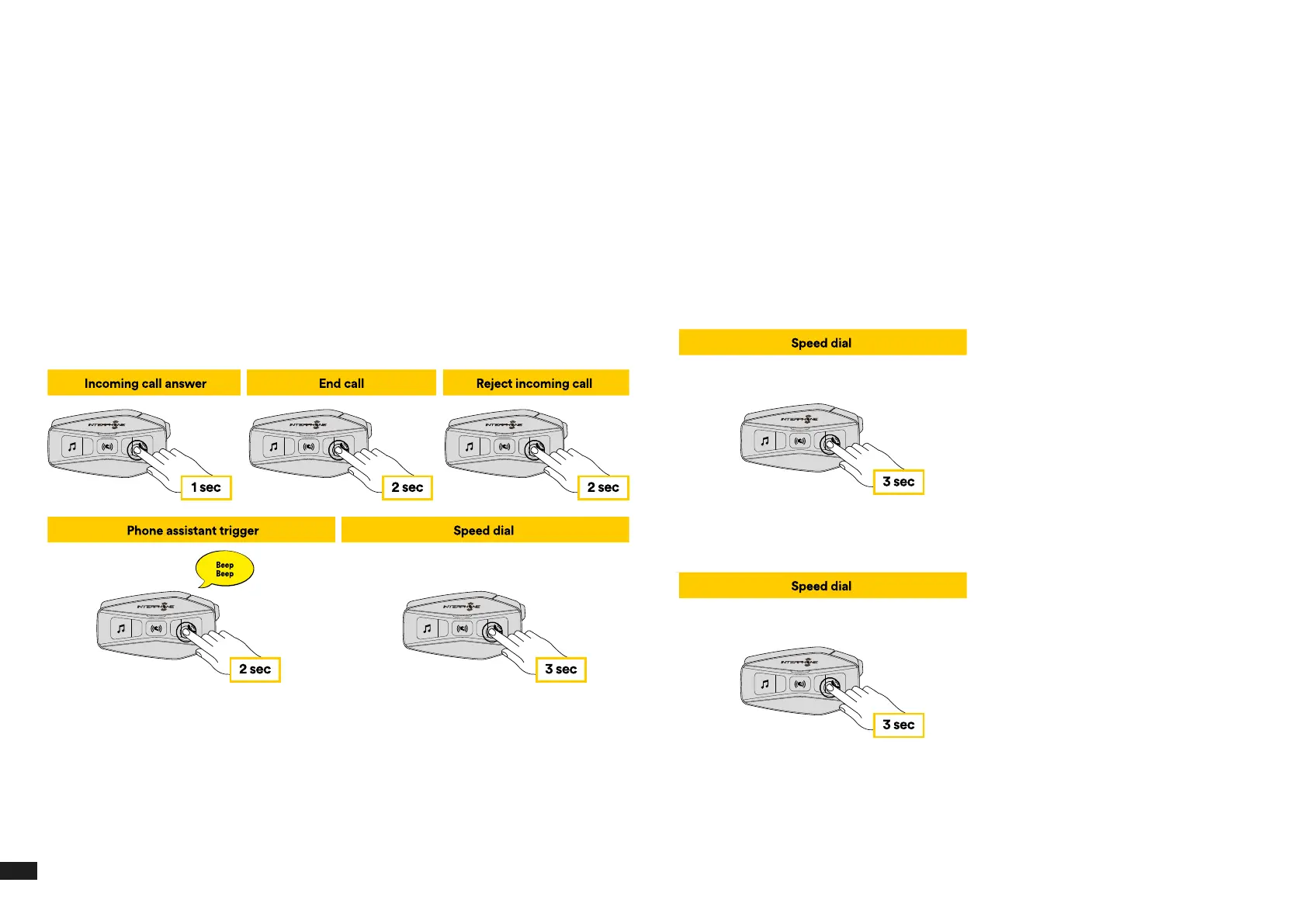
5.1 Making and Answering Calls
Note: If you have a GPS device connected, you will not hear its voice
navigations during a phone call.
5.2 Siri and Google Assistant
U-COM 16 supports the Siri and Google Assistant access directly. You can
activate the Siri or Google Assistant using the voice through the headset’s
microphone, a wake word will be used. This is a word or groups of words
such as “Hey Siri“ or “Hey Google”.
5.3 Speed Dialing
It is possible to store up to 3 telephone numbers (if "advanced mode" is
active) to be used as speed dials. You can set the speed dial numbers via
UNITE APP or INTERPHONE Device Manager.
5.3.1 Using preset speed dial numbers
How to activate speed dial (with ADVANCED FEATURES o)
How to activate speed dial (with ADVANCED FEATURES on)
1. Enter into the Speed Dial menu.


 To Next Page