Page 11For technical questions, please call 1-888-866-5797.Item 62142
Diagnostic Menu
Note: Not all vehicles return the same data, results
may vary from the examples given herein.
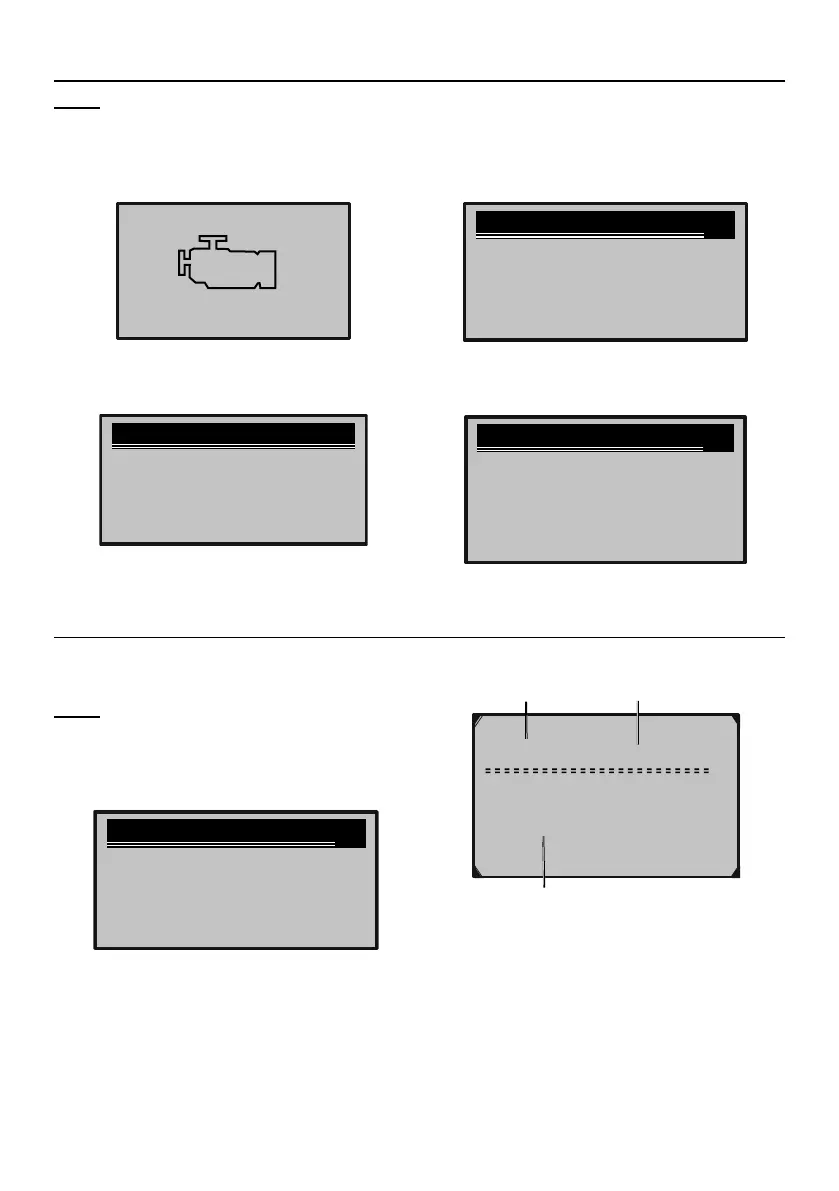
1. From the Startup Screen,
press ENTER.
CAN OBD2 CODE READER
[ENTER]-SCAN
[SCROLL]-SETUP
OBDII
Figure I
2. System Status will display momentarily.
System Status
Codes Found 0
Monitors N/A 4
Monitors OK 7
Monitors INC 0
Figure J
3. Control Module will display, press
ENTER to view Diagnostic Menu..
Control Module
1/4
►$7E8
$7EB
$7EA
Exit
Figure K
4. Diagnostic Menu will display.
Diagnostic Menu
1/6
►1) Read Codes
2) Erase Codes
3) View Freeze Frame
4) I/M Readiness
5) Vehicle Info
6) Exit
Figure L
1) Read Codes
1. From Diagnostic Menu, select
Read Codes, then press ENTER.
Note; If more than one Control
Module is detected, each Module
must be tested separately.
2. Select a Module, then press ENTER.
Control Module
1/4
►$7E8
$7EB
$7EA
Exit
3. If there are no DTCs, the
message “No codes are stored
in the module” will appear.
4. View the DTC.
1/1
P0113 $10
Generic
Intake Air Temperature
Sensor 1 Circuit High
DTC
Control Module
DTC Description
Figure M
5. Repeat for other Module(s).
6. When finished, select Exit,
then press ENTER.
Brought to You by www.snapwhole.comBrought to You by www.snapwhole.com



 To Next Page