13 RESETTING THE CLOCK
Reset the clock by pressing the reset button at the bottom of the clock.
Use a small flat head screwdriver (or the end of a paper clip) to reach
the button and press gently, as depicted in section 8.3 of this document.
Alternatively, use the Reset control on the Administrator Mode Screen,
or (if there is no battery backup installed), temporarily remove external
power from clock.
14 CLOCK INFORMATION AND SETUP STATIC IP
1. On the home screen, touch and hold the Welcome to Dayforce
HCM message.
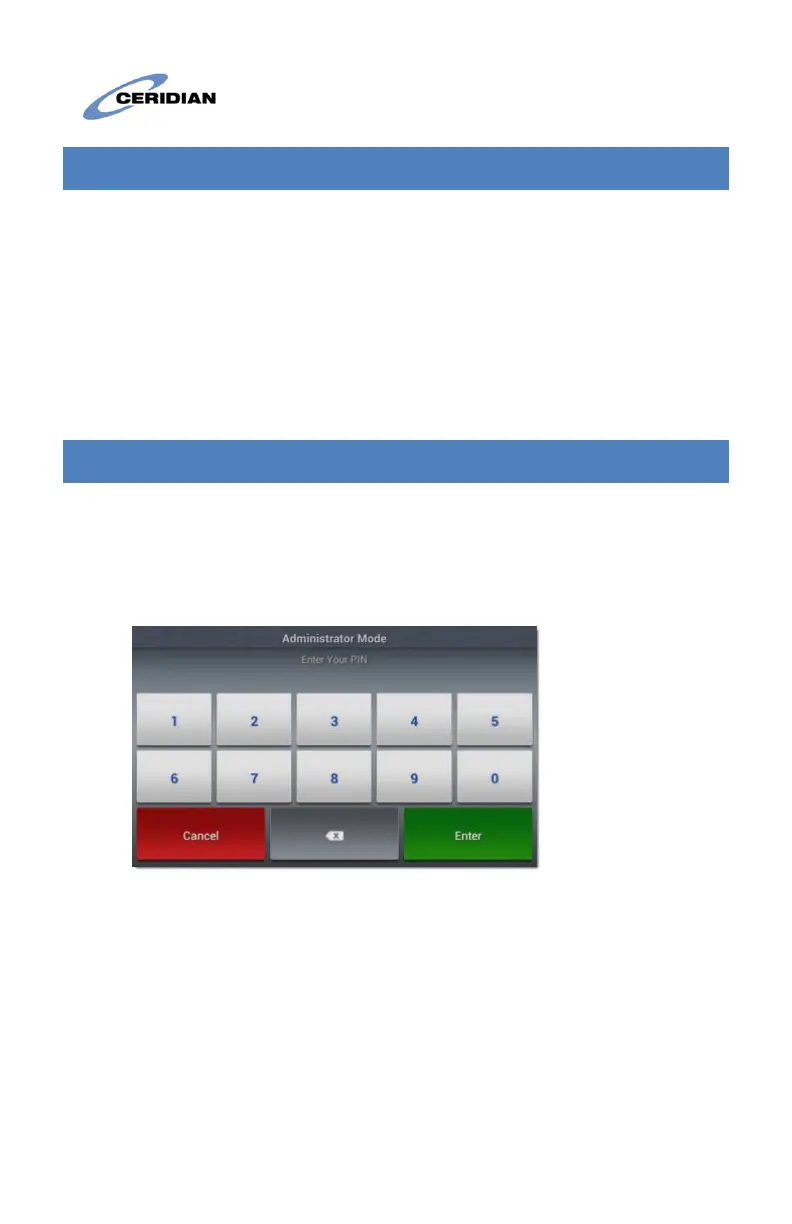
After a few seconds, the application prompts you to type the
admin mode PIN:
2. Type the administrator mode PIN.
Note: The default PIN is 4110, but may be changed without
notice by system administration.
3. Tap the Enter button.
The clock displays the Administrator Mode screen. To view the current
clock IP and MAC address, tap Clock Information.
To set up Static IP:


 To Next Page