11 NETWORKING INFORMATION
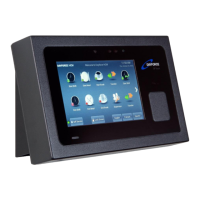
The Ceridian DF Touch clocks have been designed to automatically
communicate with the Ceridian servers in the cloud when powered up
and connected to the internet.
All clocks must be assigned (registered) to a client in the Ceridian Admin
Server by Ceridian personnel. Clocks will not connect if they have not
been properly assigned.
Clients must provide the clocks with the ability to obtain its IP addresses
via DHCP. Alternatively, IP addressing can be manual by using the static
IP addressing function provided.
Clients protected by a Firewall must allow the clocks to communicate
through ports TCP 443 and TCP 80.
Inter-clock communications uses port TCP 7750 within the local network
so this port should not be blocked within the local network.
The internet domain address used by the clocks is usually
dayforcehcm.com.
11.1 Starting Up for the first time
The loader program will be loaded from the clock’s non-volatile
memory.
11.2 Registration Pending Screen
The message, “This time clock is not registered. Please contact your
system administrator for assistance” means that the clock is
communicating with the Ceridian Servers but has not been assigned.


 To Next Page