1.
2.
3.
4.
5.
For workstations without built in Bluetooth Low Energy 4.0/4.2 capabilities, a USB Bluetooth Donlge or the - an USB Bluetooth connector AirID Bridge
- MUST be used to provide connectivity.
Since Windows 7 doesn't support the Bluetooth Low Energy standard, a is required additionally.AirID Bridge
5.1.2. Installation and Pairing
1
Installer Download
Download the latest Windows installer - a zipped .exe file - for Windows at the .Download Center
2
Driver and App Installation
Unzip and double click on the .exe installer file.
Follow the instructions in the installation wizard to install the AirID Windows driver and the AirID Central App.
3
Bluetooth Pairing
Power on your smart card reader
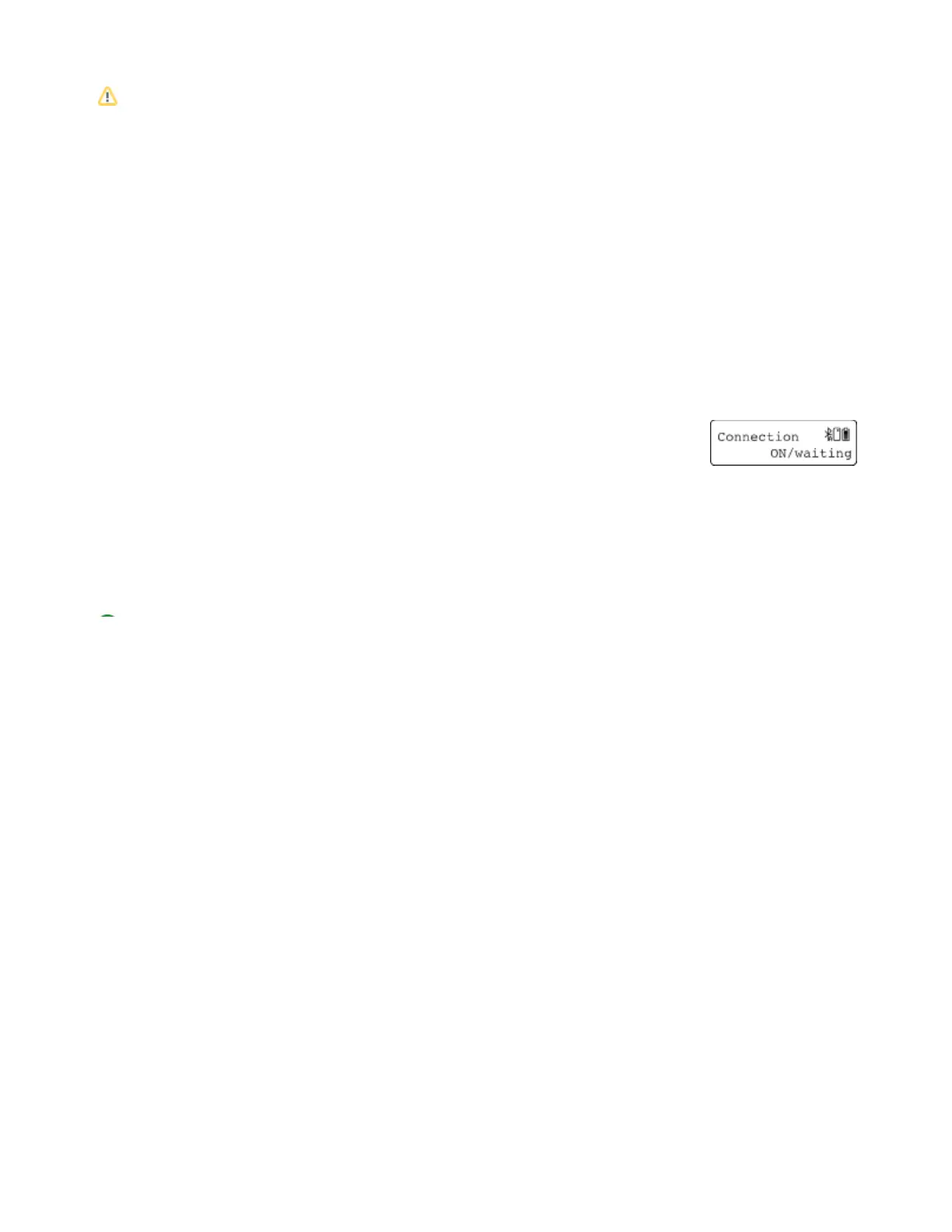
Make sure that Bluetooth is activated at your reader by pressing the AirID control element. AirID should display:
Open Windows " " and make sure, that Bluetooth is activated.Settings Devices Bluetooth
Click " " and your AirID should be listed with its serial number. Select the reader you want to connect with.Add a Bluetooth device
For secure pairing, compare the displayed code on AirID with the code displayed on the host system and confirm the pairing code by
pressing the jog dial on your AirID.
After successful pairing, " " and the AirID serial number will be displayed on the Windows system and the device name of Your device is ready to go!
the paired device will be displayed on the AirID.
If there are any problems with the pairing process, restart the process. If necessary, delete the stored pairing information (see )Remove the Pairing


 To Next Page