8
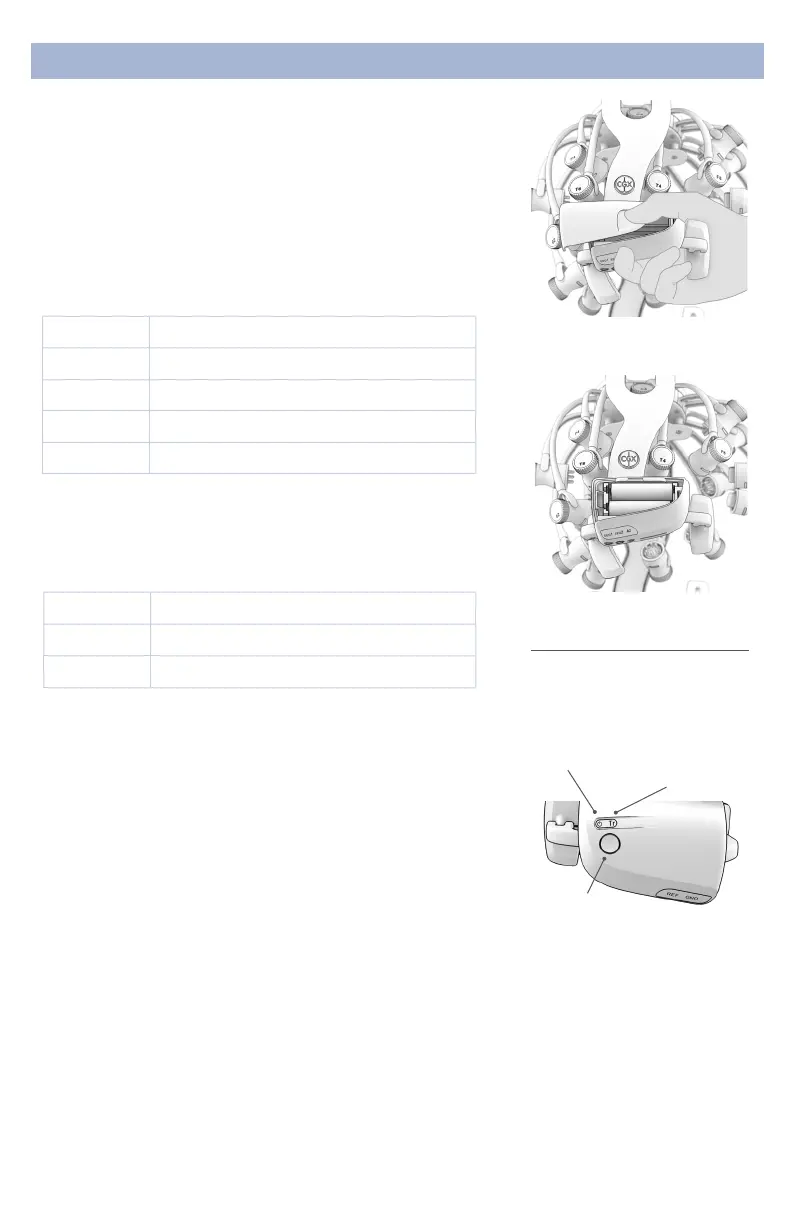
Slide to open battery door
Insert 2 AA batteries as shown
Preparation
5.ChargeAndInsertTheBatteries
Use fresh alkaline batteries, or if using NiMH batteries, fully
charge before using.
• Open the battery door on the A1 handle.
• Place the batteries in the correct conguration following
the markings inside the battery housing.
6.CheckPowerStatusandTriggerStatusLightsOn
TopOfAmplifier
Amplifier
Power
Status
Light
Status light
for optional
Wireless
StimTrigger
Power
Button
7.InsertBluetoothDongle
Plug the dongle into your computer and Windows should
automatically install the correct drivers. Verify driver
installation by checking the Device Manager for problems,
marked by a yellow exclamation mark.
• The dongle is specic to each headset.
• For best performance, ensure a clear line of sight
between the dongle and the front of the headset
If Windows did not successfully install the driver for
the dongle, refer to the FTDI driver installation manual
on our website.
Trigger
The Trigger Status Light is for use with the optional CGX
Wireless StimTrigger, and indicates when the headset is
receiving trigger signals from the StimTrigger unit.
PowerLight Status
O Headset O
Green Headset On
Yellow Low Battery
Red Critically Low Battery (replace immediately)
TriggerLight Status
O Trigger Out Of Range
Blue Trigger In Range


 To Next Page
 Loading...