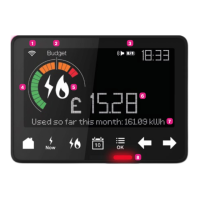
How to connect your
In-Home Display to Wi-Fi
Connecting your In-Home
Display to Wi-Fi will keep
the software updated
automatically
In the future, data sent to your
Bulb account using Wi-Fi will
also give you extra features.
Here’s how to get set up:
Press the icon in the bottom
right corner
Press the right arrow until
you see Settings
Press Settings and then Wi-Fi
Press the white button shape
to activate the connection
Choose the way you’d like to
join Wi-Fi – press:
Scan to scan for Wi-Fi
networks available in your
home – when you’ve found the
name of the one you want,
press it and enter your Wi-Fi
Password in the screen
thatfollows
WPS PIN to generate a code
to enter into the access point
on your router
WPS Push to get the IHD
ready, and then push the WPS
button on the back of your
router, once it’s connected
press OK on your IHD
Network Name to enter the
name of your Wi-Fi network
straight into the IHD – you’ll
be asked to enter your
passwordnext
When the connection is made,
Connected will appear in the
centre of the IHD and you’ll
be able to see the strength
of the signal in the top right
handcorner.
Disconnecting from Wi-Fi
To disconnect your IHD from
Wi-Fi, go back to your Settings
menu and press the Wi-Fi
button. The option to Leave
network is a red button at the
bottom of the screen.



 To Next Page
 Loading...