InstallationmanualChargestormConnected page5
ChargestormAB
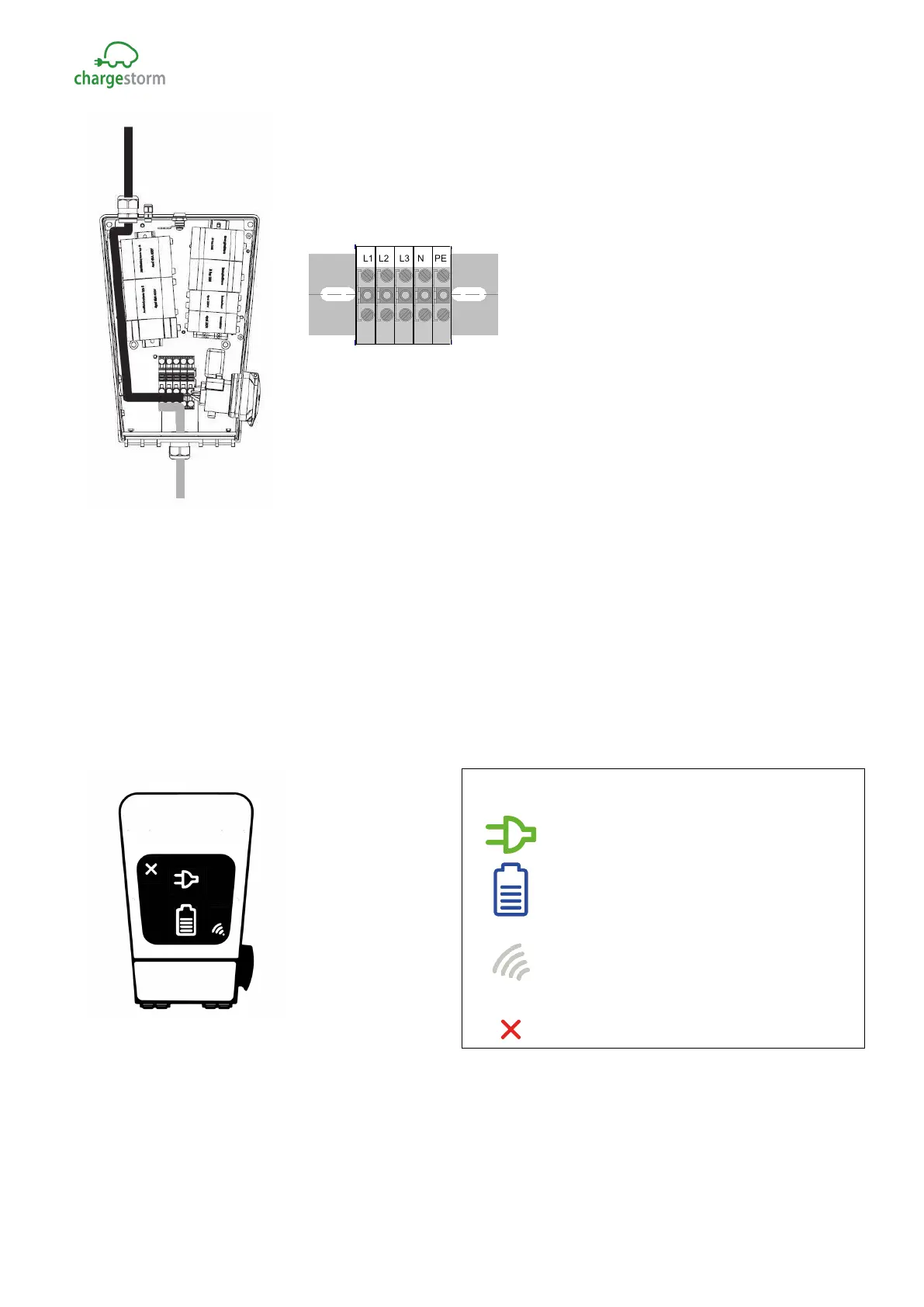
Figure 7 Cable schematics
Cables inside the unit for the supply wires from top to terminal blocks
shall follow the black line while supply wires from the bottom shall follow
the grey line in Figure 7.
Figure 8 Terminal blocks marking
Step 6) Connect network – In case Ethernet is used connect cable to RJ45-connector on the control
board located on the front panel. When cable is connected in both ends shall link and activity led on the
RJ45 connector be active. If 3G is in use, check that the SIM-card is installed on the modem unit on the
control board. Also check that the antenna cable is attached in both ends. See schematics in chapter 11.
Step 7) Test – Activate power from the distribution panel, after closing and locking the charging
station with the key. Do not forget to put the cover on the key-lock. Green connector symbol shall be
active on the front panel after turning on power. Follow directives in chapter 8.
Figure 9 Symbols. Models with double outlets have
two rows of symbols
Available for charging
In use. Fixed blue light when
connected. Pulsing blue light when
RFID- Green –waiting for tag,
blinking yellow – checking tag,
blinking green – tag approved,
blinking red - tag denied
Out of order.
GACELL A/S - Sletten 17 - DK 7500 Holstebro - 961 02 961



 To Next Page