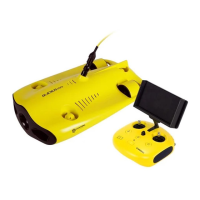
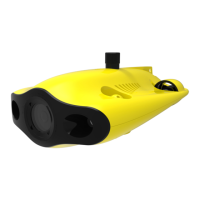
b. A few seconds later, the remote controller’s indicator lights up, 5G or 2.4G light will be always on. The drone LED lights
will flash shortly, accompanied by two self-tests sounds.
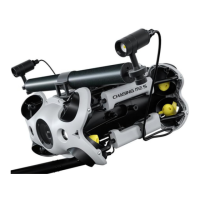
c. Check all the connectors and lights pre-dive, and unlock the ROV when everything is ready underwater.
4. Wi-Fi Connection
a. On the Phone/Tablet, go to Wi-Fi settings.
b. Wait for 5-10 seconds and the Chasing_xxxx network will appear as an option.
c. Click to connect and enter the Wi-Fi password: 12345678
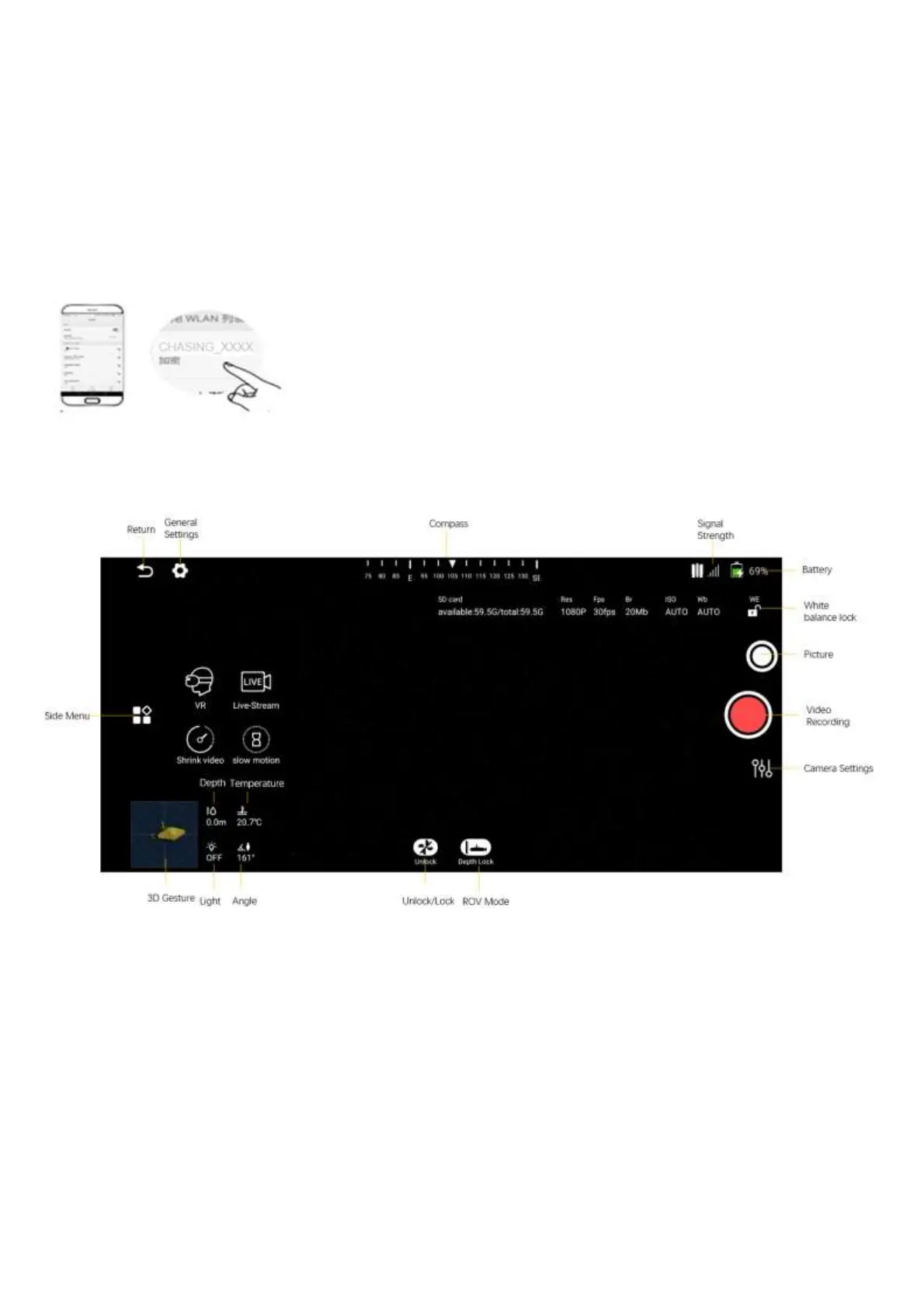
5. App interface Introduction
Open the APP and enter the camera, you will see the real-time scene transmission.
Note:① Note: As the drone will connect to the 2.4G Wi-Fi by default, you can switch to 5G Wi-Fi to get a better experience. (Turn
on 5Ghz in the Settings-ROV, the drone's Wi-Fi will automatically restart, and you may need to re-connect to the Gladius Wi-Fi).
②You could check more guidance videos on the website page https://www.chasing.com/,or you could contact the global support team
with any questions :support@chasing-innovation.com
6. Drop the ROV into Water
a. Grasp the grips on both sides of the ROV with both hands and gently throw the ROV into the water.
b. Unlock the Thruster(motors) to dive.
c. For a better experience, it is recommended to ensure that the water depth exceeds 1 meter.


 To Next Page