Video and Photo Download
Connect Wi-Fi
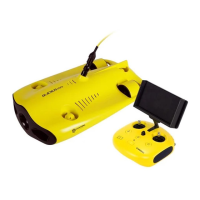
1) Connect the ROV with remote controller by the tether, Switch remote controller power button to on
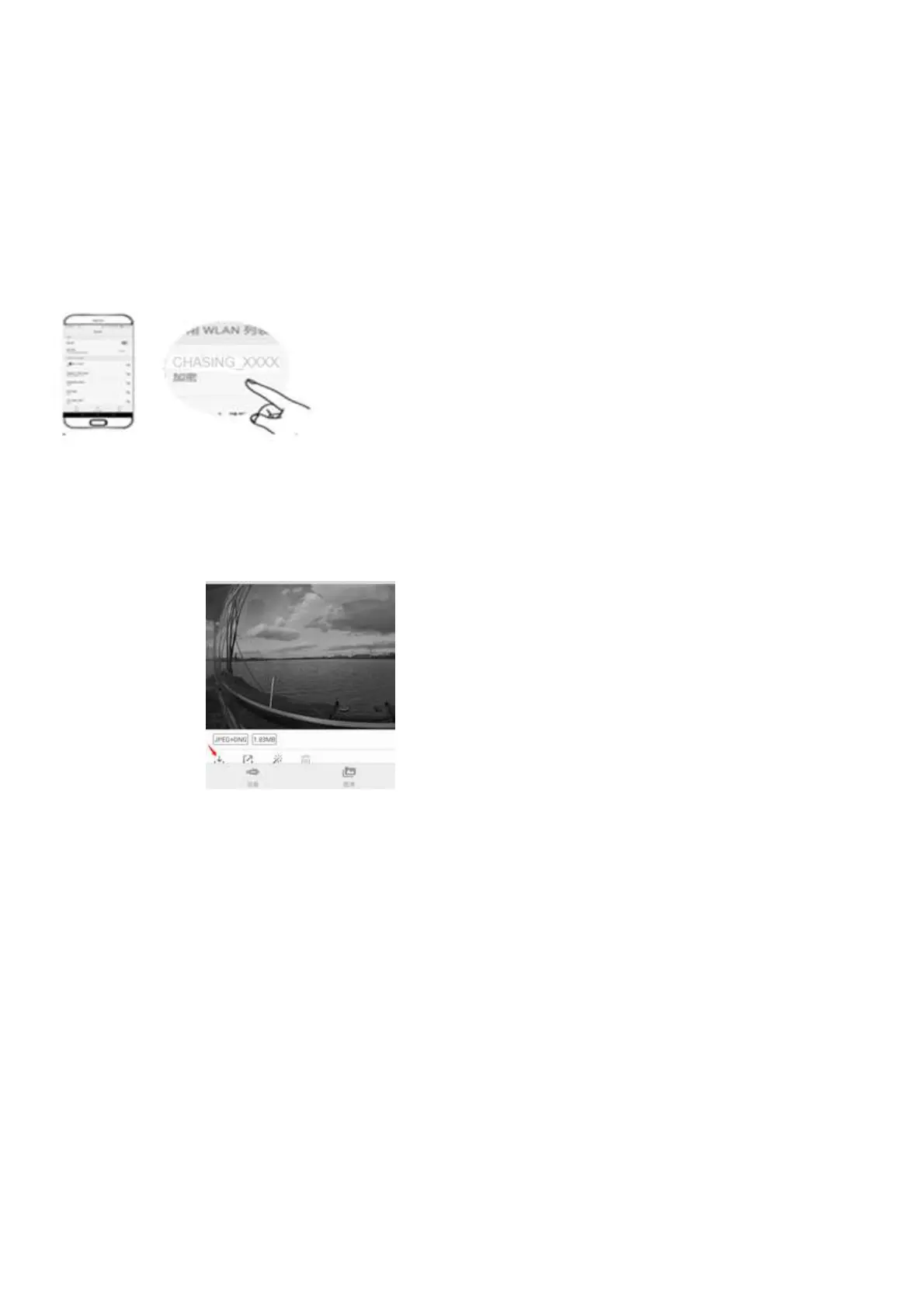
2) Find the M2_xxxxxxxx Wi-Fi on the phone/tablet/laptop Wi-Fi list.
3) Input M2 Wi-Fi Password :12345678
Download to Phone/Tablet
1)Open CHASING GO1 App, click the Media button in the lower right corner.
2)Find the video/photo that you want to download. Click the download button and the image will be saved directly to the
phone/tablet's photo album (Download folder).
Download to Computer (laptop or the computer which could use Wi-Fi)
1) Open the web browser and type IP address:192.168.1.88
2) Find the video/photo that you want to download.Click the download icon and save, then the images will generally save in
the Download folder.
3) It is recommended to use Firefox or Google Chrome browser for better experience.
Micro SD card copy
1) Remove the cover on the SD card socket counter clockwise,then open the waterproof rubber plug,and gently press the SD
card. It will pop up automatically, then remove the SD card.
2) Read the SD card in a Card reader, and copy the images with computer.
3) Insert the SD card back to the SD card socket after copying the images, press gently to ensure the SD
cardandwaterproofrubber plug are locked, and tighten the cover clockwise downward.


 To Next Page