6
4 Deactivating the Windows keys
You can deactivate the Windows keys to
avoid accidentally operating them.
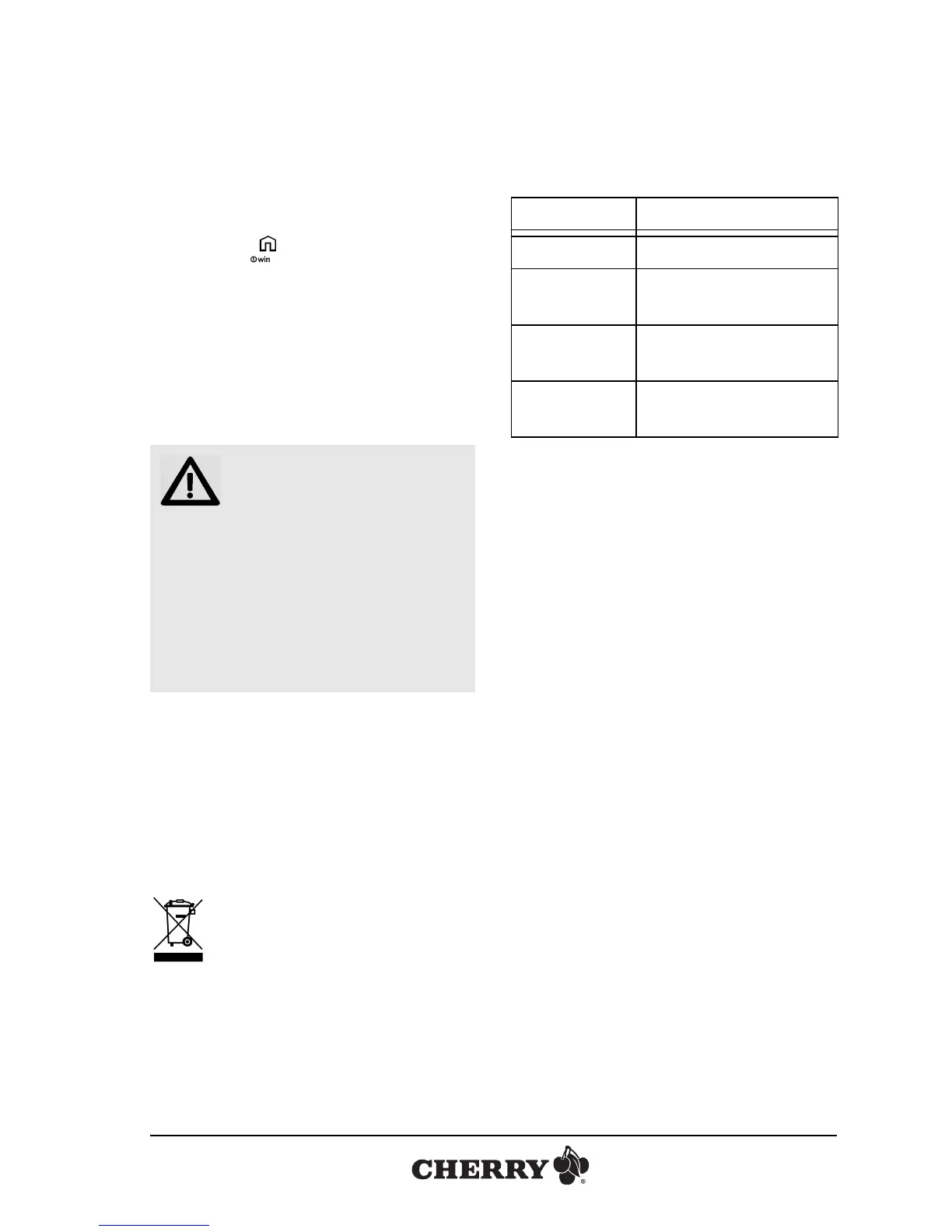
• Press the key above the numeric
keypad and the control key at the same
time.
If the LEDs for the Window keys are
illuminated, they are active, if not then
they are deactivated.
5 Cleaning
1 Unplug the keyboard.
2 Clean the keyboard with a slightly
damp cloth and some mild cleaning
agent (e.g.: dishwashing liquid).
3 Dry off the devices with a soft, lint-free
cloth.
6Disposal
Dispose of the old unit via a col-
lecting point for electronic scrap
or via your dealer.
CAUTION: Damage may be
caused by harsh cleaning
agents or liquids in the
keyboard
• Do not use solutions such as gasoline
or alcohol and scouring agents or
scouring sponges for cleaning.
• Prevent fluids from entering the
devices.
• Do not remove the keycaps of the
keyboard.
7 Technical data
8 Contact
ZF Friedrichshafen AG
Electronic Systems
Cherrystraße
91275 Auerbach
Germany
Internet: www.cherry.de
E-mail: info@cherry.de
Please have the following information on
hand when contacting technical support:
• Item and serial no. of the product
• Name and manufacturer of your system
• Operating system and, if applicable,
installed service pack version
Designation Value
Supply voltage 5.0 V/DC ±5 % SELV
Current
consumption
Max.: 100 mA
Storage
temperature
–20 °C ... +60 °C
Operating
temperature
0 °C ... +50 °C
OPERATING MANUAL
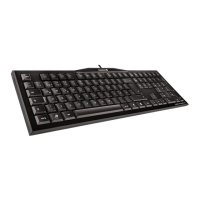
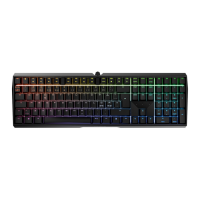
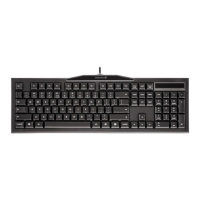
CHERRY MX-BOARD 3.0 // Corded Keyboard




 To Next Page