Keys, Doors, and Windows 29
5. Open the hatch/trunk.
6. Turn the key five times within
10 seconds.
7. The DIC displays READY FOR
REMOTE # 3 or 4, up to 8.
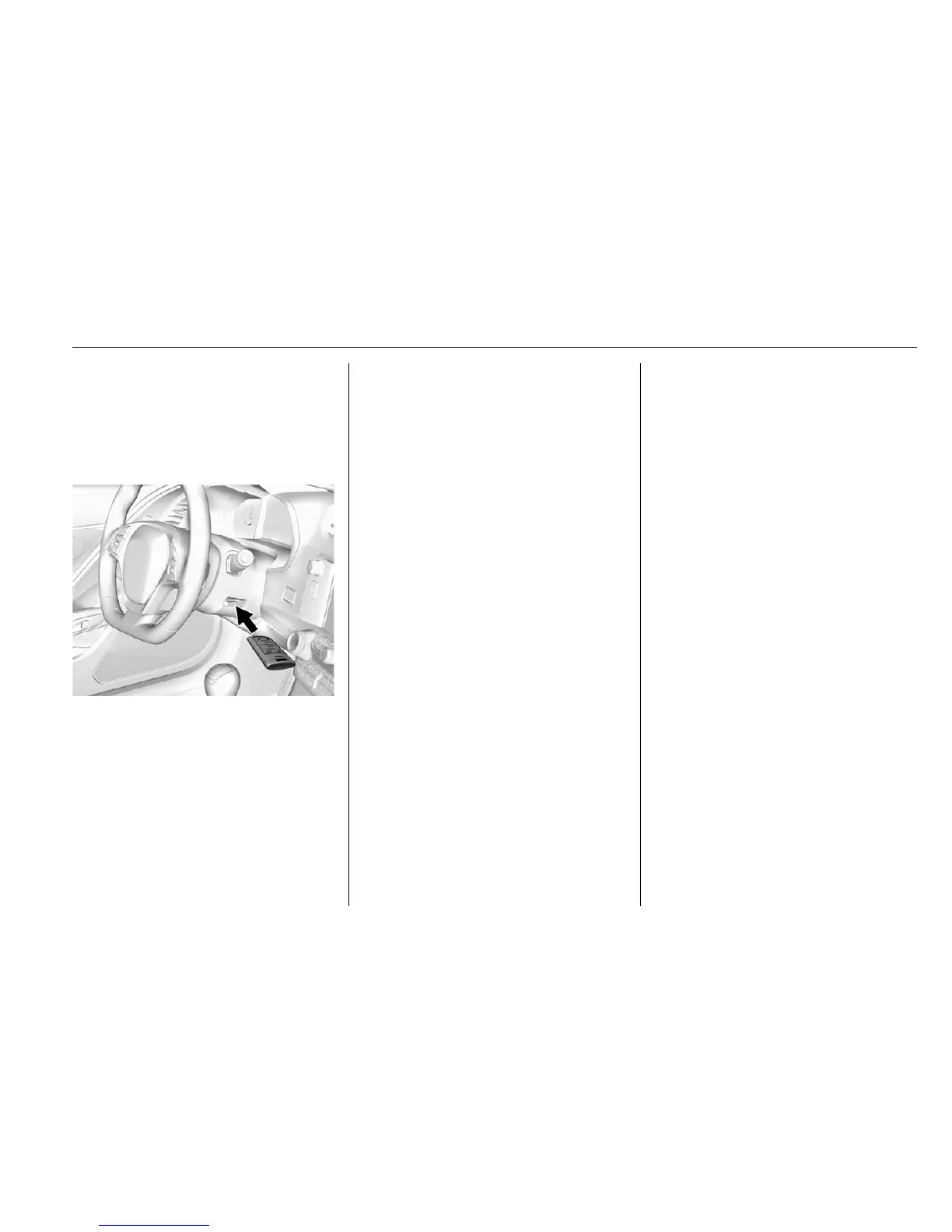
8. Place the new transmitter in
the steering column transmitter
pocket with the buttons facing
up and the base toward the
opening facing the
passenger side.
9. Press the ENGINE START/
STOP button.
10. The DIC displays READY FOR
REMOTE # 4 or 5, up to 8.
11. Press
K on each newly
programmed transmitter to
complete the process.
12. To program additional
transmitters, repeat Steps
8–11. Press and hold the
ENGINE START/STOP button
for 12 seconds if programming
is complete.
Return the key base back into
the RKE transmitter.
Programming without a
Recognized Transmitter
If there are no currently recognized
transmitters available, follow this
procedure to program up to eight
transmitters. This feature is not
available in Canada. This procedure
will take approximately 30 minutes
to complete. The vehicle must be off
and all transmitters to be
programmed must be present.
1. The vehicle must be off.
2. Remove the key from the
transmitter and insert the
vehicle key into the key
cylinder above the license
plate.
3. Open the hatch/trunk.
4. Turn the key five times within
10 seconds.
The DIC message displays
REMOTE LEARN PENDING
PLEASE WAIT.
5. Put the key base back into the
RKE transmitter.
6. Wait for 10 minutes until the
DIC displays PRESS ENGINE
START BUTTON TO LEARN,
then press the ENGINE
START/STOP button.
The DIC reads REMOTE
LEARN PENDING,
PLEASE WAIT.
7. Repeat Step 6 two additional
times. After the third time all
previously known transmitters
will no longer work with the
vehicle. Remaining transmitters
can be relearned during the
next steps. The DIC display
should now show READY FOR
REMOTE #1.













 To Next Page