Infotainment System 7-51
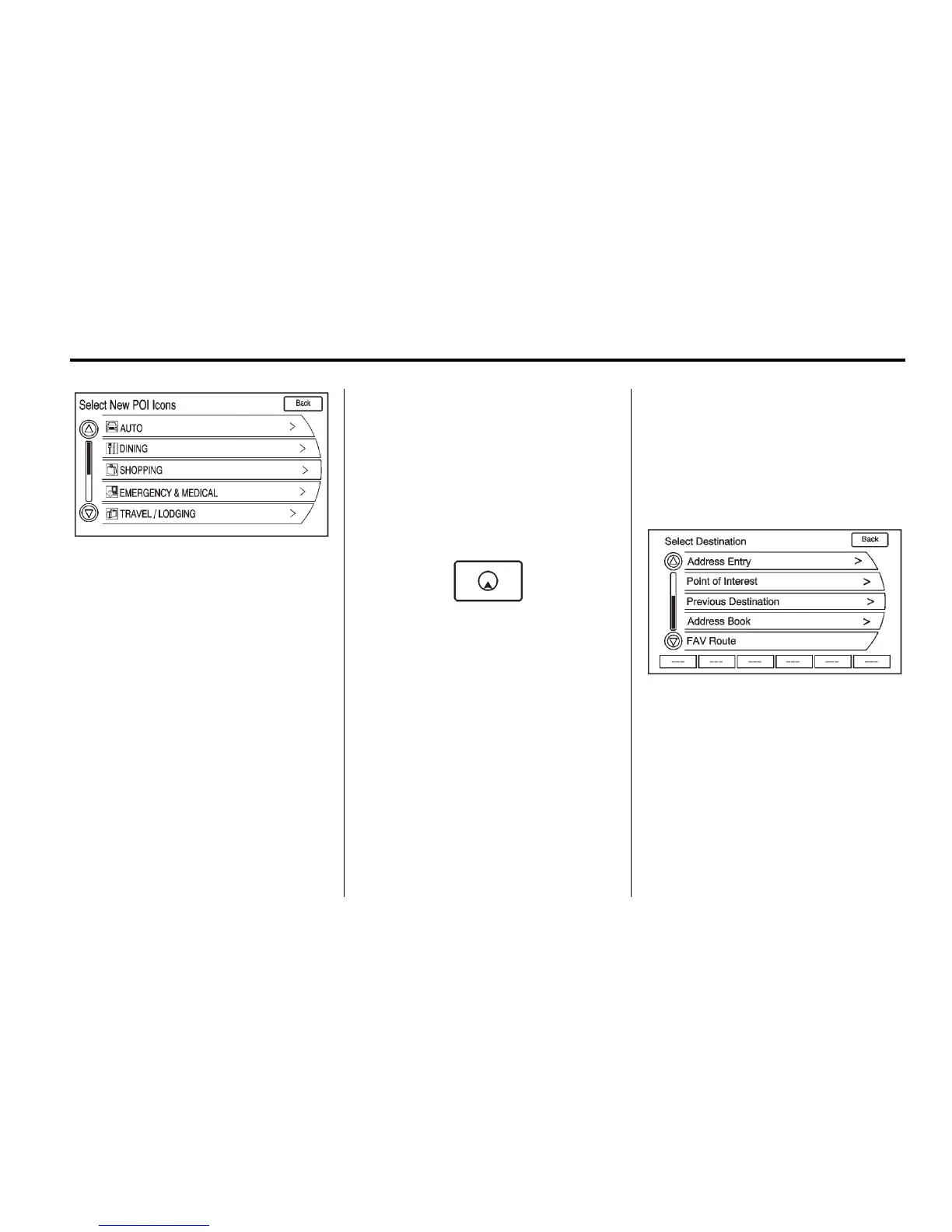
2. Select the new POI icon.
3. The new icon is on the Show
POI Icons menu.
List: Displays all available POIs.
Clear: Clears all selected POIs.
Nearby: Displays up to 200 of the
selected POIs within 32 km (20 mi)
of the current vehicle position.
The POIs can be sorted by
distance, icon, or type.
Hide: Press to hide the POIs from
view on the map. To display, go to
the Map menu, press the Show POI
Icons menu and press the Show
option. See “Map Screen Options”
earlier for more information on
showing the POIs.
Press this button to change the full
map screen to the half map screen
and half exit information.
Traffic: Press to provide nearby
traffic information and traffic events
on the planned route.
Whole Route: Press to choose
options for the entire route.
Cancel Guidance: Press to cancel
guidance of the current route.
Destination
While destination is not set, press
the DEST button to access the
Select Destination screen. Several
options can be selected to plan a
route by entering destinations.
Address Entry
Set a route by entering the
state/province name, city name,
street name, and house number.
State/Province: Enter a
state/province name.
City: Enter a city name.
Street Name: Enter a street name.
House #: Enter a valid address
number.













 To Next Page