Infotainment System 7-63
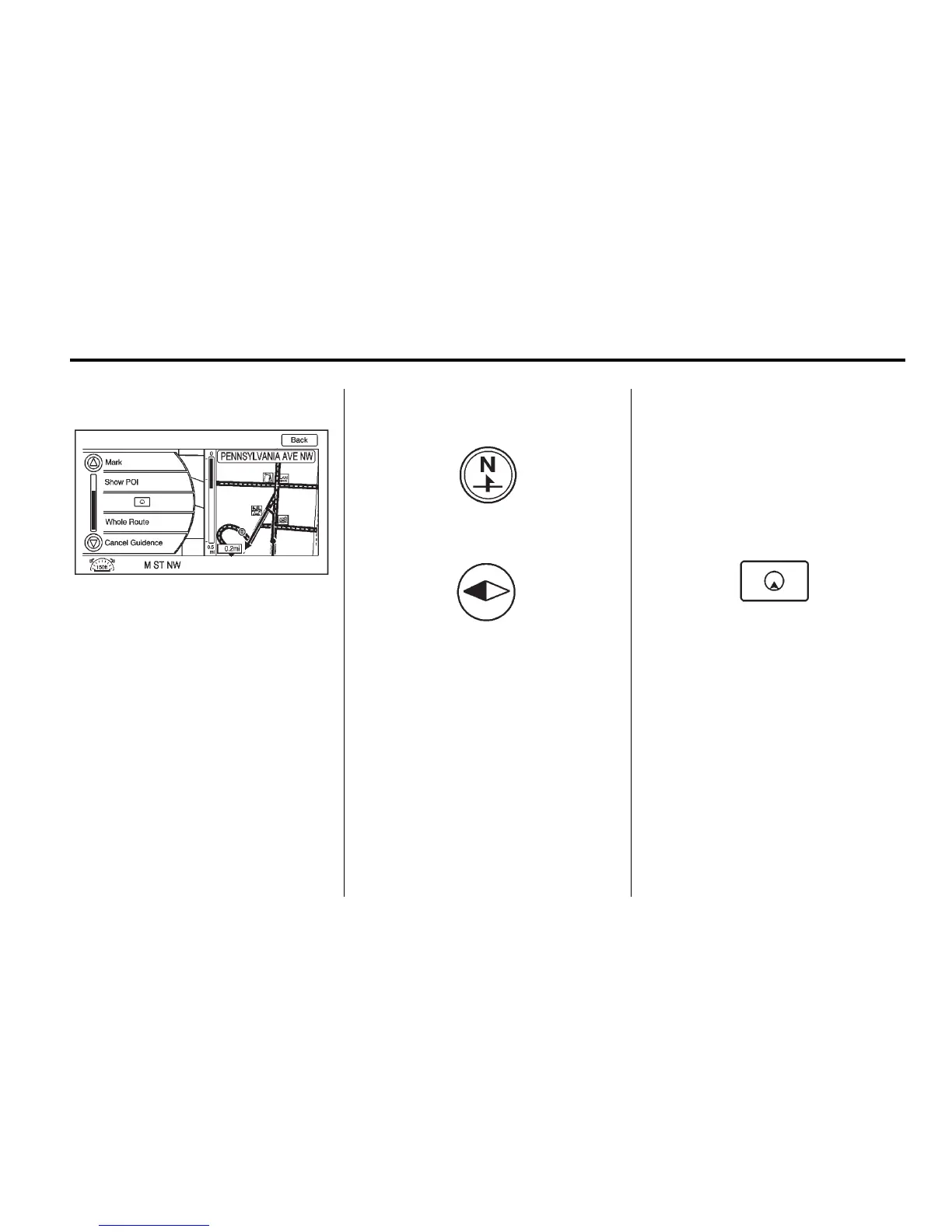
Menu Screen Button
Various navigation system settings
are available through the Menu
screen button. Some options are
only available after a route is
planned.
1. Press the NAV button to view
the Map screen.
2. Press the Menu screen button
or the TUNE/MENU knob on the
faceplate.
Map Heading
Press to change the view to
North-up, Heading-up, or 3-D mode.
See Navigation Symbols on
page 7‑47 for more information.
Traffic: Press to view the Traffic
Information screen. See Configure
Menu on page 7‑66 for more
information.
Save: Press to save a location to
the address book.
Show POI: Press to display
POI icons to be shown on
the map. Select from a list
of six pre-programmed POI
sub-categories. Scroll through
a list of categories, or select
nearby and on route options.
Press this screen button to minimize
the guidance window and expand
the map window.
Whole Route: Press to view the
entire route from starting point to
destination on the map.
Cancel Guidance: Press to stop
the current route.














 To Next Page